How to Use Frequency Capping for Email, WhatsApp, and SMS Campaigns in ZEPIC
Frequency capping helps you control how often a recipient receives campaign messages from your business. Set a maximum number of messages within a time period to reduce overlapping outreach and avoid overwhelming your audience.
This guide explains how to configure frequency capping for Email, WhatsApp, and SMS campaigns in ZEPIC, how the limits work, and when to use a campaign-level bypass.
Table of Contents
- Before You Begin
- What Is Frequency Capping?
- How to Set Up Frequency Capping in ZEPIC
- How the Time Period Works
- How to Bypass the Cap for a Specific Campaign
- Frequency Capping Use Cases for Your Business
- Best Practices
- FAQs
- Explore Related Articles
Before You Begin
- An active ZEPIC account on a plan that includes Frequency Capping.
- The Email, WhatsApp, or SMS channel configured for your campaigns.
- Permission to manage frequency-cap settings. Eligible Owner, Admin, and Manager roles can change settings; Author, Support, and Analyst roles are read-only.
- Permission to edit the relevant campaign if you want to change its bypass setting.
What Is Frequency Capping?
Frequency capping sets a shared message limit for a recipient across campaigns within the same channel. It applies to broadcast campaigns and campaign-based messages sent through Flows.
Example: You enable an SMS cap of five messages within 24 hours. Different SMS campaigns share that allowance for the same phone number. Once the limit is reached, additional campaign messages are skipped while the cap remains in effect.
| Setting | What It Controls |
|---|---|
| Enable frequency capping | Turns the cap on or off for the selected channel. |
| Maximum messages per recipient | The configured message limit, from 1 to 100. |
| Time period | The interval for the cap, from 1 minute to 30 days. |
Note: Email, WhatsApp, and SMS each have separate limits. There is no combined cross-channel cap. Reaching the SMS limit does not use up the recipient’s Email or WhatsApp allowance.
How to Set Up Frequency Capping in ZEPIC
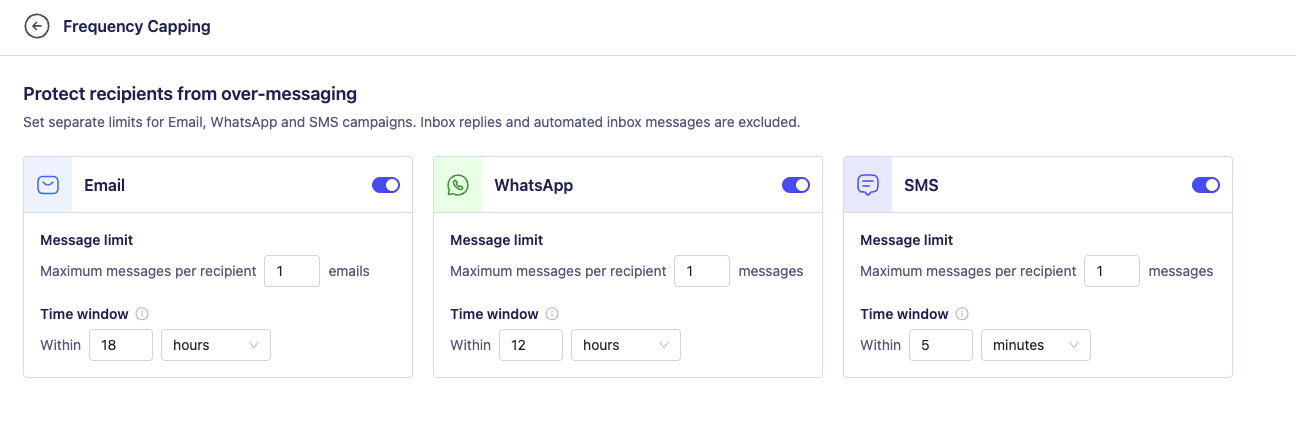
1. Open Frequency Capping Settings
Go to Settings → General → Frequency Capping.
2. Select the Channel
Choose Email, WhatsApp, or SMS. Configure each channel separately according to your communication strategy.
3. Enable Frequency Capping
Turn on frequency capping for the selected channel. Capping is off by default; the initial suggested configuration is five messages within 24 hours.
4. Set the Message Limit and Time Period
Enter the maximum messages per recipient and choose the time period. For example, you could allow up to three WhatsApp campaign messages within 24 hours.
Use a whole-number message limit between 1 and 100 and a time period between 1 minute and 30 days. Zero, negative, and incomplete limits are not valid.
5. Review and Save
Check the selected channel, message limit, and time period, then save your settings. Campaigns in that channel follow the enabled organisation-level rule unless they have an authorised bypass.
Changes do not recall messages already sent. Review active campaigns and Flows before adjusting your rules.
How the Time Period Works
The time period starts separately for each recipient when their first counted campaign send attempt occurs. Later attempts within that period do not move its expiry time.
Example: With a 24-hour period, a recipient’s first counted attempt at 10:00 AM starts a window that expires at 10:00 AM the next day. Another attempt at 3:00 PM does not extend that window.
This is not a midnight reset or a sliding window in which each message expires separately.
Important: If a recipient reaches the limit, ZEPIC skips their message for the current campaign send. Frequency capping does not queue that message for automatic delivery after the period ends.
The allowance is based on the destination email address or phone number, not just the contact record. Records using the same destination share an allowance within the same channel. Different destinations have separate allowances.
How to Bypass the Cap for a Specific Campaign
You can exempt a particular campaign without changing your organisation’s channel settings.
- Open the Email, WhatsApp, or SMS campaign you want to configure.
- Find Frequency capping in the campaign setup or review screen.
- Enable Bypass frequency cap for this campaign.
- Save the campaign. If you are editing a draft for a live campaign, publish the draft through the campaign’s normal process for the change to take effect.

Bypass is off by default. When enabled, the campaign can send even if a recipient has reached the channel’s cap, and its messages do not consume that cap allowance.
Important: Bypass does not override opt-outs, subscription preferences, consent requirements, suppression lists, or channel restrictions. Use it only when the campaign genuinely needs an exception.
A campaign bypass is an on/off exception. It does not let you define a different message limit or time period for that campaign.
Frequency Capping Use Cases for Your Business
- Coordinate overlapping promotions: A fashion retailer uses an Email cap to prevent a newsletter, sale campaign, and promotional Flow from creating excessive outreach to the same address.
- Manage automated messaging: A travel brand sets a WhatsApp cap across campaign-based Flows so that customers entering multiple journeys do not receive too many messages.
- Control SMS frequency: A D2C brand applies an SMS cap to balance product launches and seasonal offers.
- Handle an approved exception: A team enables bypass for a specific time-sensitive campaign after checking its relevance, consent requirements, and audience.
Best Practices
- Set limits by channel: Choose a frequency that suits how your customers use Email, WhatsApp, and SMS rather than applying one rule everywhere.
- Review campaigns and Flows together: They share the channel allowance when campaign-based sending is used.
- Keep bypass exceptional: Exempting every campaign removes the protection your global settings provide.
- Monitor audience response: Review unsubscribes, complaints, and engagement alongside your send schedule.
- Use suppression lists for explicit exclusions: Frequency capping controls how often you send; suppression lists control which records should be left out of a campaign.
- Keep consent checks in place: A recipient being under the cap does not mean they have consented to receive a message.
FAQs
Does frequency capping apply across different campaigns?
Yes. Campaigns share the recipient’s allowance within the same channel and organisation, unless a campaign has bypass enabled.
Does it apply to messages sent through Flows?
Yes, when the Flow sends through an Email, WhatsApp, or SMS campaign. It is not a blanket cap on every individual-message action.
Are Inbox replies and automated Inbox messages capped?
No. Inbox replies and Inbox automated messages are excluded from campaign frequency capping. Normal messaging rules still apply.
Do test sends consume the allowance?
No. Genuine campaign test sends are exempt from frequency capping.
Will a skipped message be sent automatically later?
No. A message skipped because of frequency capping is not queued for later delivery by this feature.
Does the limit reset at midnight?
No. The time period is anchored to each recipient’s first counted campaign attempt, not a calendar-day boundary.
Does bypass change the settings for other campaigns?
No. Bypass applies only to the campaign where it is enabled. Other campaigns continue to follow the organisation’s enabled channel rule.
Is the cap an exact count of delivered messages?
No. Frequency capping is checked during campaign send attempts; it is not a delivery report. Provider failures and their processing can affect the allowance. Use campaign analytics to review actual delivery.
What happens if I disable frequency capping?
The selected channel stops applying its cap. Its saved message limit and time period are preserved so you can enable the rule again later.
Explore Related Articles
Was this article helpful?
That’s Great!
Thank you for your feedback
Sorry! We couldn't be helpful
Thank you for your feedback
Feedback sent
We appreciate your effort and will try to fix the article