Tracking SMS Conversions and Campaign Revenue in ZEPIC
This guide covers how to track SMS conversions and campaign revenue in ZEPIC, so you can see which texts are actually driving sales. Revenue tracking for SMS in ZEPIC is designed to help e-commerce, D2C, and travel brands move past open and click rates, and see the sales each channel and campaign actually brings in.
Table of Contents
- • Before You Begin (Prerequisites)
- • Why Track SMS Conversions and Revenue?
- • How to View SMS Conversions and Revenue in ZEPIC
- • What to Expect From the Revenue Report
- • Revenue Tracking Use Cases for Your Business
- • FAQs
- • Explore Related Articles
Before You Begin
- • An active ZEPIC account with the SMS channel enabled and at least one SMS campaign sent.
- • Your Shopify store connected to ZEPIC, or another source sending conversion data through a webhook.
- • Revenue Attribution configured for your account, so conversions can be matched back to a campaign.
- • Access to the Reports section of your ZEPIC dashboard.
Why Track SMS Conversions and Revenue?
Tracking SMS conversions and revenue lets you compare SMS against email and WhatsApp on the same basis, decide which campaigns are worth repeating, and spot where extra investment, such as a larger SMS budget or a longer send list, would pay off.
Because the Revenue report is a default report in ZEPIC, you do not need to build or generate it yourself before you can start reading it.
How to View SMS Conversions and Revenue in ZEPIC
1. Connect Your Conversion Source: Connect your Shopify store to ZEPIC, or confirm the webhook you are using sends order and conversion data as it happens.
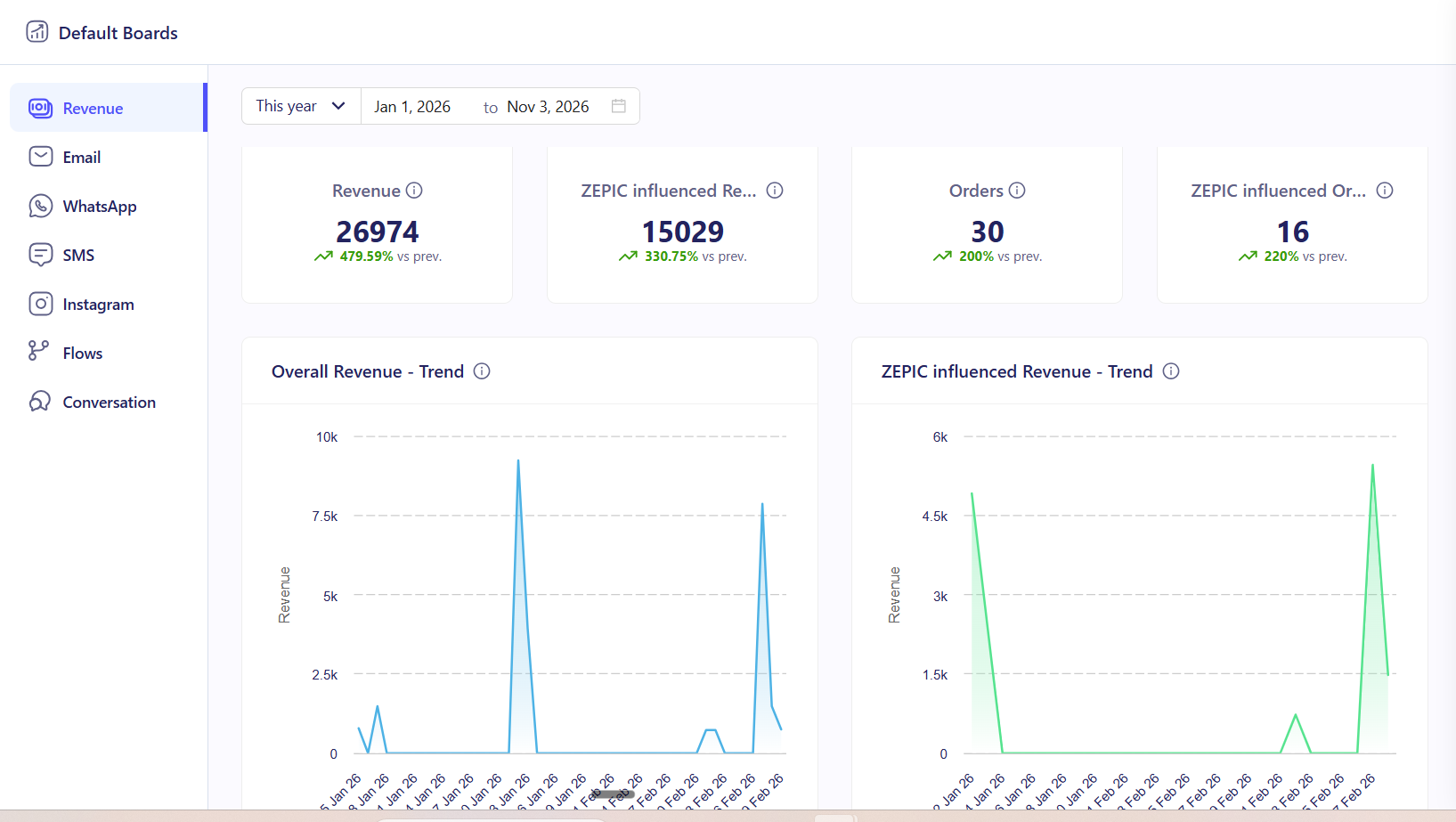
2. Open the Reports Section: Navigate to Reports in the sidebar of your ZEPIC dashboard.
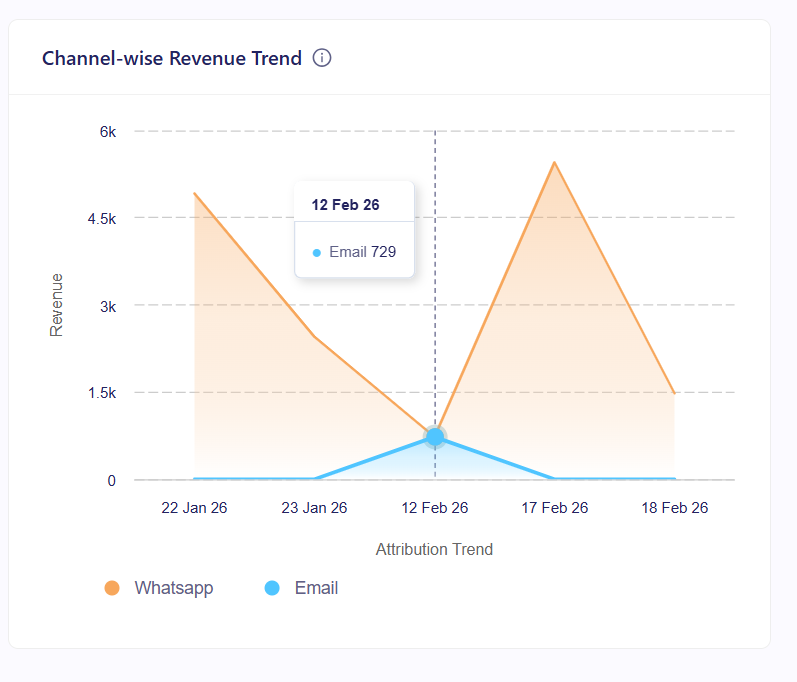
3. Open the Revenue Tab: Select the Revenue tab, where conversions and revenue are already broken out by channel, including SMS, without any extra setup.
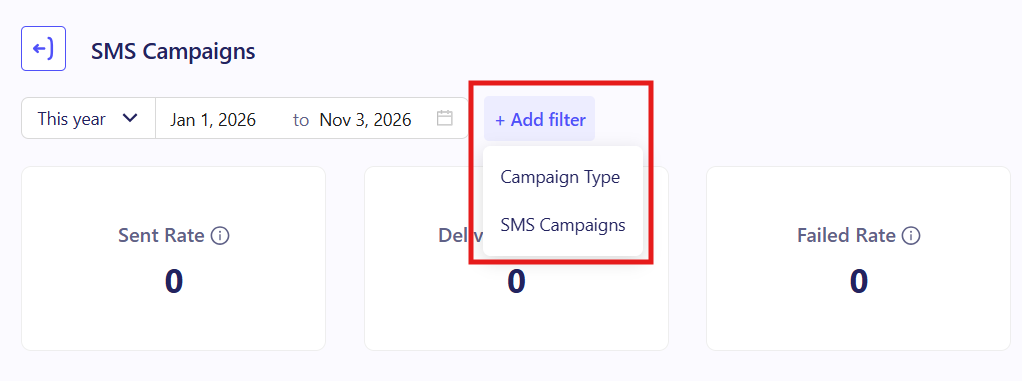
4. Filter to SMS Campaigns: To view delivery and opens for specific campaigns check SMS tab, then drill into an individual campaign to see its conversions and revenue on their own.
5. Compare and Decide: Compare SMS against email and WhatsApp, and compare individual SMS campaigns against each other, to see which ones are worth repeating or scaling.
What to Expect From the Revenue Report
Once you open the Revenue tab, your business can see exactly how much SMS, email, and WhatsApp each contributes to sales.
Your team does not need to build a custom report or export data to compare channels, meaning that revenue by channel and by campaign is ready the moment a conversion is attributed, so decisions on budget and send volume are based on results, not guesses.
Revenue Tracking Use Cases for Your Business
- • Channel Comparison for Budget Decisions: A D2C skincare brand compares SMS revenue against email and WhatsApp for the same month, then shifts more budget toward whichever channel converted best.
- • Campaign-Level ROI: A fashion retailer compares two SMS flash sale campaigns sent a month apart, then repeats the format that generated more revenue per message sent.
- • Justifying Additional Investment: A travel agency uses strong SMS conversion numbers from a booking reminder campaign to justify connecting a second SMS provider for a new market.
- • Spotting Underperforming Campaigns: A retail chain notices one SMS campaign drove clicks but little revenue, and uses that to rework the offer before the next send instead of repeating it as is.
FAQs
Do I need to set up the Revenue report myself?
No. The Revenue report is a default report in ZEPIC, so it is ready to view in the Reports section without any extra setup.
How does ZEPIC know an SMS campaign led to a sale?
Through your Shopify integration or a connected webhook, which attributes clicks and conversions back to the ZEPIC campaign that sent them.
Can I compare SMS revenue against other channels in the same report?
Yes. The Revenue tab breaks conversions down by channel, including SMS, email, and WhatsApp, so you can compare them side by side.
Explore Related Articles
Was this article helpful?
That’s Great!
Thank you for your feedback
Sorry! We couldn't be helpful
Thank you for your feedback
Feedback sent
We appreciate your effort and will try to fix the article