How to View and Track Incoming SMS Conversations in ZEPIC
SMS conversation tracking in ZEPIC is designed to help e-commerce, D2C, and travel brands keep replies organized, so support and marketing teams can find, filter, and act on them quickly. This guide covers how to view and track incoming SMS replies in the ZEPIC Team Inbox, so your team always knows which campaign a conversation came from.
Table of Contents
- • Before You Begin (Prerequisites)
- • What Is SMS Conversation Tracking?
- • How to View and Track SMS Conversations in ZEPIC
- • What to Expect After Setup
- • Tracking Use Cases for Your Business
- • FAQs
- • Explore Related Articles
Before You Begin
- • An active ZEPIC account with the SMS channel enabled and a provider connected.
- • Team Inbox access for the people who need to view and respond to conversations.
- • Auto-tagging rules set up in advance for the SMS campaigns you plan to run.
- • Customers who have opted in to SMS, with phone numbers saved in their profiles.
What Is SMS Conversation Tracking?
SMS conversation tracking is how incoming replies land in the ZEPIC Team Inbox and get labeled, so a reply is never just a message; it is also tied back to the campaign that caused it.
Auto-tagging rules, set up in advance for each SMS campaign, apply a tag to every reply that comes in, so your team can see at a glance whether a text is about a sale, a delivery update, or a support question.
Because the Team Inbox holds every channel together, you can filter to SMS only when you need to focus on text conversations alongside WhatsApp and Instagram.
How to View and Track SMS Conversations in ZEPIC
1. Set Up Auto-Tagging (Optional): Before launching a campaign, open its settings and add an auto-tag, so every reply it generates is labeled the moment it arrives (e.g., tagging a flash sale campaign as Flash Sale).
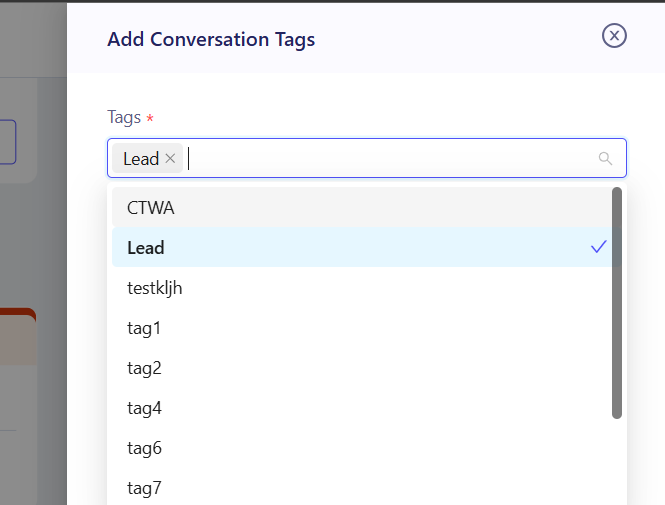
2. Launch Your Campaign: Send or trigger the SMS campaign as usual, with the auto-tag already in place to catch replies.
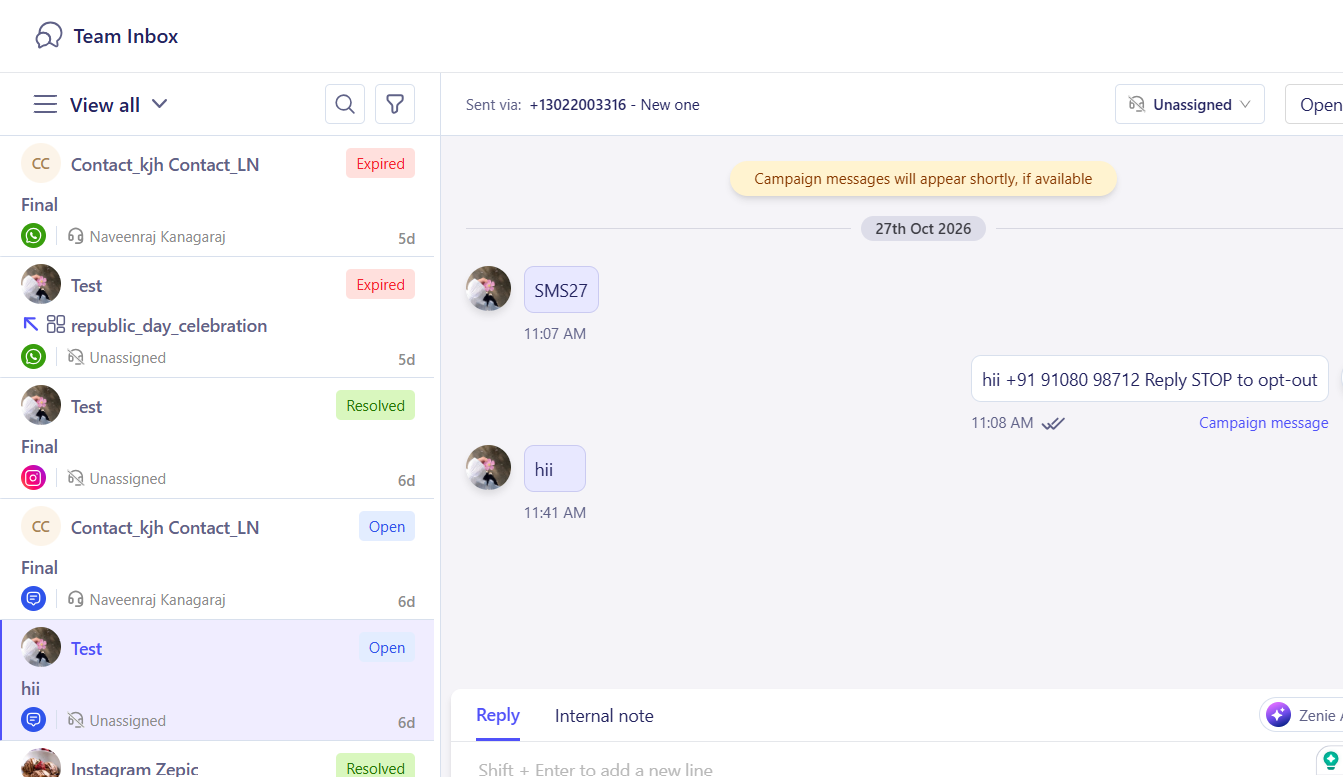
3. Open the Team Inbox: Navigate to the Team Inbox, where incoming conversations from SMS, WhatsApp, and Instagram appear together as they come in.
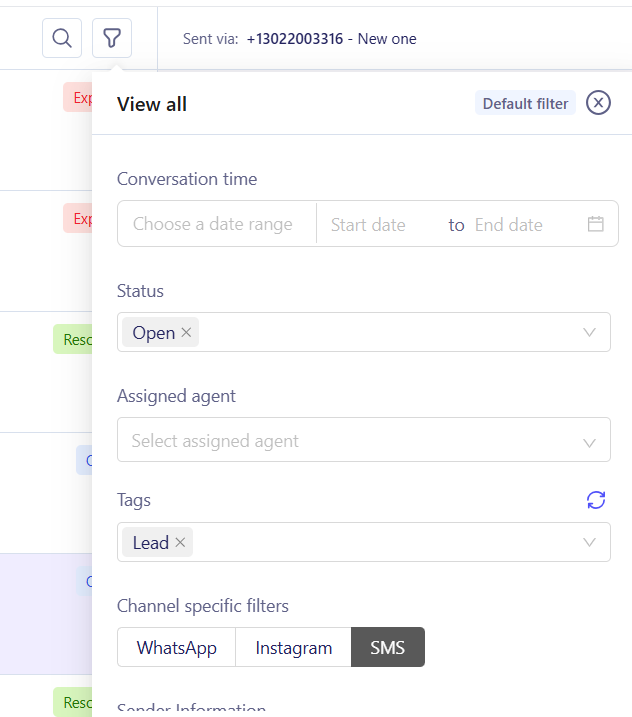
4. Filter to SMS: Apply the channel filter to show SMS only, then narrow further by tag (if auto-tagging is set up) to find replies from a specific campaign.
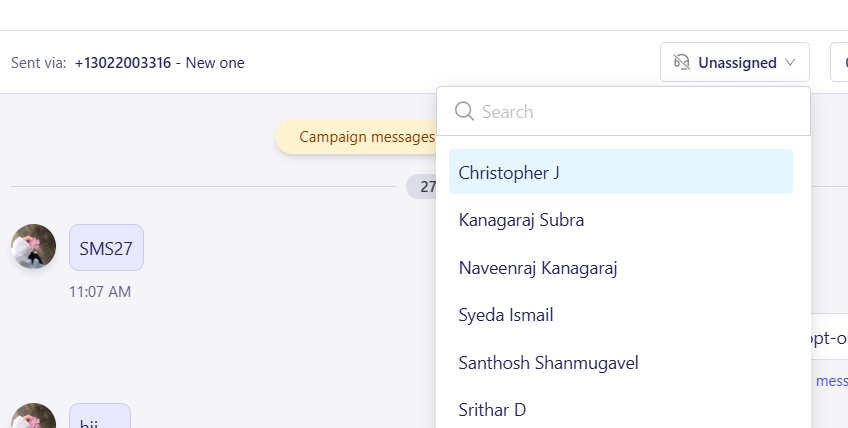
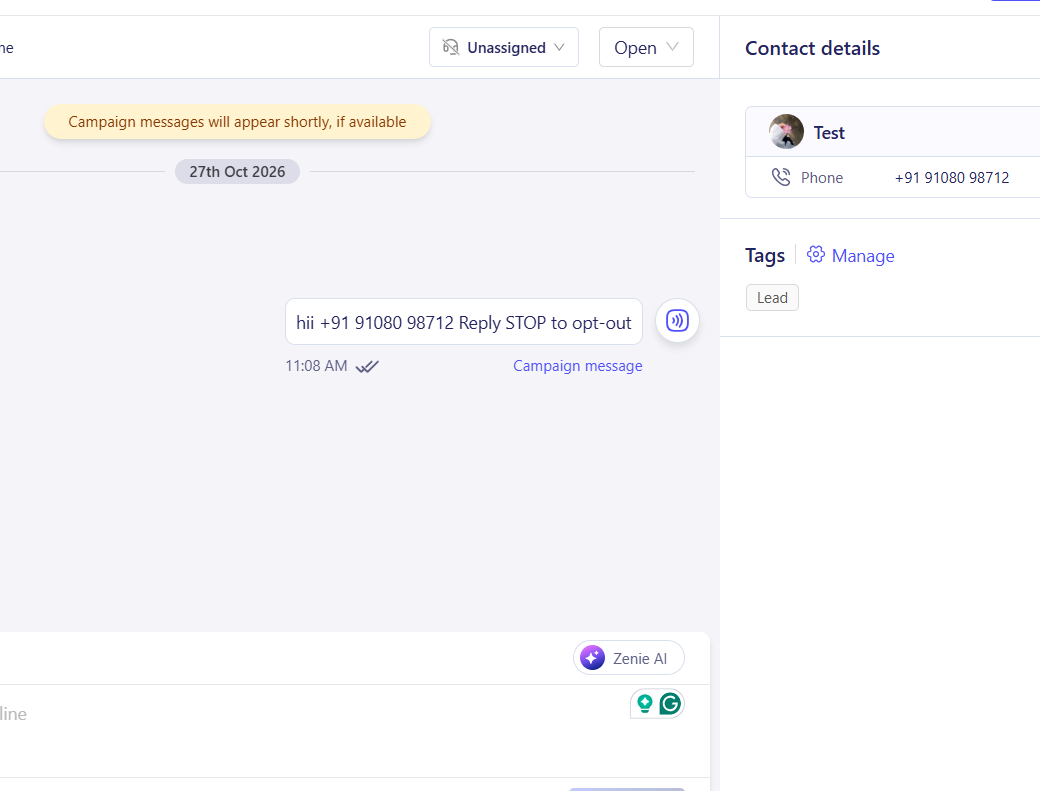
5. Assign and Respond: Assign a conversation to a team member, or reply directly, so every tagged message gets handled and tracked to resolution.
What to Expect After Setup
Once auto-tagging is set up for your SMS campaigns or trigger-based SMS, your business can see exactly which campaign is generating which conversations. Your team does not need to guess where a reply came from or search through every channel, meaning that SMS conversations stay organized by campaign, while the Team Inbox shows what still needs a response.
Tracking Use Cases for Your Business
- • Promotion Performance: A D2C skincare brand tags replies from a flash sale text, then filters to that tag to see how many customers asked about the offer versus how many simply replied Stop.
- • Support Routing: A retail chain filters SMS replies tagged Delivery Update to route shipping questions straight to its logistics team instead of general support.
- • Booking Confirmations: A travel agency tags replies from its booking confirmation texts, so agents can filter straight to guests confirming or changing a trip.
- • Campaign Comparison: A fashion retailer compares reply volume across two differently tagged campaigns in the same week, filtering to SMS only to see which message drove more conversation.
FAQs
Can I filter the Team Inbox to show only SMS conversations?
Yes. You can apply a tag filter to view SMS replies on their own, separate from WhatsApp and Instagram conversations.
Do I need to set up auto-tagging before every campaign?
Yes. Auto-tagging is set up at the campaign level, so each campaign needs its own tag in place before it sends to label the replies it generates.
Do I need coding experience to track SMS conversations?
No. Auto-tagging, filtering, and assigning conversations all happen inside the Team Inbox without writing code.
Explore Related Articles
Was this article helpful?
That’s Great!
Thank you for your feedback
Sorry! We couldn't be helpful
Thank you for your feedback
Feedback sent
We appreciate your effort and will try to fix the article