How to Assign Incoming SMS Messages to Agents in ZEPIC
This guide covers how to assign incoming SMS replies to the right agent in the ZEPIC Team Inbox, so every conversation reaches someone who can act on it. SMS assignment in ZEPIC is designed to help e-commerce, D2C, and travel brands route replies by campaign and topic, so agents only see the conversations suited to their role.
Table of Contents
- • Before You Begin (Prerequisites)
- • Why Assign SMS Replies to Specific Agents?
- • How to Assign SMS Messages to Agents in ZEPIC
- • What to Expect After Setup
- • Assignment Use Cases for Your Business
- • FAQs
- • Explore Related Articles
Before You Begin
- • An active ZEPIC account with the SMS channel enabled and a provider connected.
- • Team Inbox access for every agent who needs to receive and respond to conversations.
- • Auto-tagging rules set up in advance for the SMS campaigns or sequences you plan to run.
- • A clear sense of which agents or teams should handle which type of reply.
Why Assign SMS Replies to Specific Agents?
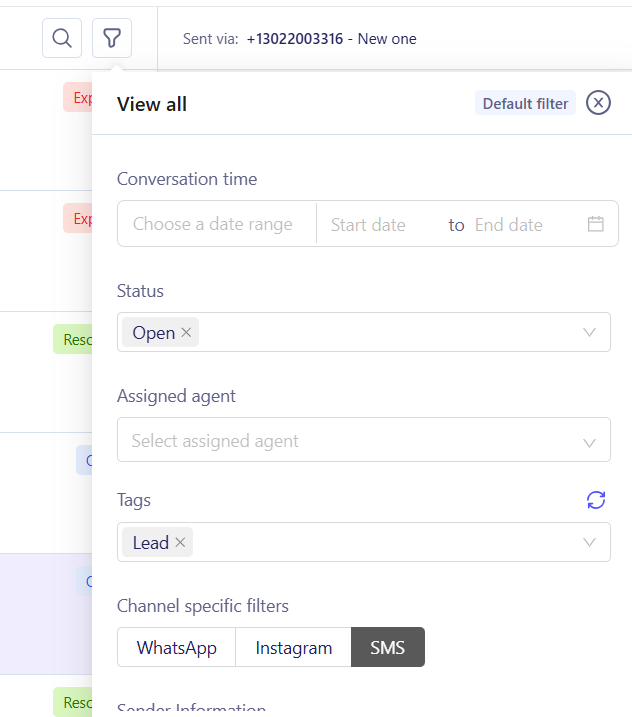
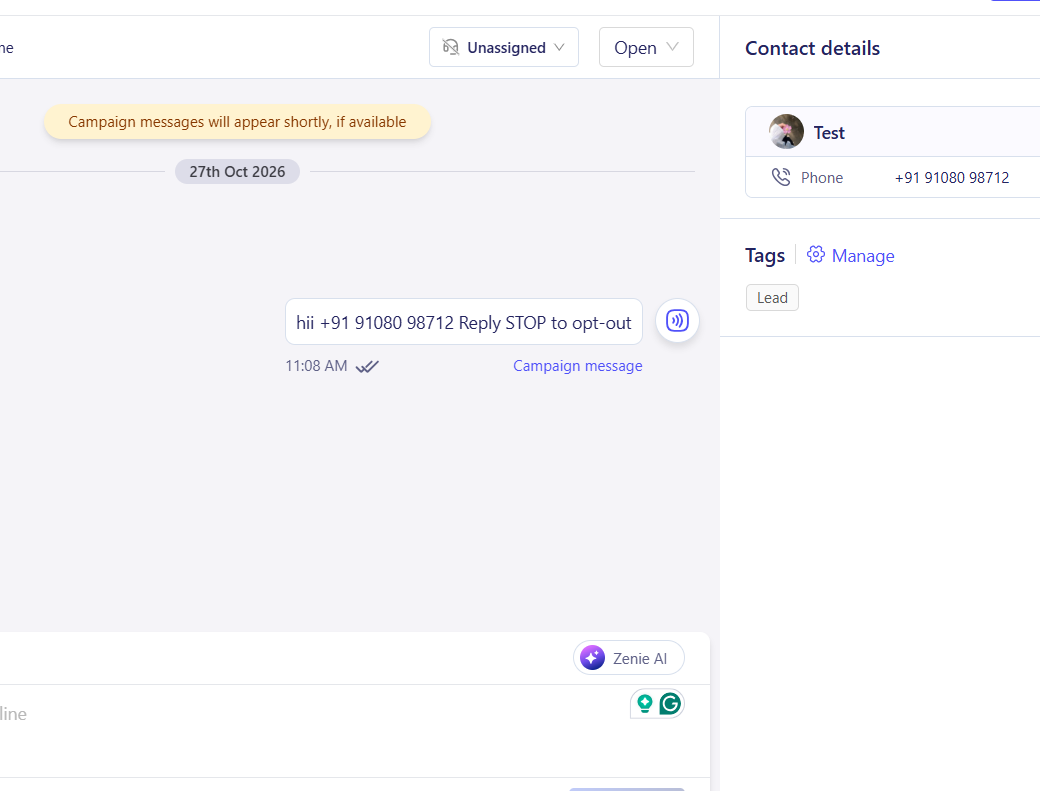
In the ZEPIC Team Inbox, you can filter to SMS only, then narrow further using the auto-tags set up for each campaign or sequence, so replies are already organized before you assign them.
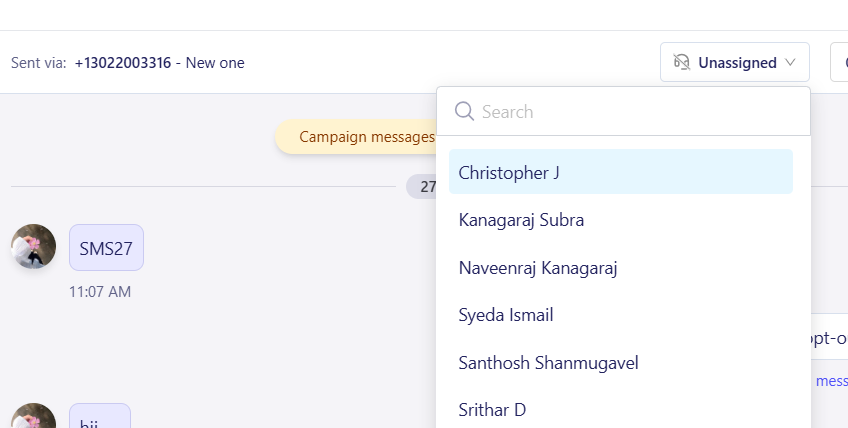
A dropdown in the conversation view lets you assign quickly, and you can leave an internal note for the agent or add a manual tag if the auto-tag does not cover it.
Not every SMS reply needs the same person; a question about a delivery suits support, while a reply to a promotion often suits sales, so assigning conversations keeps each one with the agent best placed to answer it.
How to Assign SMS Messages to Agents in ZEPIC
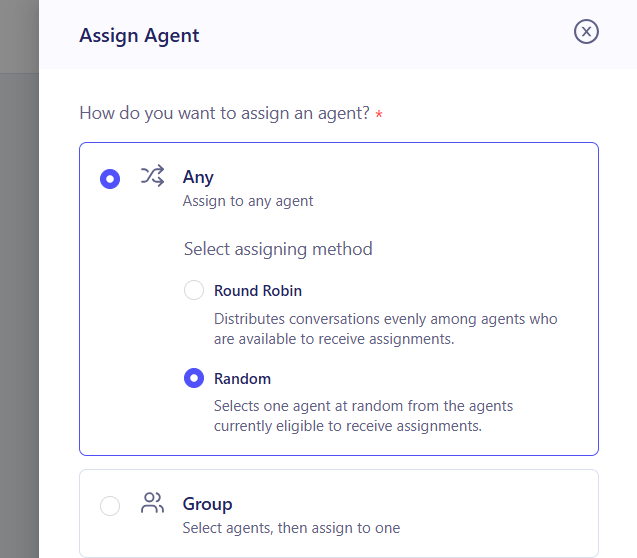
1. Set Up Auto-Assign (Optional): Before launching a campaign or sequence, add an auto-assign so every reply it generates is assigned as soon as the response as soon as it comes in.
2. Open the Team Inbox: Navigate to the Team Inbox and filter to SMS only, so you are working with text conversations alongside any auto-tags already applied.
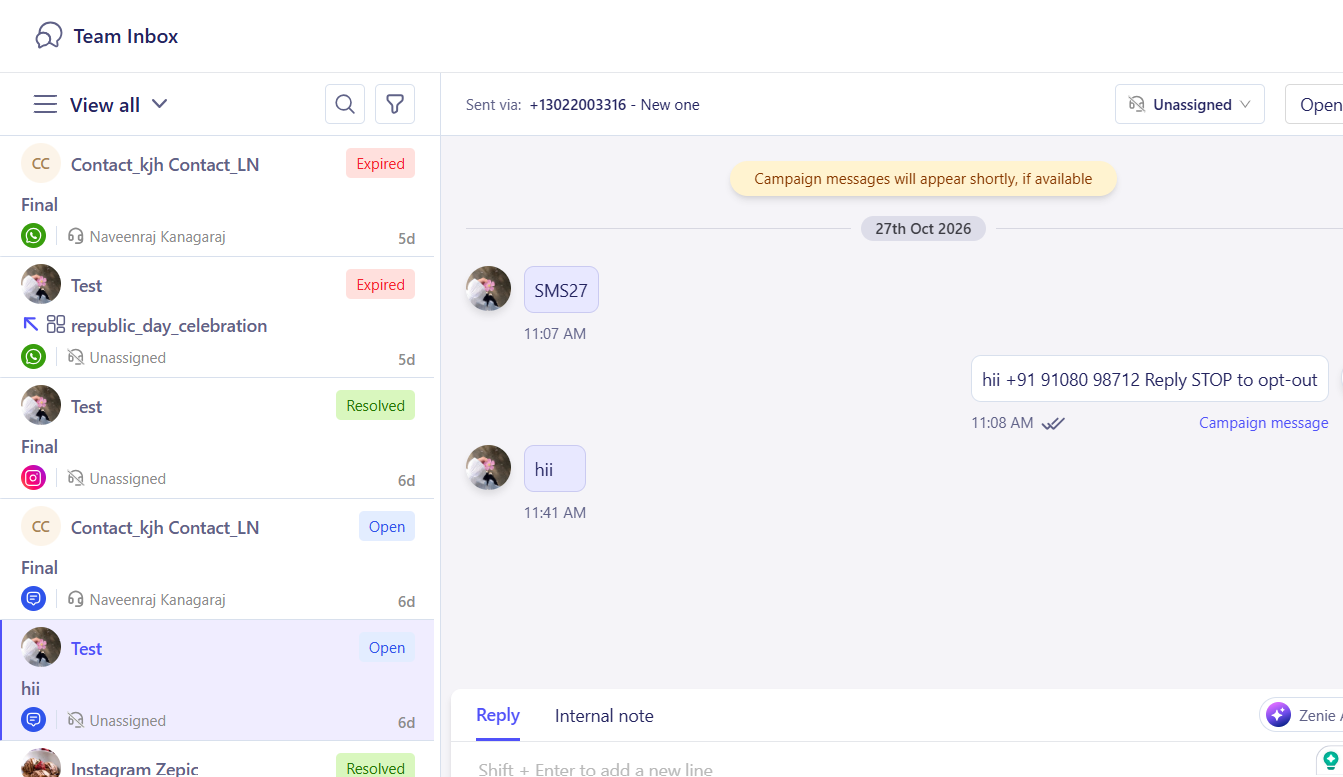
3. Open the Conversation: Select a reply to review what the customer asked, along with its tag and the campaign it came from.
4. Assign Using the Dropdown: Use the assignment dropdown to route the conversation to the right agent or team, based on the tag or the content of the reply.
5. Add a Note or Manual Tag: Leave an internal note for the agent if extra context helps, and add a manual tag if the reply needs a label the auto-tag did not apply.
What to Expect After Setup
Once assignment is set up, your business can route every SMS reply to the agent best suited to answer it.
Your team does not need to read through every conversation to decide who should respond, meaning that tagged replies go to the right person automatically, while internal notes keep context attached for whoever picks it up.
Assignment Use Cases for Your Business
- • Sales Replies from Promotions: A D2C skincare brand assigns replies tagged from a flash sale campaign to its sales team, so interested customers get a fast, purchase-focused response.
- • Support Replies from Delivery Updates: A retail chain assigns replies tagged Delivery to its logistics team, keeping shipping questions away from agents focused on sales.
- • Booking Changes to a Travel Agent: A travel agency assigns replies from its booking confirmation sequence to the agent already handling that guest's trip, with a note on any special requests.
- • Escalations with Internal Notes: A fashion retailer manually tags a frustrated reply as Escalation and assigns it to a senior agent, leaving a note explaining what has already been tried.
FAQs
Can I assign a conversation to an agent directly from the Team Inbox?
Yes. A dropdown in the conversation view lets you assign it to an agent or team without leaving the inbox.
Can I add a tag to a reply manually if the auto-tag does not fit?
Yes. You can apply a manual tag to any conversation, in addition to or instead of the auto-tag set up for the campaign.
Can I leave context for the agent a conversation is assigned to?
Yes. You can leave an internal note on the conversation, which the assigned agent sees but the customer does not.
Explore Related Articles
Was this article helpful?
That’s Great!
Thank you for your feedback
Sorry! We couldn't be helpful
Thank you for your feedback
Feedback sent
We appreciate your effort and will try to fix the article