Event Flows in ZEPIC: Overview and How to Automate Them
This guide covers how to start automated flows in ZEPIC using events, so every customer action or message activity sets the right follow-up in motion.
Event flows in ZEPIC are designed to help e-commerce, D2C, and travel brands respond to customer behavior in real time, from abandoned checkouts to unopened emails, without manual effort.
Table of Contents
- • Before You Begin (Prerequisites)
- • What Are Event Flows?
- • How to Automate Event Flows in ZEPIC
- • What to Expect After Launch
- • Event Trigger Examples for Your Business
- • FAQs
- • Explore Related Articles
Before You Begin
- • An active ZEPIC account with at least one channel enabled, such as SMS, email, or WhatsApp.
- • Customer events coming into ZEPIC, such as store orders or form submissions.
- • A clear goal for what each event should trigger.
- • Opted-in customers with the contact details each channel needs.
What Are Event Flows?
An event flow starts automatically when a specific event occurs, such as a customer starting checkout or opening an email, and then runs the steps you have built.
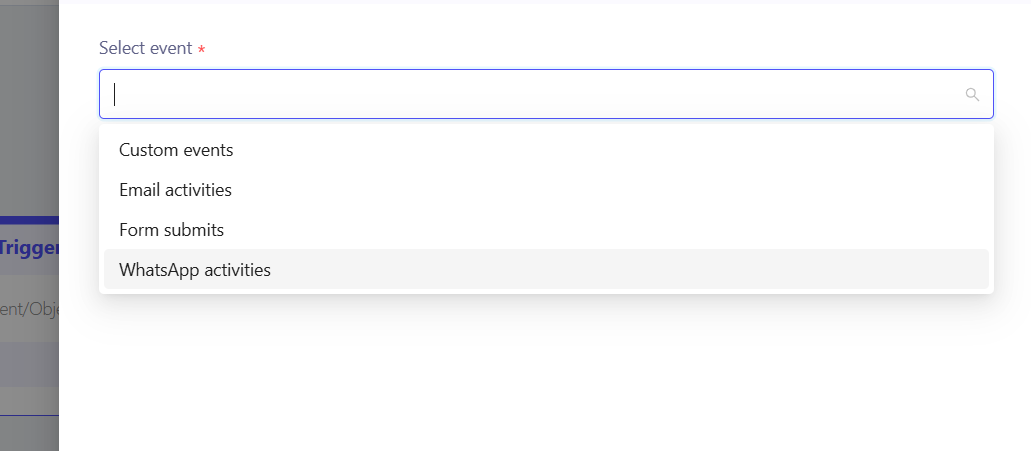
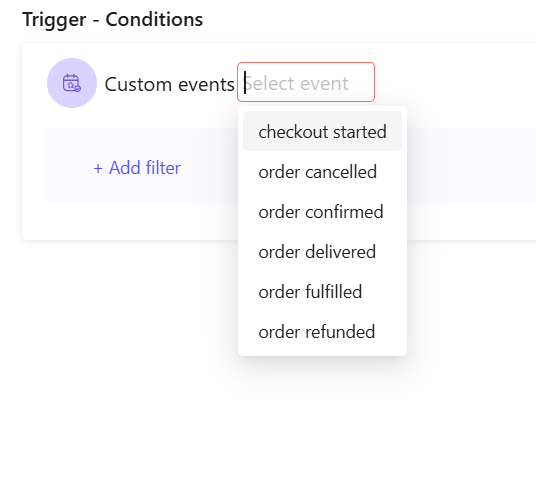
ZEPIC supports four kinds of event triggers: custom events like checkout started and order confirmed, email activities, a form filled on a specific page, and WhatsApp activities. You can also add custom events of your own.
Each event can launch a different campaign, so the message always matches what the customer just did.
How to Automate Event Flows in ZEPIC
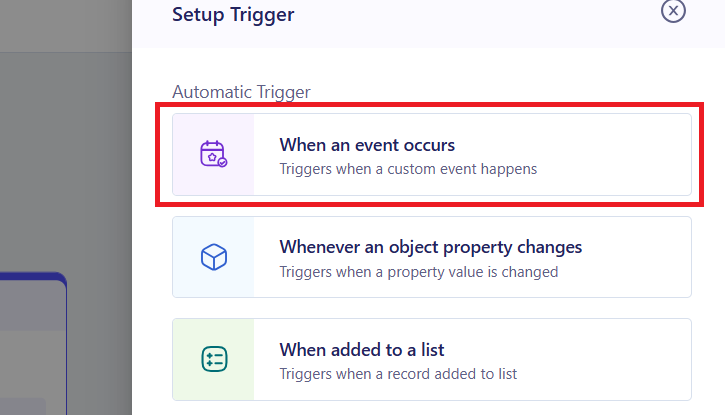
1. Choose Your Event Trigger: Open Flows and select an event as the starting point. Pick from custom events, email activities, WhatsApp activities, or a form filled on a specific page (e.g., order cancelled to start a win-back journey).
2. Refine Your Audience: Add conditions so only relevant customers enter, such as a segment, a specific page, or an order value.
3. Build the Follow-Up: Add a message for each channel you need, such as SMS, email, or WhatsApp, with personalization like first name or order details.
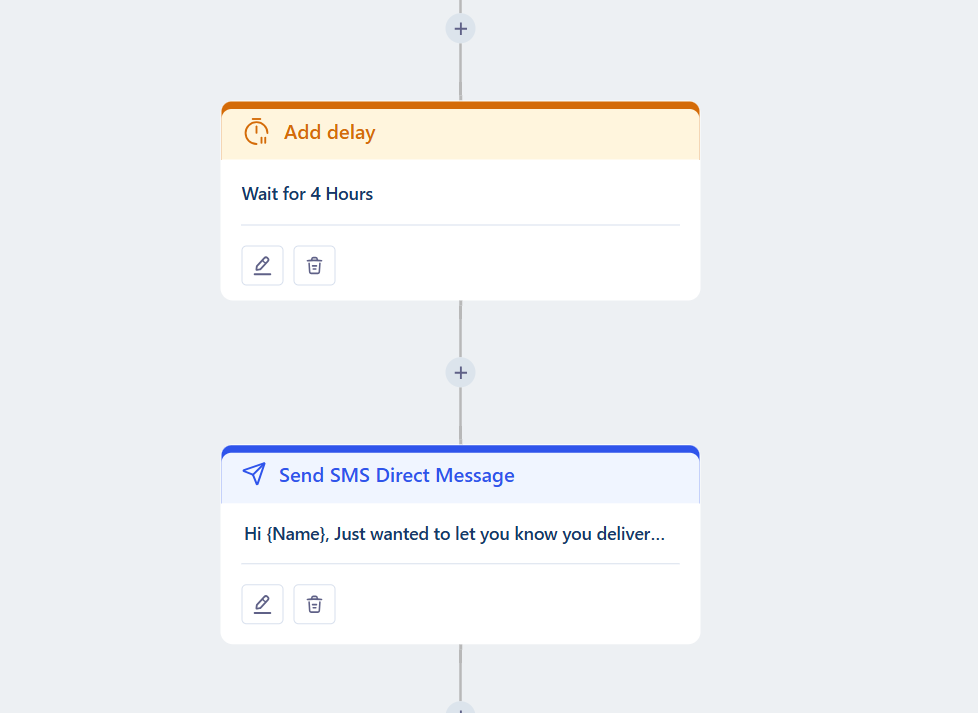
4. Add Delays and Conditions: Space out your steps and branch the journey (e.g., wait a day after delivery, then ask for a review only if the customer has not opened your email).
5. Test and Launch: Trigger a test event to confirm the right message arrives, then publish thez flow to your live audience.
What to Expect After Launch
Once your event flows are live, your business can respond to customer behavior the moment it happens.
Your team does not need to watch dashboards or chase customers by hand, meaning that every event starts the right follow-up automatically, while delivery tracking shows how each flow performed.
Event Trigger Examples for Your Business
Custom Events
- • Checkout Started: A D2C skincare brand waits an hour, then texts shoppers who have not finished checkout with a reminder and a limited-time code.
- • Order Confirmed: A fashion retailer sends an SMS confirmation, followed by an email suggesting accessories that match the purchase.
- • Order Fulfilled: A home décor brand texts a tracking link as soon as an order ships, so fewer customers contact support.
- • Order Delivered: A footwear brand waits two days after delivery, then requests a product review on WhatsApp.
- • Order Cancelled: An electronics retailer emails a short survey on why the order was cancelled, along with an offer to return.
- • Order Refunded: A travel brand confirms the refund by SMS and invites the traveler to rebook with a credit voucher.
Email Activities
- • Email Sent: A resort sends a pre-arrival email, then follows up by SMS if the guest has not replied after two days.
- • Email Delivered: A D2C brand schedules a WhatsApp reminder for the next morning once its launch email lands.
- • Email Opened: A travel brand texts guests who open a holiday-offer email with a limited-time upgrade link.
- • Email Clicked: A retailer sends product details on WhatsApp to a shopper who clicks a specific product link.
- • Email Bounced: A D2C brand texts the customer to update their email address, so future messages arrive.
- • Email Dropped: A fashion retailer sends the same offer by SMS, so the promotion still reaches the customer.
- • Spam Reported: A subscription brand stops marketing emails to that contact and alerts the team to review its email content.
- • Email Unsubscribed: A hotel group stops promotional emails and keeps sending booking updates to guests on channels they have opted into.
Form Submissions
- • Form Filled on a Specific Page: A resort's Book a Stay form triggers an instant SMS confirmation and an email with room options, while its brochure page form starts a slower nurture journey.
WhatsApp Activities
- • WhatsApp Sent: A D2C brand sends a sale announcement on WhatsApp, then follows up by SMS if there is no reaction.
- • WhatsApp Delivered: A travel brand schedules a check-in reminder for the day before departure once its booking message is delivered.
- • WhatsApp Read: A retailer texts a discount code to shoppers who read its launch message but have not purchased.
- • WhatsApp Errored: An online store resends a failed order update by SMS, so the customer never misses it.
- • WhatsApp Unsubscribed: A brand stops WhatsApp promotions for that customer and keeps order updates flowing by SMS or email.
FAQs
Can I create my own custom events?
Yes. Beyond built-in events like checkout started and order confirmed, you can add custom events that match how your business works.
Can one event start a flow that uses more than one channel?
Yes. A single flow can combine SMS, email, and WhatsApp steps, so one event can start a journey that moves between channels.
Do I need coding experience to set up an event flow?
No. ZEPIC uses a visual Flow builder, so you can choose events, add delays, and set conditions without writing code.
Explore Related Articles
Was this article helpful?
That’s Great!
Thank you for your feedback
Sorry! We couldn't be helpful
Thank you for your feedback
Feedback sent
We appreciate your effort and will try to fix the article