Using Broadcast SMS Campaigns in ZEPIC: A Complete Overview
This guide covers how to plan, send, and track broadcast SMS campaigns in ZEPIC, from flash sale announcements to time-sensitive customer notices. Broadcast SMS in ZEPIC is designed to help e-commerce, D2C, and travel brands deliver one message to a chosen audience at once, with segmentation and delivery tracking built in.
Table of Contents
- • Before You Launch (Prerequisites)
- • What Is a Broadcast SMS Campaign?
- • How to Send a Broadcast SMS Campaign in ZEPIC
- • What to Expect After Launch
- • Where Broadcast SMS Delivers Results
- • FAQs
- • Explore Related Articles
Before You Launch
- • An active ZEPIC account with the SMS channel enabled.
- • A list of customers who have given explicit consent to receive your texts.
- • A sender ID and message template approved under local regulations.
- • A saved segment or list that defines who receives the broadcast.
What Is a Broadcast SMS Campaign?
A broadcast SMS campaign sends one message to many customers at once, ideal for promotions, launches, and urgent updates, all from the same platform as your email and WhatsApp campaigns.
Unlike automated flows, which are triggered when a customer takes an action, a broadcast goes to a segment or list you choose, either immediately or at a scheduled time, so you control who hears from you and when.
Every broadcast includes per-message delivery tracking and campaign analytics, so you can measure reach and refine your next send.
How to Send a Broadcast SMS Campaign in ZEPIC
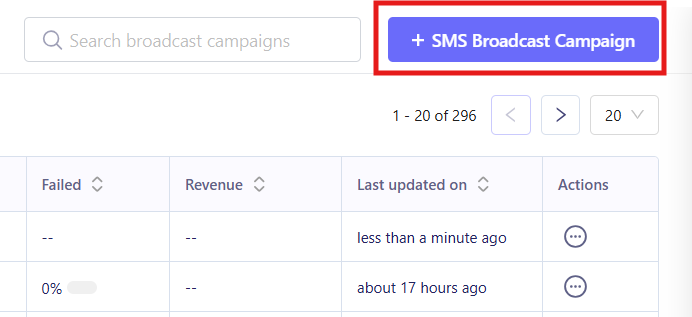
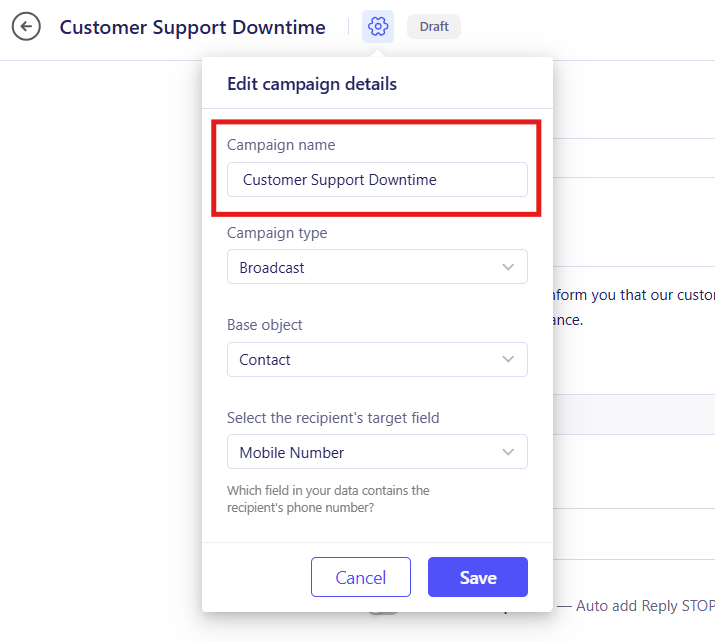
1. Create the Broadcast Campaign: Open SMS Campaigns, select SMS, and select Broadcast as the campaign type for a one-time send (e.g., a weekend sale for past buyers). You can name and customize the campaign by selecting the gear after selecting the SMS Broadcast campaign option.
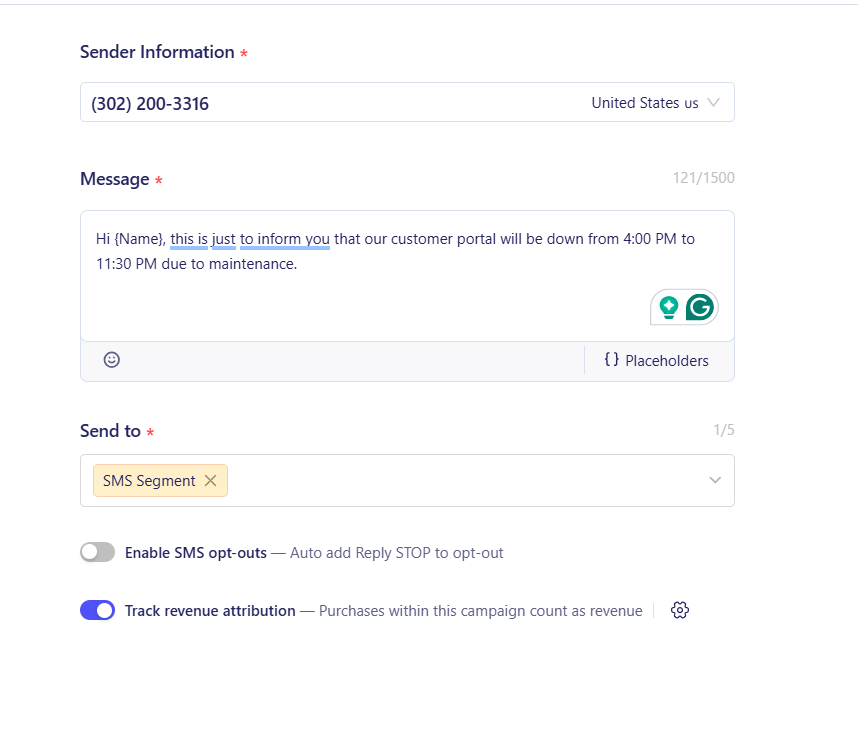
2. Write the Message: Draft your text or choose an approved template, adding attributes such as first name or offer code. Keep it short, name your brand clearly, include one link, and add an opt-out line where local rules require it.
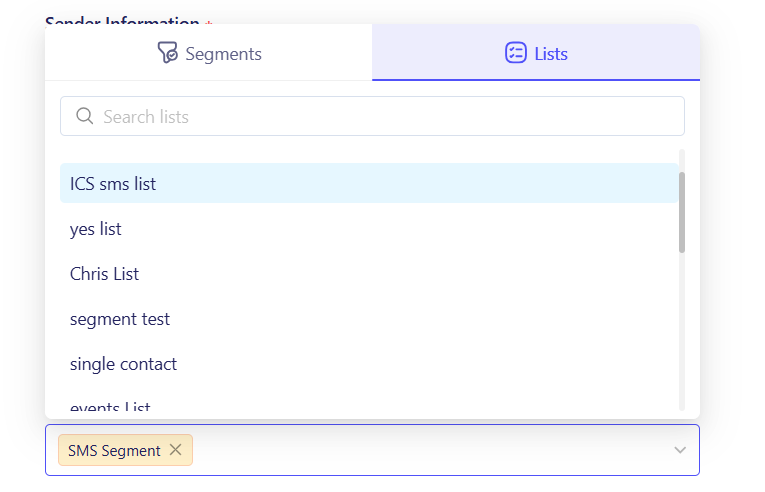
3. Choose Your Audience: Select a segment or list built from consent, purchase history, or location. Never broadcast to your entire contact list.
4. Test and Launch: Send a test text to your own number to check personalization and links, then launch to your live audience and monitor delivery in campaign analytics.
What to Expect After Launch
Once your broadcast is live, your business can reach an entire segment at once, with one timely message.
Your team does not need to text customers one by one or export lists into a separate SMS tool, meaning that announcements go out in minutes, while delivery tracking shows how each broadcast performed.
Where Broadcast SMS Delivers Results
- • Product Launches: A D2C skincare brand texts opted-in customers on launch day with a link to the new range. Campaign analytics then show delivery results so the team can time the next drop.
- • Seasonal Sales: A footwear retailer schedules a weekend broadcast to customers who browsed sneakers in the last 30 days. Targeting a focused segment keeps the offer relevant instead of texting the entire contact list.
- • Event & Store Reminders: A retail chain texts customers in one city the day before an in-store event, with the date, venue, and a preview offer. Location-based segments make sure only nearby customers receive it.
- • Travel Alerts & Offers: A travel brand broadcasts a schedule change or weather advisory to every guest booked on the affected dates, with a link to updated details. Guests who need help can be moved to a WhatsApp conversation for personal support, so no guest is left uninformed.
FAQs
Can I schedule a broadcast SMS for later?
Yes. You can send immediately or schedule the campaign for a set time, which helps you reach customers when they are most likely to read and act.
Should I send a broadcast to my entire contact list?
No. Broadcasts work best when sent to a targeted segment or list, filtered by consent, purchase history, or location, which improves relevance and reduces opt-outs.
Do I need customer consent before sending a broadcast SMS?
Yes. Collect explicit consent through a website form, app sign-up, or point-of-sale, and follow local regulations on sender IDs, templates, and opt-out options, since these rules vary by country.
Explore Related Articles
Was this article helpful?
That’s Great!
Thank you for your feedback
Sorry! We couldn't be helpful
Thank you for your feedback
Feedback sent
We appreciate your effort and will try to fix the article