Setting up SMS Chatbot (Automation) on ZEPIC
SMS chatbots in ZEPIC are designed to help e-commerce, D2C, and travel brands qualify leads, answer common questions, and guide customers to a booking or purchase, all through text replies.
This guide covers how to set up an SMS chatbot in ZEPIC, so customer replies move a conversation forward without an agent on every text.
Table of Contents
- • Before You Begin (Prerequisites)
- • What Is an SMS Chatbot?
- • How to Set Up an SMS Chatbot in ZEPIC
- • What to Expect After Launch
- • SMS Chatbot Use Cases for Your Business
- • FAQs
- • Explore Related Articles
Before You Begin
- • An active ZEPIC account with the SMS channel enabled and a provider connected.
- • A sender number capable of receiving replies, confirmed with your SMS provider.
- • A clear script of the questions your chatbot needs to ask or answer.
- • Customers who have opted in to SMS, with phone numbers saved in their profiles.
What Is an SMS Chatbot?
An SMS chatbot is a flow in ZEPIC that reads a customer's text reply and decides what to send back, so a conversation can run without an agent typing every response.
Since SMS has no buttons or menus, a chatbot works by matching keywords or numbered replies, such as asking a customer to text 1 for sales or 2 for support, similar to how a WhatsApp chatbot uses quick replies.
A chatbot can qualify a lead, answer a frequently asked question, or hand the conversation to an agent when a reply does not match anything it recognizes.
How to Set Up an SMS Chatbot in ZEPIC
1. Set Your SMS Trigge/SMS Campaignr: Navigate to Flows and choose how the chatbot starts, such as a keyword reply to a campaign or a new inbound text to your number (e.g., launching the flow when a customer texts Info).
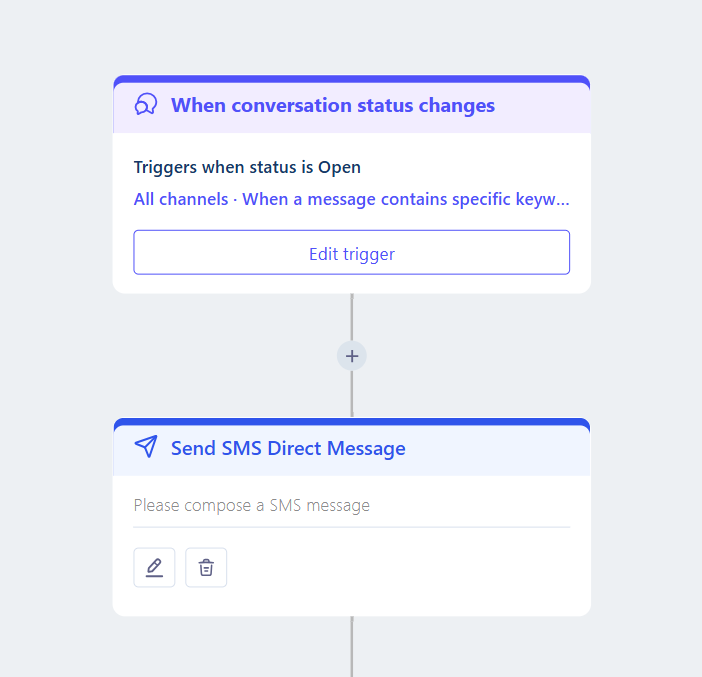
2. Ask the First Question: Add a Wait for Reply node with your opening message, written so the expected replies are short and easy to match, such as Yes, No, or a number.
3. Branch on the Reply: Add conditions that check the customer's text and send a different message for each expected answer, with a fallback message for replies the bot does not recognize.
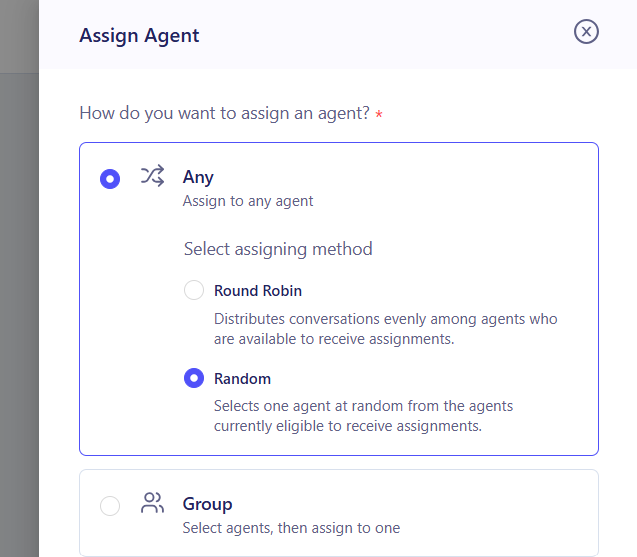
4. Add a Handoff to an Agent: Route unmatched replies, or ones containing words like Agent or Help, to your team inbox so a person can take over. Or alternatively, collect additional information if needed for your support team.
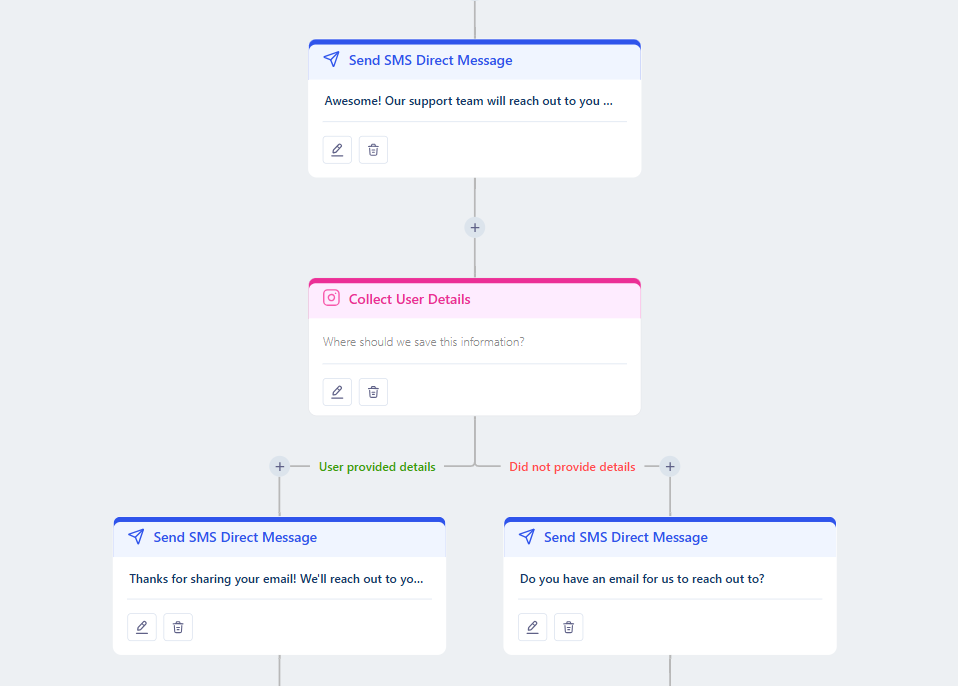
5. Test and Launch: Text the flow from your own number, try several replies including an unexpected one, then publish it to your live audience.
What to Expect After Launch
Once your SMS chatbot is live, your business can answer common questions and qualify leads the moment a customer replies.
Your team does not need to handle every incoming text by hand, meaning that routine replies are answered automatically, while anything the bot cannot handle still reaches an agent.
SMS Chatbot Use Cases for Your Business
- • Lead Qualification: A D2C skincare brand's chatbot asks a prospect to reply with their skin type, then sends a matching product recommendation and a discount code.
- • Appointment Booking: A salon chain's chatbot asks customers to reply with a preferred day, then confirms the slot or offers the nearest alternative.
- • FAQ Automation: A retailer's chatbot replies to common keywords, such as Returns or Hours, with an instant answer, so support agents only see questions the bot cannot cover.
- • Travel Booking Assistance: A tour operator's chatbot asks an interested traveler to reply with a destination and travel month, then sends a matching package and a link to complete the booking.
FAQs
Do I need coding experience to build an SMS chatbot?
No. ZEPIC uses a visual Flow builder, so you can add Wait for Reply nodes and branching conditions without writing code.
What happens if a customer sends a reply the chatbot does not understand?
You can set a fallback message and route the reply to your team inbox, so an agent can step in instead of leaving the customer without an answer.
Can an SMS chatbot hand off to an agent mid-conversation?
Yes. You can route a reply to your team inbox at any point in the flow, such as when a customer asks for help directly.
Explore Related Articles
Was this article helpful?
That’s Great!
Thank you for your feedback
Sorry! We couldn't be helpful
Thank you for your feedback
Feedback sent
We appreciate your effort and will try to fix the article