How to Push WhatsApp Data to External Systems Using ZEPIC Destination Webhooks
This guide covers how to push data collected during WhatsApp chatbot interactions directly into your CRM or external databases using destination webhooks.
Destination webhooks in ZEPIC help e-commerce, travel brands, and other businesses automate lead updates and sync customer profiles across their entire software stack without manual data entry.
Table of Contents
- • Before You Begin (Prerequisites)
- • What Are Destination Webhooks?
- • How to Set Up Destination Webhooks
- • Expected Outcome
- • Business Use Cases
- • FAQs
- • Explore Related Articles
Before You Begin
- • An active ZEPIC account with WhatsApp Business API configured.
- • A destination CRM (such as HubSpot, Salesforce, or Zoho) that accepts incoming webhook connections.
- • An endpoint URL generated by your destination platform.
- • Basic knowledge of the JSON payload requirements for your specific CRM.
What Are Destination Webhooks?
While incoming webhooks bring data from external tools into your platform, destination webhooks do the exact opposite: help update information in external tools like CRMs and ticketing software.
When a prospect or customer interacts with your WhatsApp chatbot, such as answering a qualifying question, supplying an email, or confirming a booking, ZEPIC can instantly package that conversational data and send it directly to your CRM. This helps you update your sales and support tools with real-time, first-party data directly from the customer.
How to Set Up Destination Webhooks in ZEPIC
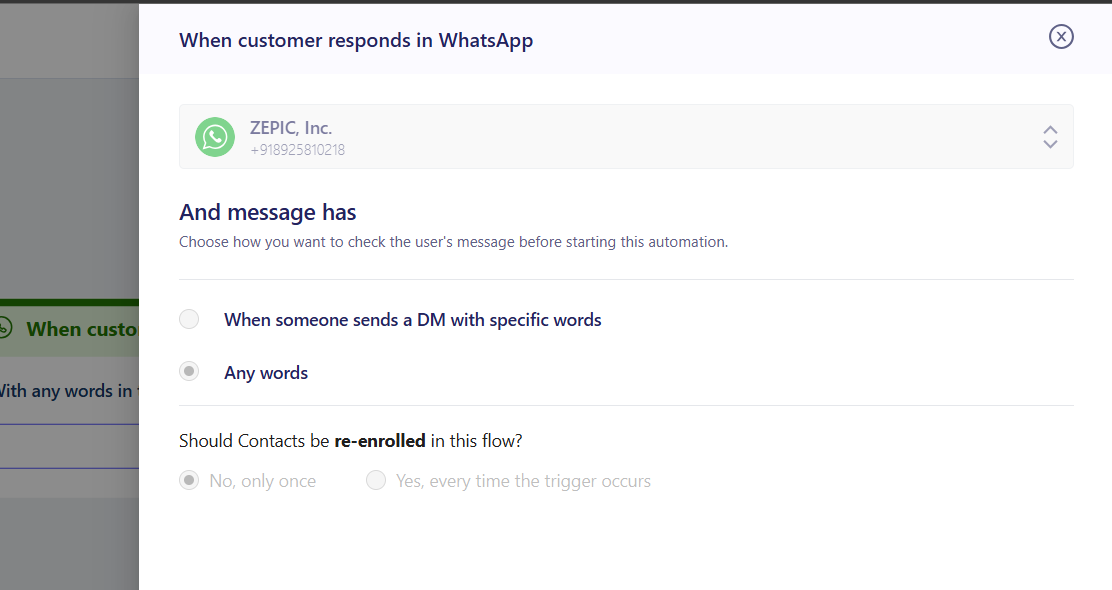
1. Set Your WhatsApp Trigger: Navigate to the ZEPIC Flows section and establish the starting point for your chatbot. Use triggers such as inbound messages and keyword-specific logic (e.g., launching the flow when a user texts Promos or Book) to confirm high intent.
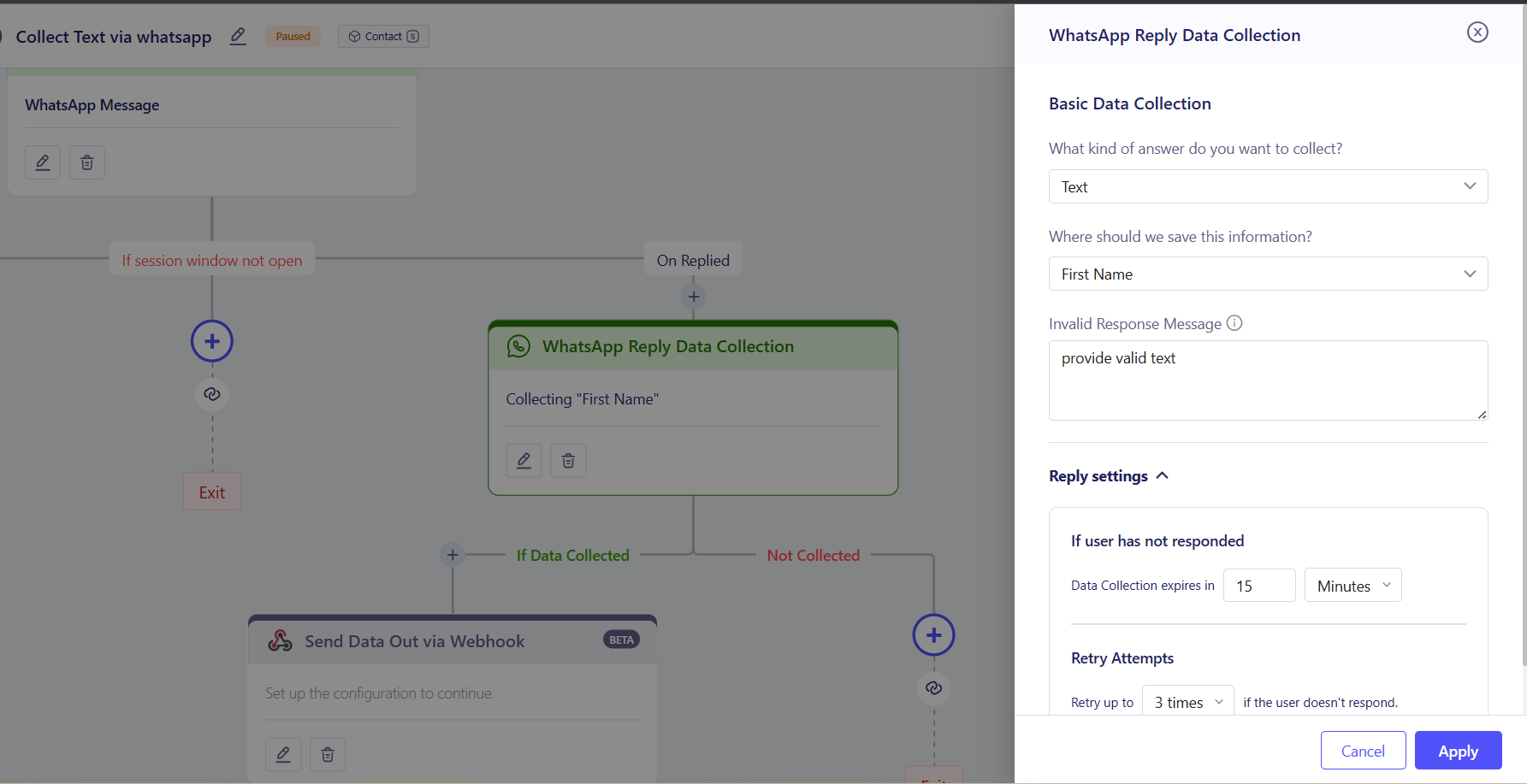
2. Collect Customer Information: Add a Wait for Reply node to the conversation. Use this step to prompt the customer for the missing details your CRM needs, such as their company name, email address, or preferred appointment date.
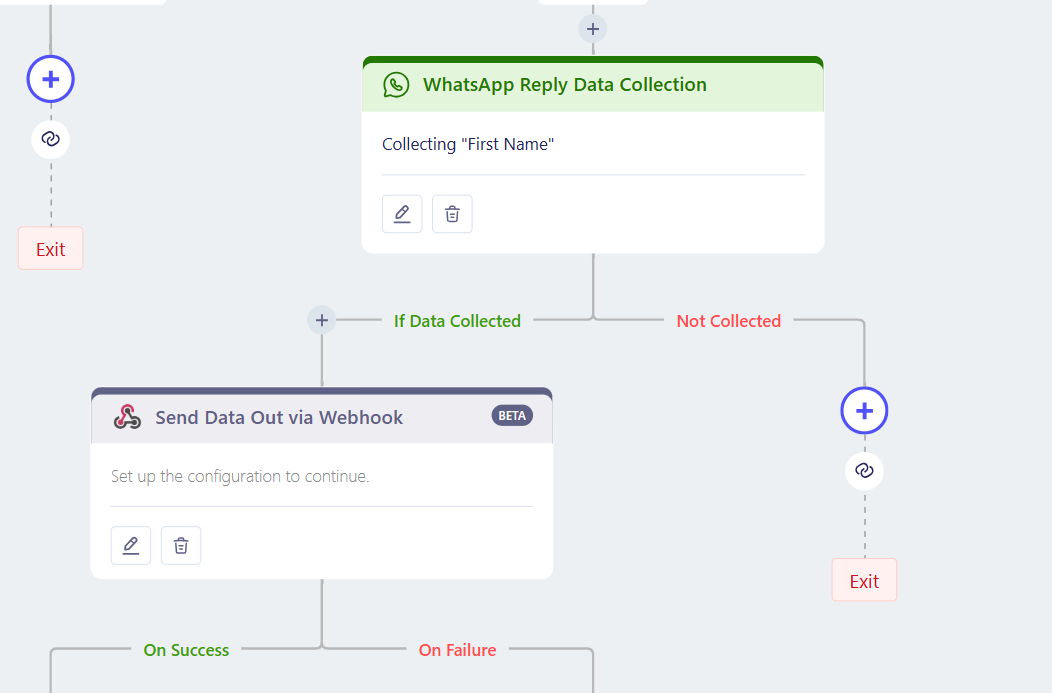
3. Add the Webhook Node: Once the data is collected, drag the Webhook node into your flow immediately following the reply.
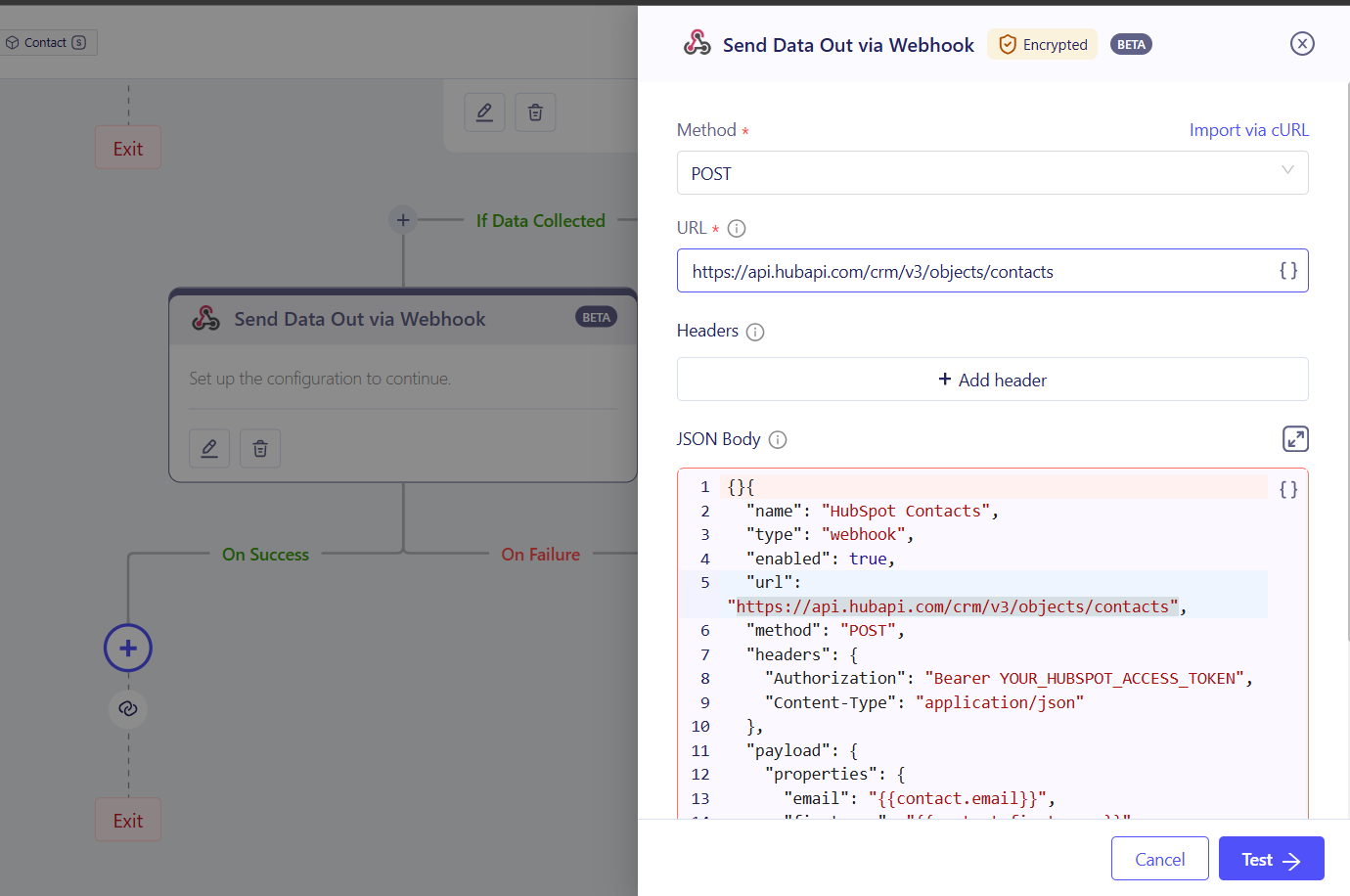
4. Configure the Endpoint and Payload: Paste your CRM endpoint URL into the node settings. Map the user WhatsApp replies to the corresponding JSON fields required by your destination tool (e.g., mapping the WhatsApp text response to the Email field in HubSpot).
5. Test and Launch: Run a test execution to verify that the data successfully appears in your external CRM before publishing the flow to your live audience.
Expected Outcome
Once this webhook setup is complete, your business can collect data actively from WhatsApp conversations.
Your team does not need to manually copy and paste lead details from chats into your CRM, meaning that customer profiles and sales pipelines are automatically updated the moment a prospect hits send.
Business Use Cases
- • Promotional Campaigns: Verify the user is in a segment or check for an enrolled event for a new launch. If they reply yes, the webhook pushes their contact details to HubSpot.
- • Automotive Test Drives: A dealership runs a WhatsApp campaign prompting the user for their preferred vehicle model and date. This booking interest passes directly to Salesforce to create a new task for a sales representative.
- • B2B Lead Qualification: The bot asks an inquiring B2B prospect for their company size and industry. This data pushes into Pipedrive to assign a lead score and route the prospect to the correct sales agent.
- • Hotel Pre-Arrival & Upgrades: A resort texts upcoming guests via WhatsApp to collect arrival times, room preferences, and add-on requests. Once answered, ZEPIC triggers a webhook to send this payload directly into your Property Management System to update the guest's profile before check-in.
FAQs
Do I need coding experience to set up a destination webhook?
No. While you need to know which fields your CRM requires, ZEPIC has a visual interface for mapping WhatsApp replies to JSON payloads without writing code.
Can I send data to multiple CRMs at the same time?
Yes. You can add multiple webhook nodes sequentially within a single ZEPIC flow to update your CRM, helpdesk, and email marketing tools simultaneously.
What happens if the customer gives invalid data?
You can set up conditional logic within your flow to validate responses, such as checking for an @ symbol in an email, before the webhook node is allowed to trigger, keeping your CRM data clean.
Explore Related Articles
Was this article helpful?
That’s Great!
Thank you for your feedback
Sorry! We couldn't be helpful
Thank you for your feedback
Feedback sent
We appreciate your effort and will try to fix the article