Creating a WhatsApp Chatbot for Businesses on ZEPIC (How-to Guide)
A WhatsApp chatbot built within ZEPIC Flows allows you to automate complex customer journeys that go far beyond simple FAQs.
Whether your customers are asking for a product price, have abandoned a shopping cart, or forgotten to provide an email address during checkout, using WhatsApp chatbots can make a huge difference.
Which is why here’s how you can get started with creating a WhatsApp chatbot in ZEPIC.
Why WhatsApp Chatbot Flows are Essential
Using structured flows helps solve the problem of manual data entry and missed opportunities:
- •Instant Lead Capture: Capture emails and names the moment a user asks for a price or product detail.
- •Data Synchronization: Automatically update your Shopify database or external CRM via Webhooks without manual work.
- •High-Intent Recovery: Reach out to customers who abandoned their carts or provided incomplete information during checkout.
Step-by-Step Guide: Navigating the Setup
The process begins inside the ZEPIC dashboard and moves through the logic-building phase.
Step 1: Navigate to the Flows Section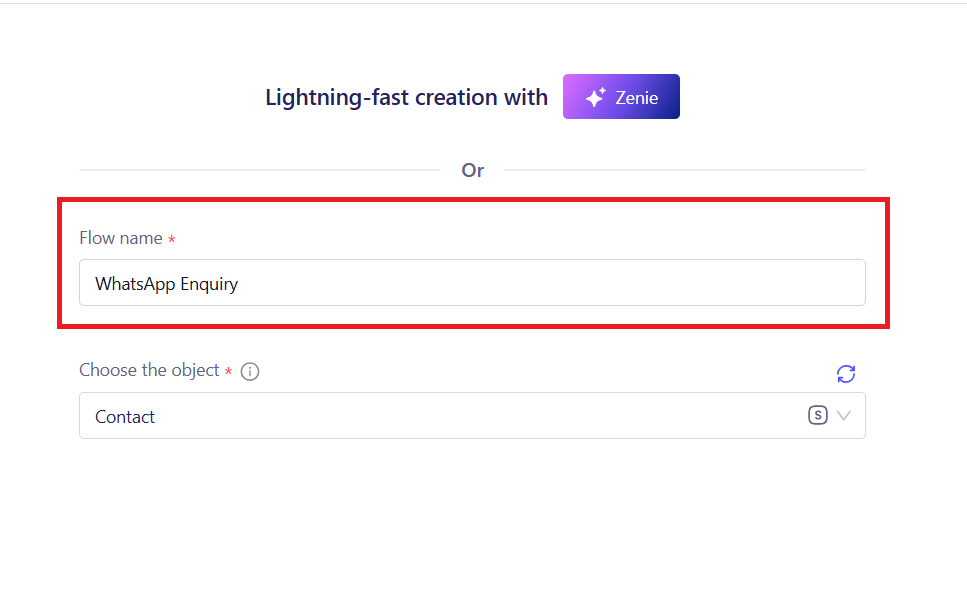
- •Log in to your ZEPIC dashboard and select Flows from the main navigation menu.
- •Click on Create New Flow, or use the Zenie tool to help you get started.
Step 2: Set Your Trigger 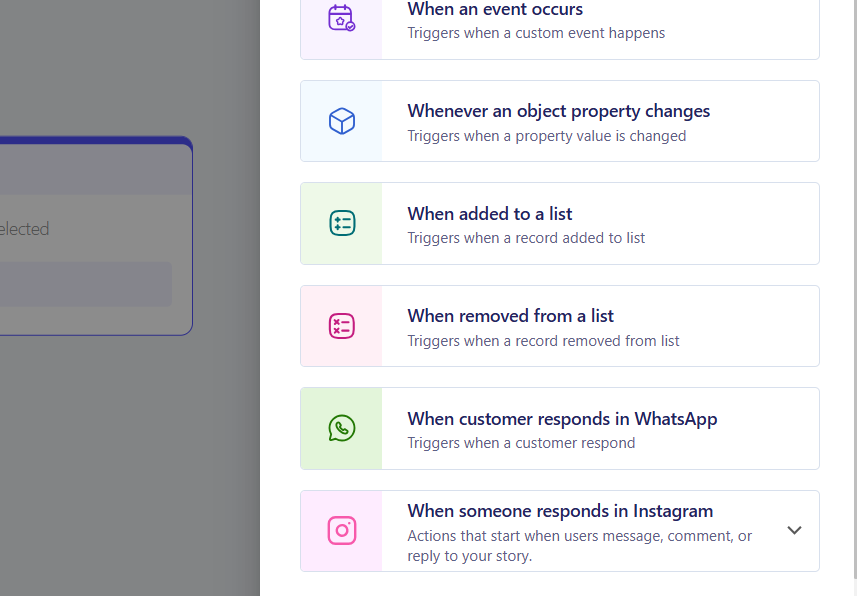
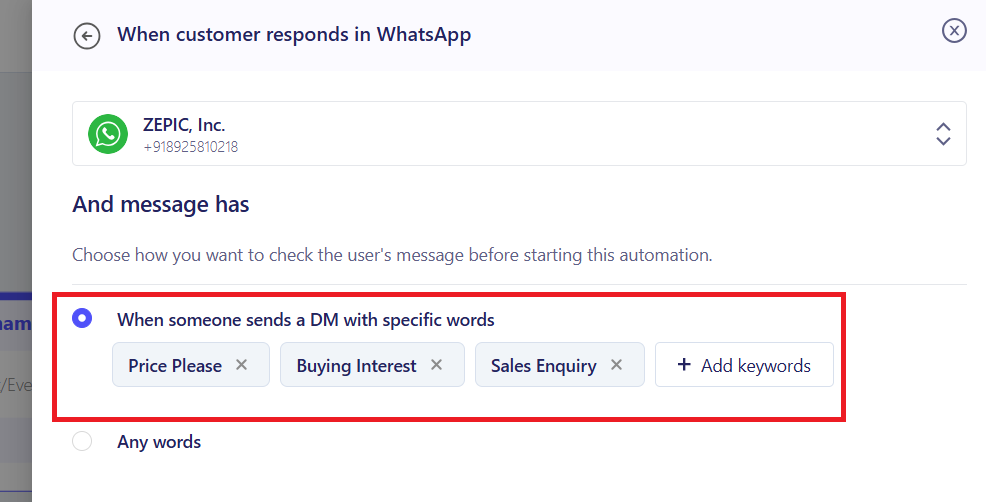
The trigger is the event that starts the chatbot conversation.
- •Select Inbound Message as your trigger.
- •Configure the logic to "Message Contains" and add keywords such as Price, Cost, or How much. This ensures the bot only responds when a user makes a pricing inquiry.
Step 3: Draft the Automated Response and Quick Answers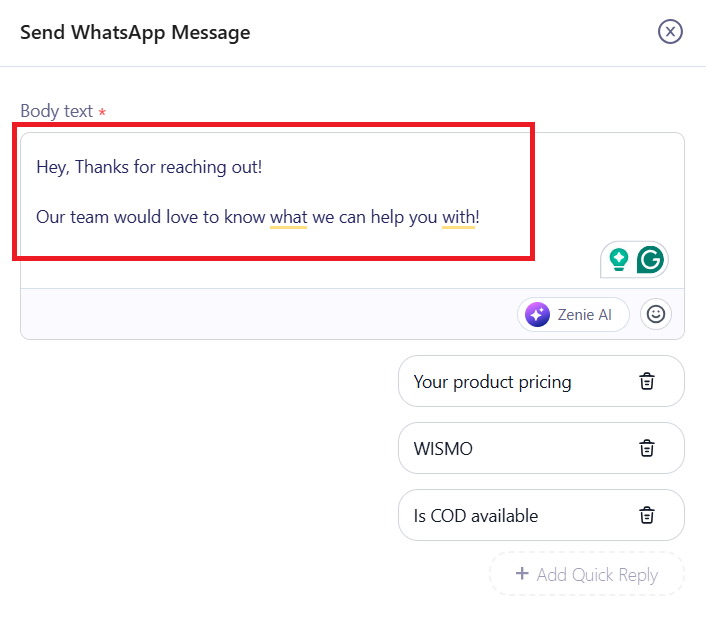
Add a Send WhatsApp Message node to the flow.
- •Choose an approved template or just a quick message that provides the price but asks for a detail in return: "The price for this item is [Price]. May I have your email address to send you a 10% discount code for your first order?"
- •Alternatively, you can have multiple options to choose from for the customer to feel seen and supported.
Step 4: Use Integrations and Webhooks to Sync Data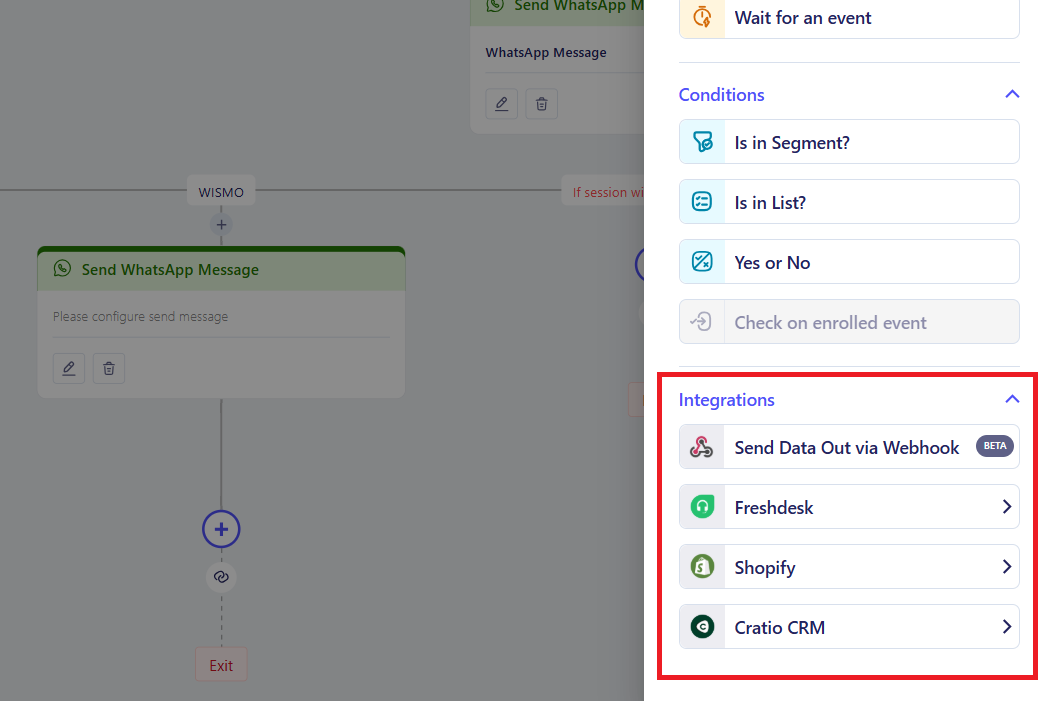
If needed, use ZEPIC’s integrations and webhooks to update this in your CRM if you want the user’s details, like their email, stored in your external applications or your e-commerce platform.
- •You can use the Native Integrations available, or alternatively, add a webhook for this.
- •Any app with a public API key can be added to ZEPIC using webhooks.
Step 5: Navigate to the Teams Inbox
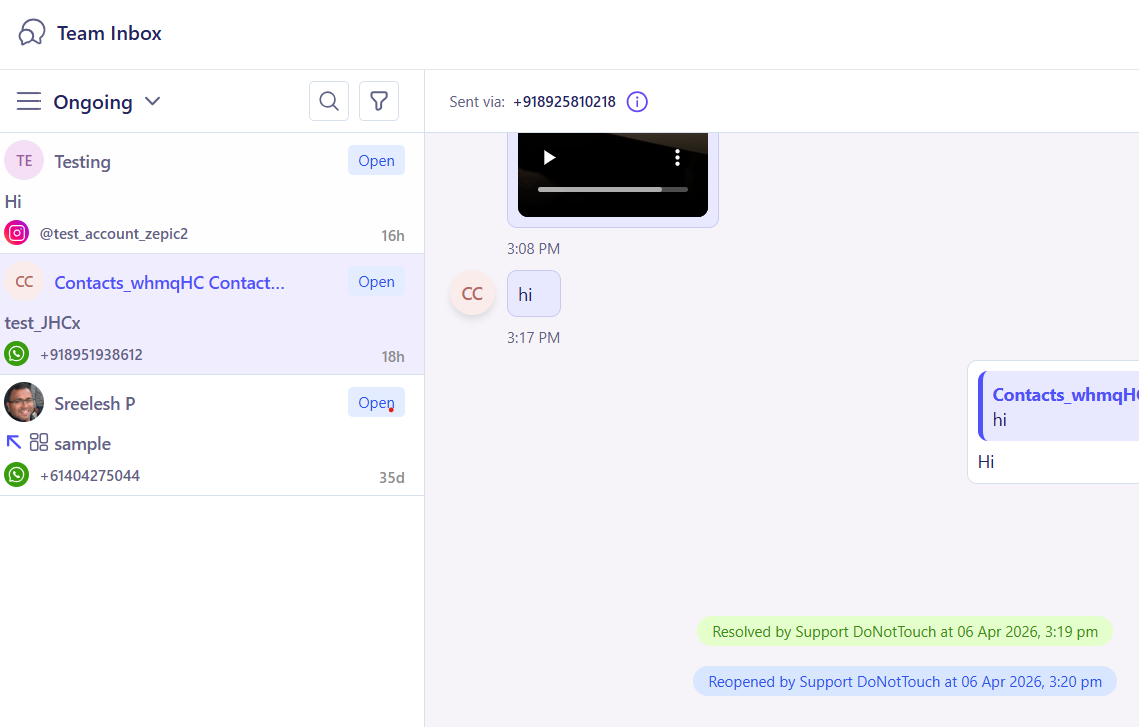
- •After the first set of replies comes in, you may want a person to step in. This is to help make support conversations start a lot quicker.
- •All customer conversations with the WhatsApp chatbot can be seen in Team Inbox, where your staff can see the customer's full history and take over the sale.
Other Use Cases for Your WhatsApp Chatbot on ZEPIC
| Scenario | Chatbot Action | Business Benefit |
|---|---|---|
| Price/Product Inquiry | Instantly provides pricing and asks for an email to send a detailed brochure or discount link. | Converts a generic Price please message into a high-value lead with verified contact info. |
| Incomplete Order Details | Trigger a flow when a checkout is finished, but an email or phone number is missing. | Creates 100% data accuracy for your marketing database and future shipping alerts. |
| Post-Purchase Upsell | Send a message 30 minutes after a purchase, asking if they’d like to add a related item with 10% off. | Increases Average Order Value (AOV) by catching the customer while they are in a "buying" mood. |
Want to know more about WhatsApp chatbots? Learn how you can add any app to your chatbot information flow using ZEPIC workflow using webhooks!
Was this article helpful?
That’s Great!
Thank you for your feedback
Sorry! We couldn't be helpful
Thank you for your feedback
Feedback sent
We appreciate your effort and will try to fix the article