How to Link Multiple Records in ZEPIC
Use a linkable match field to group separate Contact records that belong to the same person. For example, if a customer has Contact records from your online store, retail store, and loyalty program, ZEPIC can group those records when they share the same loyalty member ID. Each record stays separate.
This guide is about matching records within the Contact object. To relate records across objects, such as an Order and a Contact, use a Look Up field instead.
Table of Contents
Before You Begin
- Make sure you have permission to edit the Contact object.
- Choose a value that identifies the same person across your sources, such as a loyalty member ID. Avoid shared values such as a household phone number if they could group different people.
Create a Linkable Match Field
- Go to Settings → Objects and open Contact for editing.
- In Fields, drag a Single Line field into a section of the layout. Select it and enter Loyalty Member ID as the Field label.
- In the field settings, select Set as linkable match field. The Contact editor offers this setting for Single Line, Email, Phone, and Number fields.
- Choose Save & Next and finish with Save.
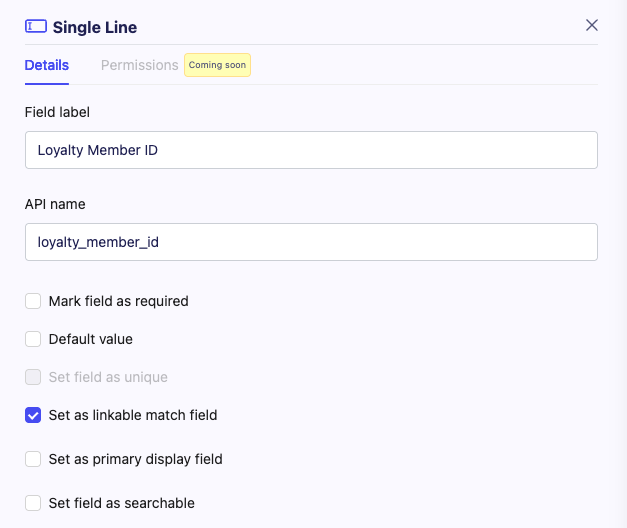
Linkable isn’t the same as unique. Set field as unique is a different setting and can’t be used on the same field. Linking lets separate records share a matching value; it doesn’t merge them.
Link the Contact Records
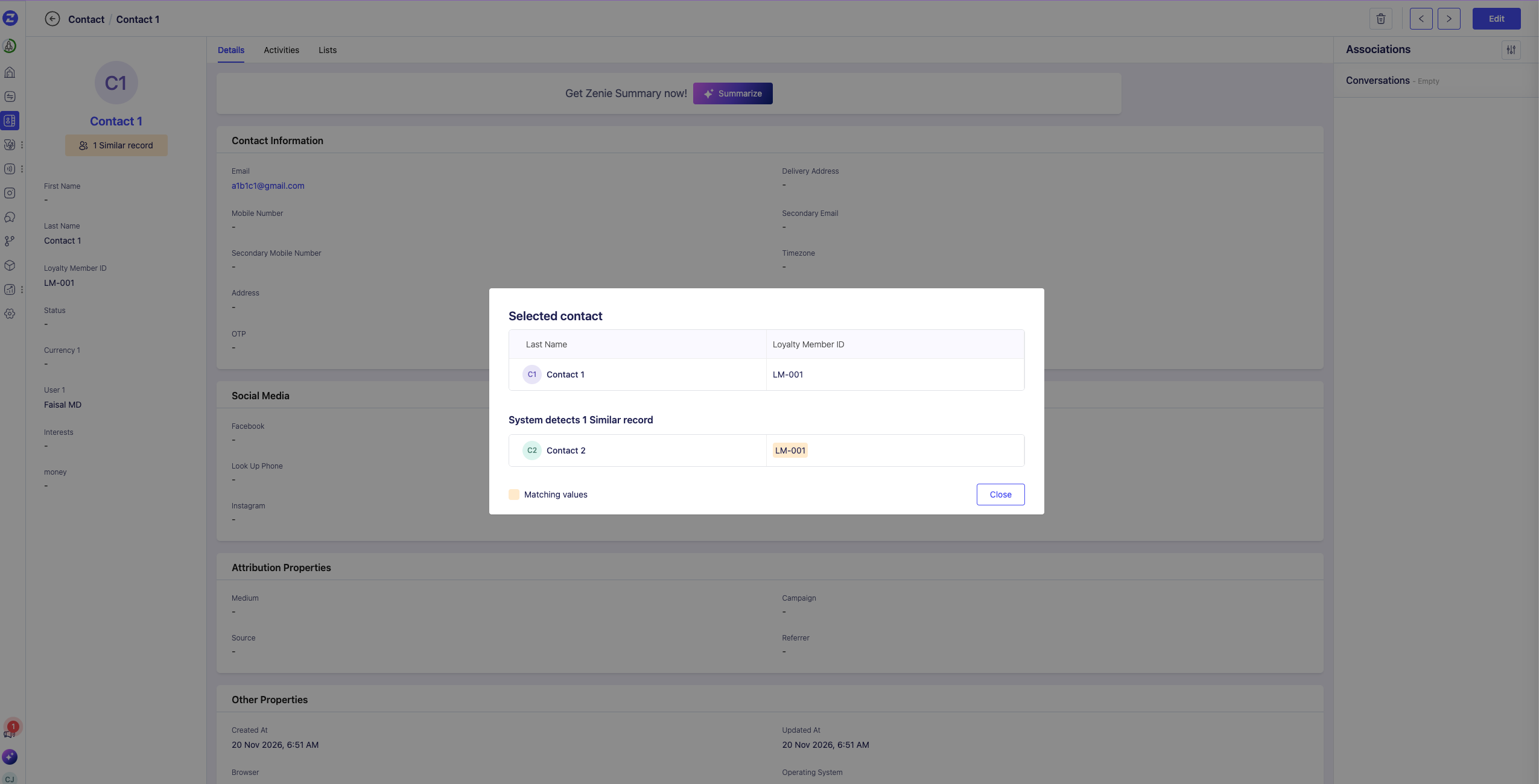
- Open each existing Contact record you want to link and enter the same verified identifier in Loyalty Member ID. To test this, use three separate sample Contacts and enter LM-001 on each.
- Save each record. ZEPIC groups the matching records based on the saved field value; there’s no separate link button to click.
Review Linked Contacts
Reopen one of the Contact records and select the Similar records indicator. The view shows the selected Contact and the other records in its group. In the example, you’d see the other two sample Contacts.
If the indicator doesn’t appear, confirm that the records are separate and have the same saved value in the field you marked as linkable. If the values came from an import, check that the source column was mapped to that Contact field.
Explore Related Articles
Was this article helpful?
That’s Great!
Thank you for your feedback
Sorry! We couldn't be helpful
Thank you for your feedback
Feedback sent
We appreciate your effort and will try to fix the article