How to Create a Lookup Field in ZEPIC
A Look Up field connects a record in one object to a record in another. For example, add a Customer lookup to Orders so each order can point to one Contact. Several orders can point to the same contact.
Table of Contents
Before You Begin
- Make sure both objects exist and you have permission to edit the object that will hold the field. In this example, edit Orders, not Contact.
- Have a sample order and contact ready so you can check the result after saving.
Create a Lookup Field
1. Add the field to Orders
Go to Settings → Objects and open Orders for editing. In Fields, drag Look Up into a section of the layout. Select the new field and enter Customer as its Field label.
2. Choose the object, identifier, and display field
Under Association with, configure these settings:
- Select the Object: Choose Contact, the object the field will point to.
- Select the lookup field: Choose the record ID or another field marked unique on Contact. This identifies the exact record. For this example, use the record ID.
- Select the display field: Choose what people see in the picker, such as the Contact name. A name can be useful for display even when it isn’t unique.
Note: Once the field is saved, you can change the display field, but not the object or the lookup field used to identify records.
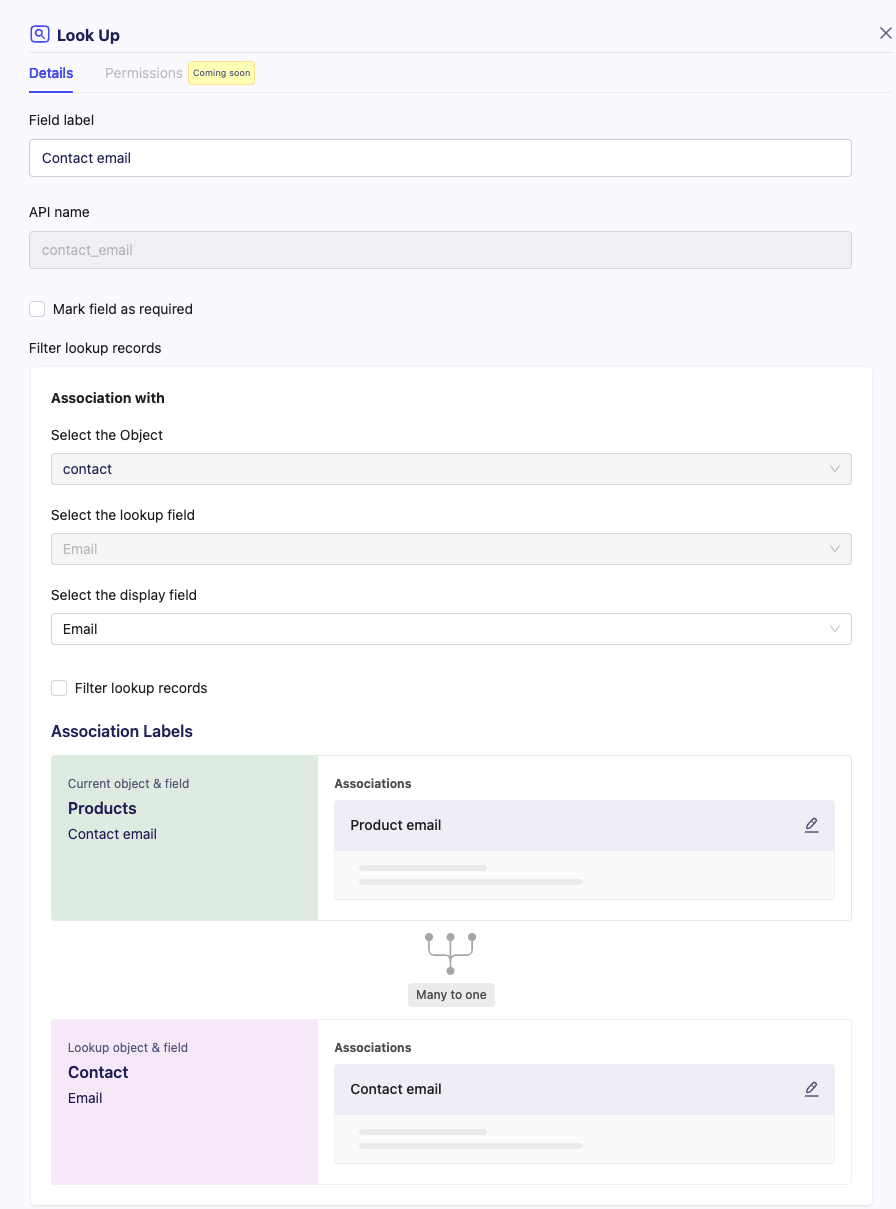
3. Set the association labels and save
Under Association Labels, keep Customer on the Current object & field side. On the Lookup object & field side, enter Orders and confirm with the checkmark. This names the reverse association: the orders that point to a contact. You don’t need a second lookup on Contact for that relationship.
To limit which contacts appear in the picker, turn on Filter lookup records after choosing a display field and add your conditions. Choose Save & Next and finish with Save.
Test the Association
- Edit a sample order and select an existing contact, such as Alex Morgan, in the Customer field.
- Save and reopen the order. Confirm that the Customer field shows the contact you selected.
Troubleshooting
Can’t find a contact in the picker? Check that the contact has a value in the display field and, if you chose a unique field instead of the record ID, a value in that field too. If you enabled Filter lookup records, check that the contact meets the conditions.
Explore Related Articles
Was this article helpful?
That’s Great!
Thank you for your feedback
Sorry! We couldn't be helpful
Thank you for your feedback
Feedback sent
We appreciate your effort and will try to fix the article