Configure Attio Outgoing Webhook in ZEPIC Flows
Prerequisite
Generate Attio API Keys - https://help.zepic.com/support/solutions/articles/51000515512-integration-with-attio-generating-api-keys
Connecting Attio with ZEPIC - https://help.zepic.com/support/solutions/articles/51000515833-integration-with-attio-connecting-attio-with-zepic
This guide explains how to configure an Outgoing Webhook inside Flows to update records in Attio.
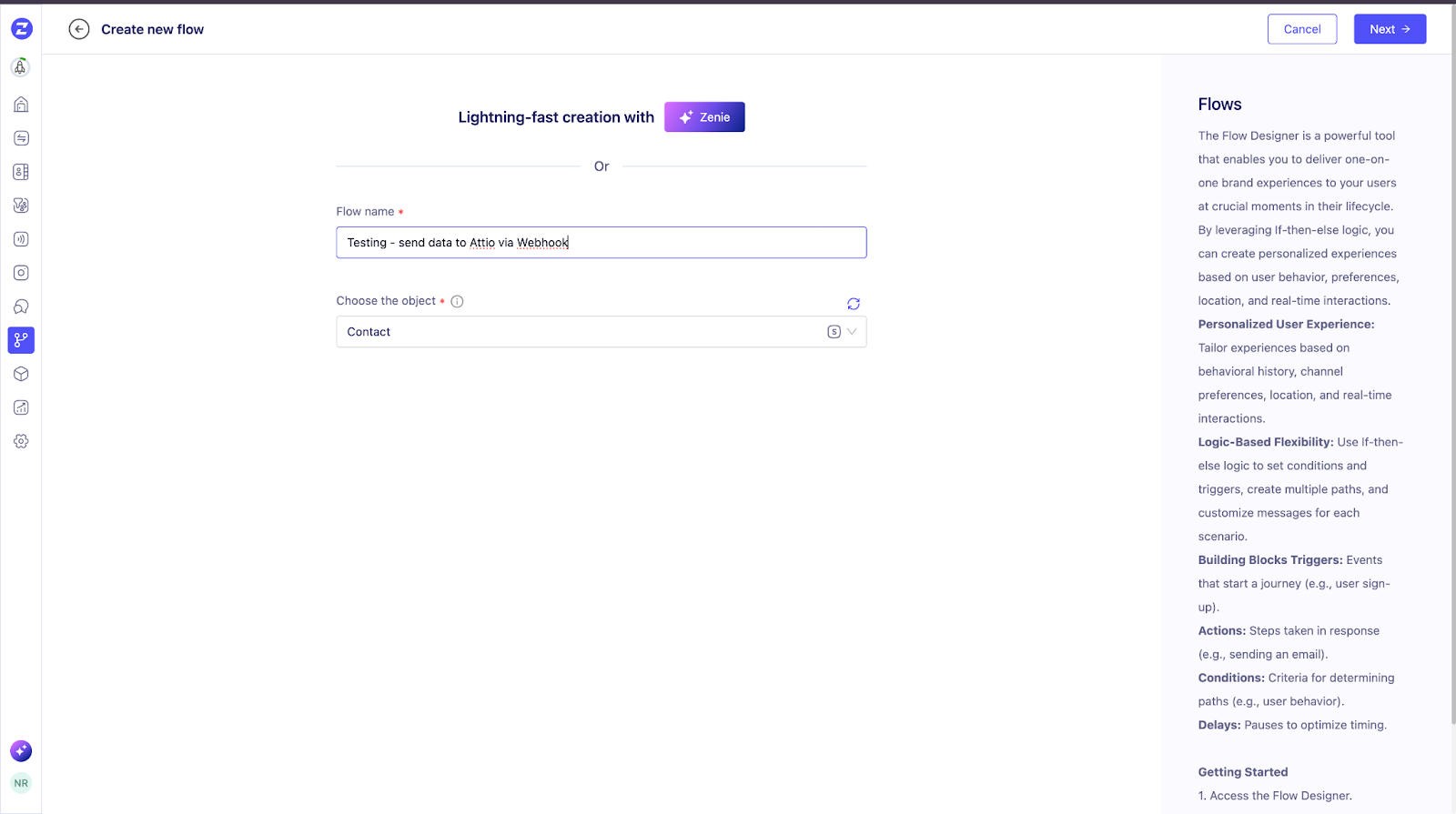
Step 1: Create a New Flow
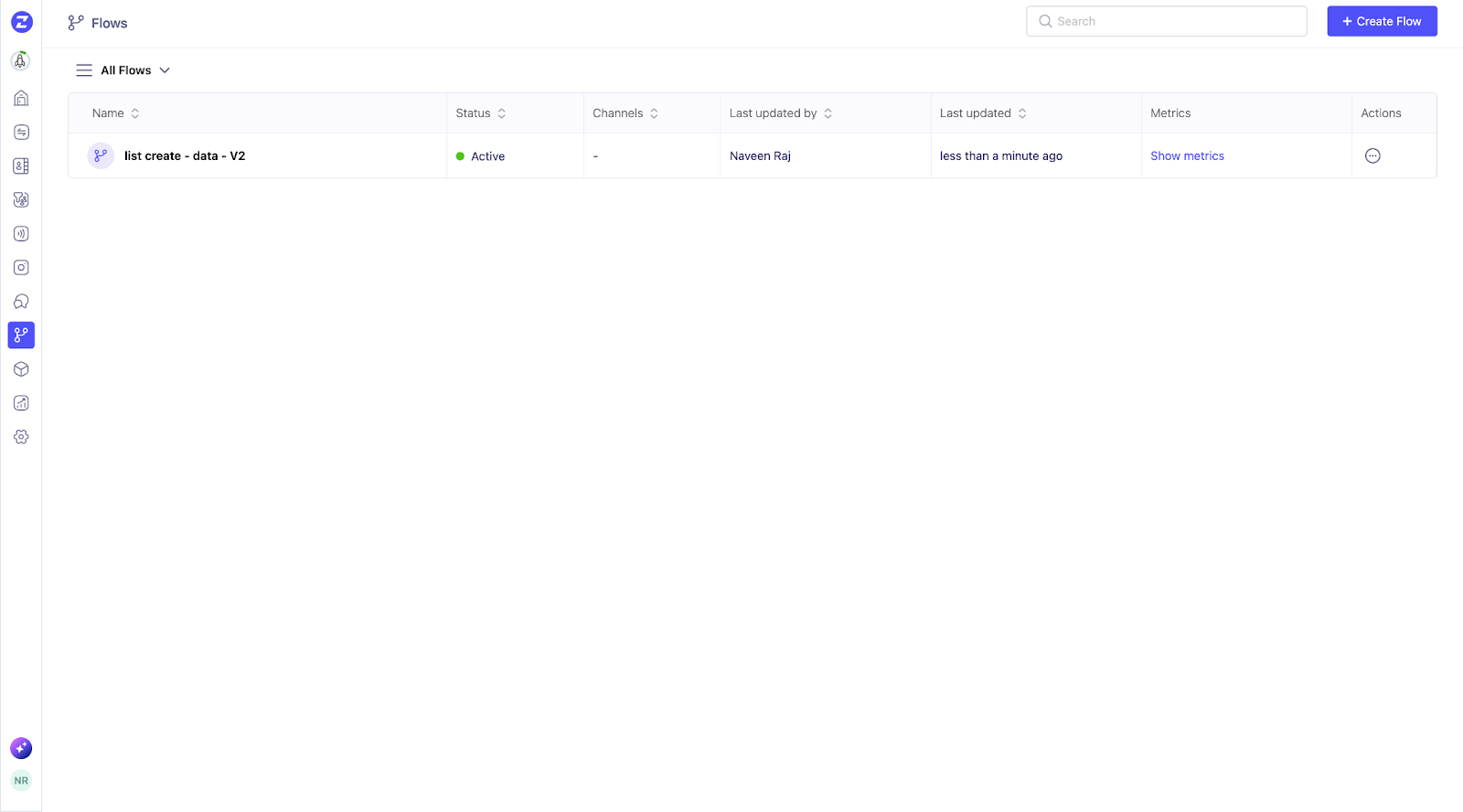
Navigate to Flows from the left navigation bar.
Click Create Flow.
Enter the Flow Name.
Select Contact Objects.
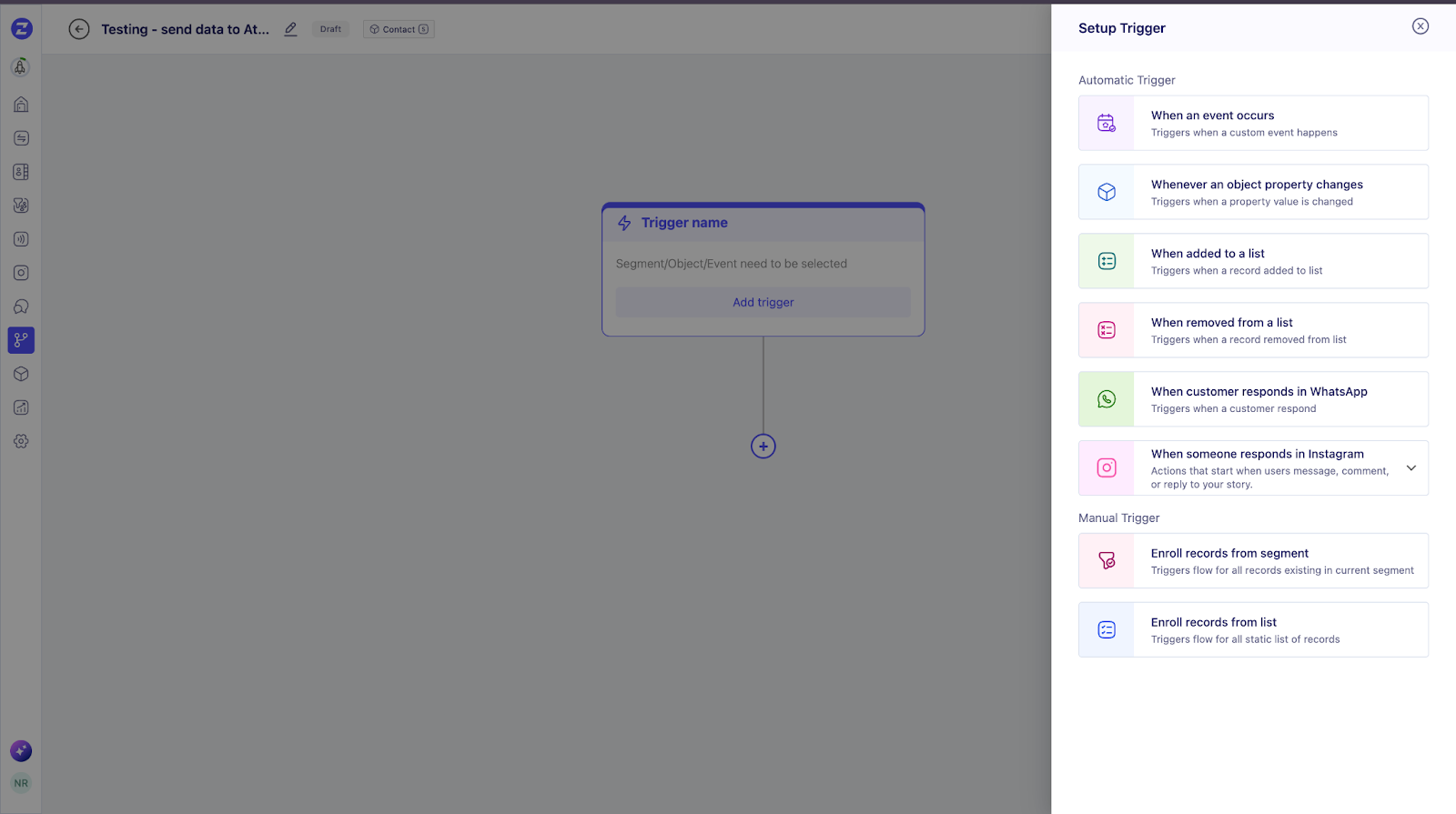
Add a Trigger Block.
Step 2: Add Webhook Action Block
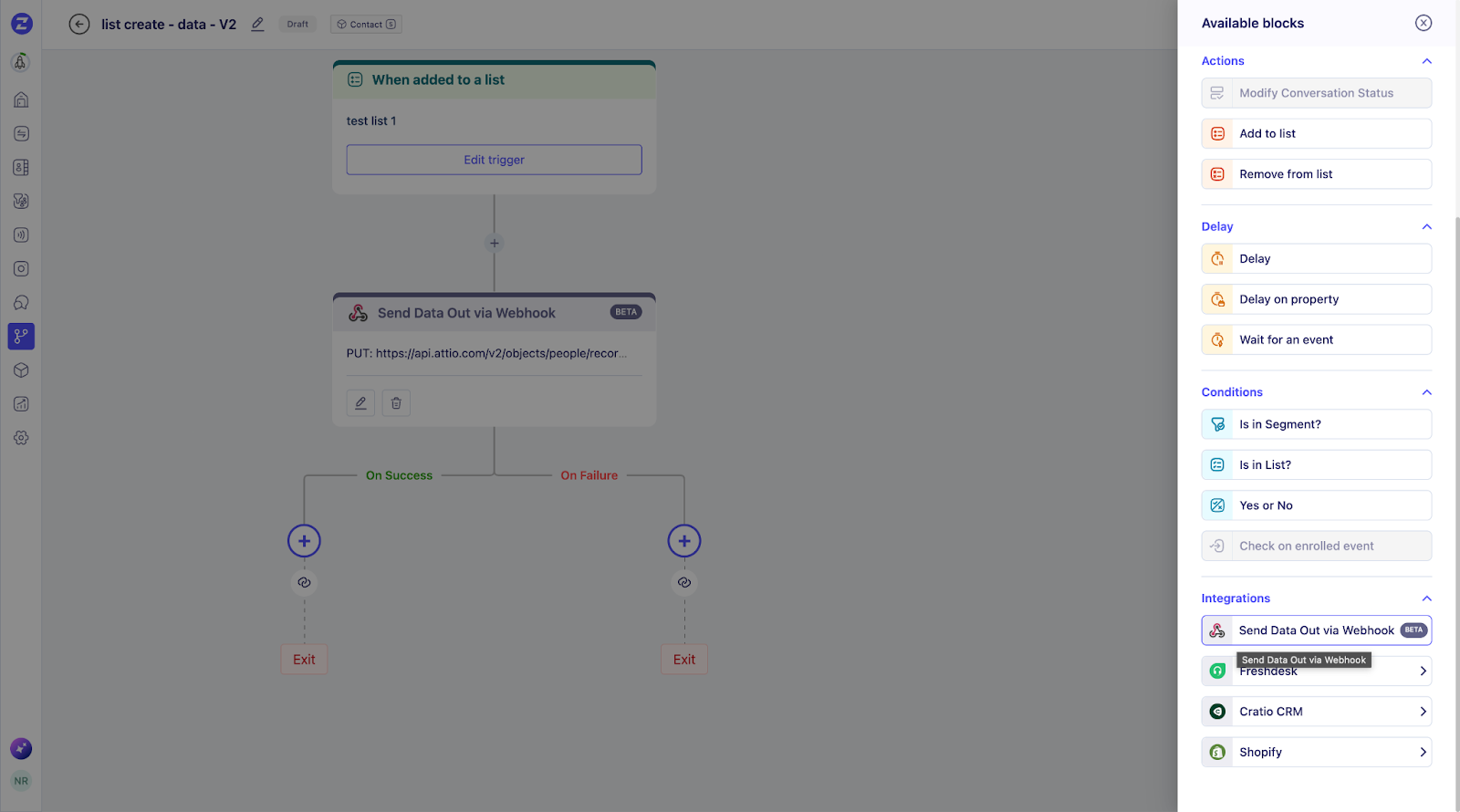
Click the “+” icon below the trigger.
In the right popup pane, go to the Integration section.
Select Send Data Out via Webhook.
Click the block to configure it.
Step 3: Configure Webhook Details
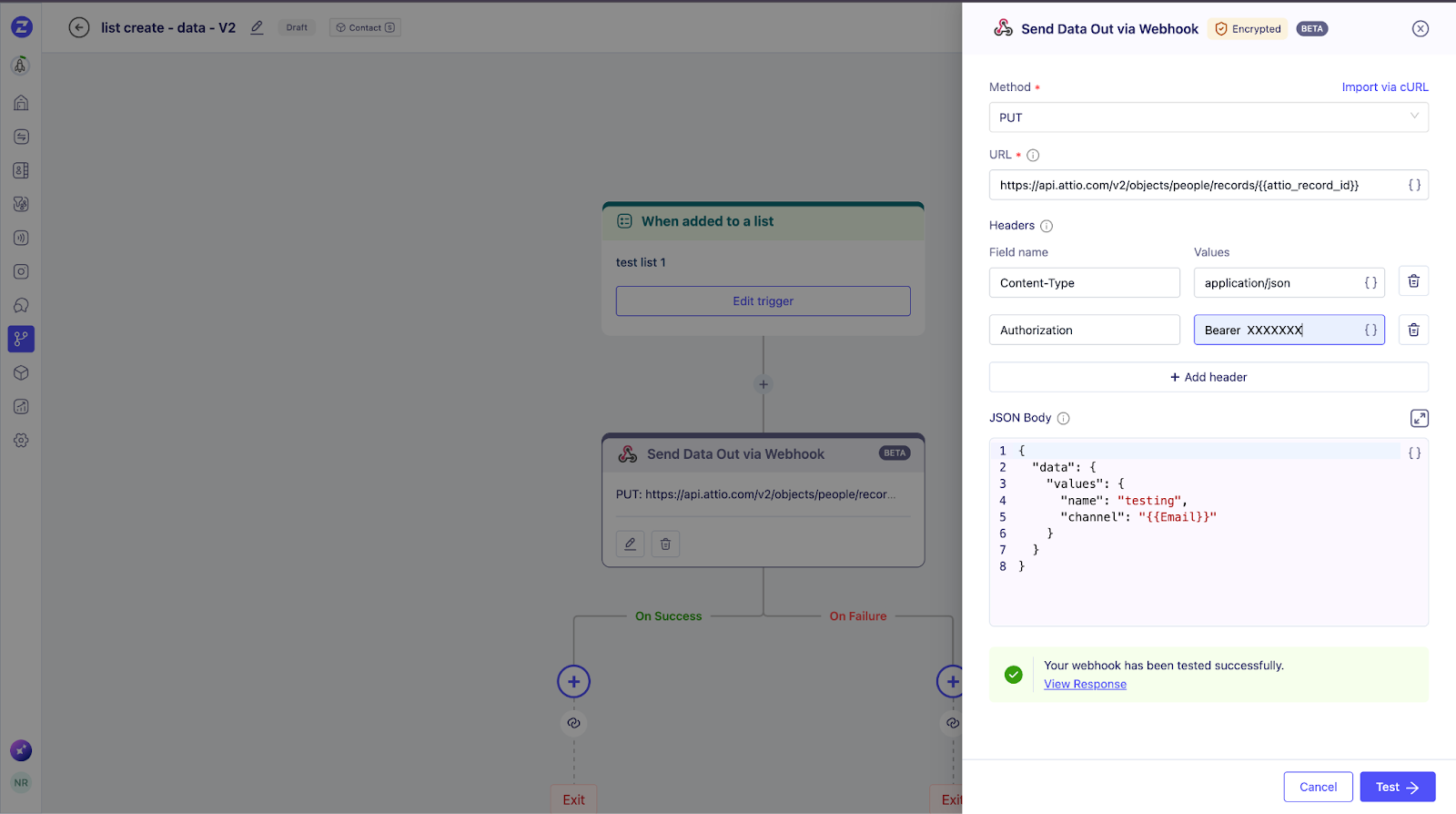
? Select HTTP Method
Choose one of the following:
POST
PUT
? Webhook URL
https://api.attio.com/v2/objects/people/records/{{attio_record_id}}
Click the ‘{}’ placeholder icon in the URL field.
Select the Attio unique record ID (attio_record_id).
Step 4: Configure Headers
Add the following headers:
Replace {Access Token} with your Attio Access Token.
Step 5: Configure JSON Body
The Key must match the API Slug from the Attio object.
The Value can be:
A static value
Or a dynamic placeholder selected using {{}}
Sample Payload
{
  "data": {
    "values": {
      "name": "testing",
      "channel": "{{Email}}"
    }
  }
}
⚠️ Ensure the keys exactly match the Attio API Slug.
Step 6: Test the Webhook
Click Test.
Provide valid placeholder values for testing.
Click Test & Save.
If successful:
The webhook configuration will be saved.
A success response will be displayed.

Was this article helpful?
That’s Great!
Thank you for your feedback
Sorry! We couldn't be helpful
Thank you for your feedback
Feedback sent
We appreciate your effort and will try to fix the article