How to Format Date and DateTime Object Fields in ZEPIC
Date and DateTime fields help you capture birthdays, order dates, appointments, and customer activity. ZEPIC lets you choose how these values appear, including numeric dates, readable month names, 12-hour or 24-hour time, and timezone conversion for DateTime fields.
This guide explains the formatting options and how to choose the right display for your object fields.
Table of Contents
- Before You Begin
- Date vs. DateTime Fields
- How to Configure Formatting
- Date Formatting Options
- DateTime Formatting Options
- Understanding Format Patterns
- Timezone Conversion
- Defined vs. Relative Formatting
- Best Practices
- FAQs
- Explore Related Articles
Before You Begin
- An active ZEPIC account and permission to edit the relevant object’s fields.
- An existing Date or DateTime field, or an object where you want to add one.
- A sample record to check the result after saving.
Date vs. DateTime Fields
| Field type | What it captures | Typical uses |
|---|---|---|
| Date | A calendar date without a time of day. | Birthdays, anniversary dates, and invoice due dates. |
| DateTime | A date and time representing a particular moment. | Appointment times, order timestamps, and last activity. |
Use a Date field when only the day matters. Use DateTime when the time of day or timezone matters.
How to Configure Formatting
1. Open Your Object
From the left navigation bar, navigate to Objects. Open the object you want to configure.
2. Open the Field Settings
Select the Date or DateTime field in the object’s field editor. If you are creating a new field, choose the appropriate field type first.
3. Enable Custom Formatting
Enable the field’s custom formatting option. For a defined display, choose one of the available format patterns. The Date and DateTime fields have different sets of supported patterns.
4. Configure Timezone Conversion, if Needed
For a DateTime field, enable timezone conversion and select the timezone you want to use. Date-only fields do not have this conversion option.
5. Save and Review
Save your field and object changes, then open a sample record to check the displayed value. Confirm the day/month order, time style, and timezone before using the field in your team’s workflow.
Note: Choose from the available patterns rather than entering an arbitrary format. Unsupported format patterns are rejected when saving.
Date Formatting Options
The following examples use 7 October 2026. Month names are shown in English for illustration.
| Format pattern | Example display |
|---|---|
yyyy-MM-dd | 2026-10-07 |
dd/MM/yyyy | 07/10/2026 |
MM/dd/yyyy | 10/07/2026 |
dd MMM yyyy | 07 Oct 2026 |
d MMM yyyy | 7 Oct 2026 |
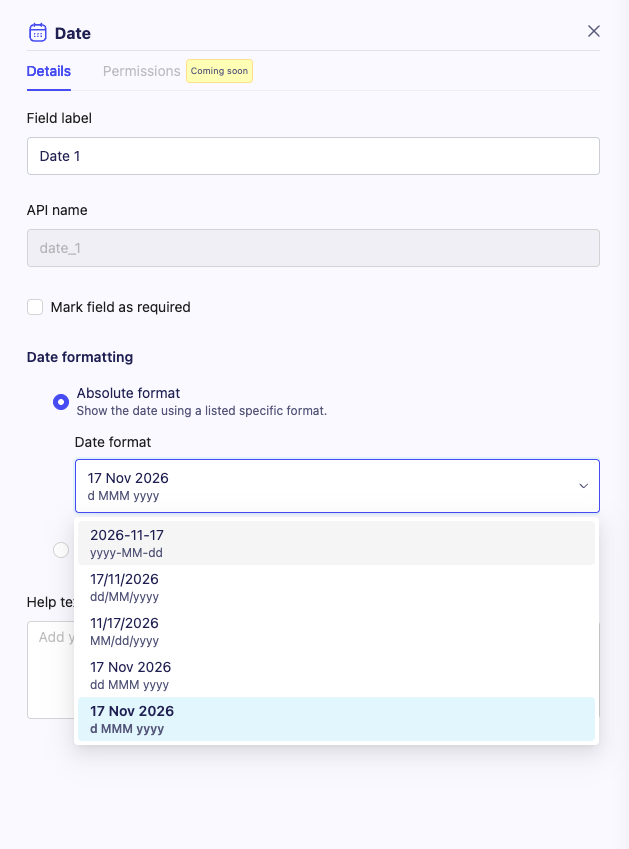
Choosing a format: Use yyyy-MM-dd for year-first consistency, dd/MM/yyyy for day-first dates, or MM/dd/yyyy for month-first dates. A month-name format makes dates easier to interpret across regions.
DateTime Formatting Options
The following examples use 7 October 2026 at 12:00:00.123 UTC. Patterns without seconds or milliseconds omit that detail from the display.
| Format pattern | Example display |
|---|---|
yyyy-MM-dd HH:mm | 2026-10-07 12:00 |
dd/MM/yyyy HH:mm | 07/10/2026 12:00 |
MM/dd/yyyy hh:mm a | 10/07/2026 12:00 PM |
d MMM yyyy, h:mm a | 7 Oct 2026, 12:00 PM |
yyyy-MM-dd HH:mm z | 2026-10-07 12:00 UTC |
yyyy-MM-dd HH:mm Z | 2026-10-07 12:00 +0000 |
yyyy-MM-dd'T'HH:mm:ssZ | 2026-10-07T12:00:00+0000 |
yyyy-MM-dd'T'HH:mm:ss.SSSZ | 2026-10-07T12:00:00.123+0000 |
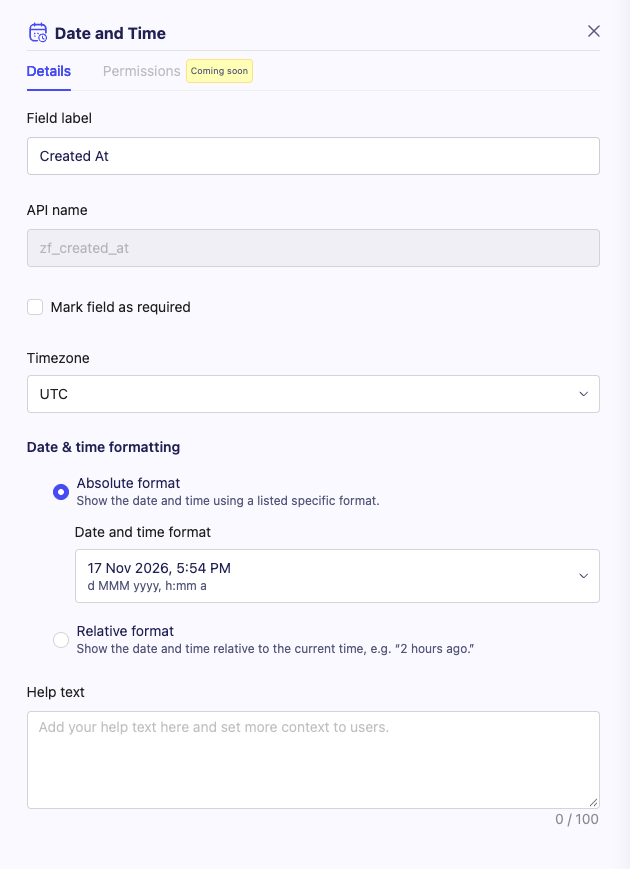
Choose a 12-hour format with AM/PM for familiar customer-facing times, or a 24-hour format for operational clarity. Formats with an offset make the timezone explicit.
Important: Patterns are case-sensitive.
MMmeans month;mmmeans minutes. Use the supported format picker to avoid confusing them.
Timezone Conversion
Timezone conversion lets a DateTime field display the same moment in a selected timezone. The converted clock time—and sometimes the calendar date—can differ from UTC.
Example: 7 October 2026 at 12:00 UTC is 7 October 2026 at 17:30 in Asia/Kolkata. With the format d MMM yyyy, h:mm a, the converted display is 7 Oct 2026, 5:30 PM.
Choose a timezone from the available list. Region-based timezones account for daylight-saving changes where applicable; a fixed offset does not express those seasonal rules.
Note: Custom formatting and timezone conversion are separate settings. Formatting changes the representation; timezone conversion changes which local clock time represents the moment. Changing these settings does not rewrite existing stored timestamps.
When entering or importing a DateTime without an explicit timezone or offset, the enabled field timezone can affect how that value is interpreted. Check your source data and integration mapping rather than assuming every timezone-free value is UTC.
Defined vs. Relative Formatting
Defined formatting shows an exact date or timestamp using the selected pattern, such as 7 Oct 2026, 5:30 PM. It is useful for appointments, due dates, and records where precision matters.
Relative formatting expresses a value in relation to now, such as “2 hours ago” or “3 days ago.” It is useful for recency fields like Last Activity or Last Updated.
Where Relative format is available in your field editor, select it under custom formatting. Relative wording is rendered by the interface from the underlying date or timestamp; the exact wording and refresh behavior depend on the view. If your editor does not offer this option, use a defined format or contact ZEPIC support to check availability.
The defined pattern controls exact formatted output, not the wording of a relative display. Do not assume a specific age cutoff, hover tooltip, or relative format in exports.
Best Practices
- Avoid ambiguous dates: Prefer a month name or year-first format when your team works across regions.
- Match the field to its purpose: Use Date for calendar dates and DateTime for moments in time.
- Keep operational formats consistent: Use the same convention for related object fields.
- Make timezone choices explicit: Check the selected zone before sharing appointment or event times.
- Test imported values: Display formatting is not a guarantee that every source string will be accepted.
- Use exact dates when precision matters: Relative text is helpful for recency but less suitable for contractual deadlines or historical records.
FAQs
Can different fields use different formats?
Yes. Formatting is configured on each Date or DateTime field, so a birthday and an appointment timestamp can use different displays.
Can I create any custom pattern?
No. Select one of the supported patterns for the field type. An unsupported pattern is rejected on save.
What are the default configured patterns?
The default Date pattern is d MMM yyyy, and the default DateTime pattern is d MMM yyyy, h:mm a. Custom formatting is off by default; a view must apply field formatting for the configured pattern to be used.
Can I show both seconds and milliseconds?
Yes. The supported DateTime pattern yyyy-MM-dd'T'HH:mm:ss.SSSZ includes seconds, milliseconds, and a numeric timezone offset.
Does timezone conversion apply to Date fields?
No. Date-only fields do not represent a time of day. Use a DateTime field when you need timezone conversion.
Will changing the display format change existing record values?
Changing the formatting setting does not rewrite existing stored values. However, timezone settings can affect the interpretation of newly entered timezone-free DateTime values.
Will an API response or export always match the object display?
Not necessarily. Some consumers request raw values, while others apply field formatting or timezone conversion. Verify the relevant view, export, or integration rather than assuming the same representation everywhere.
Why do I see a different day after timezone conversion?
The same moment can fall on different calendar days in different timezones. Check the source timestamp’s offset and the field’s selected timezone.
Explore Related Articles
Was this article helpful?
That’s Great!
Thank you for your feedback
Sorry! We couldn't be helpful
Thank you for your feedback
Feedback sent
We appreciate your effort and will try to fix the article