How to Automate Shipping Notifications Using ZEPIC Flows
This guide covers how to build an automated shipping notification journey in ZEPIC, so every customer hears back the moment their order ships.
Shipping notification journeys in ZEPIC are designed to help e-commerce, D2C, and travel brands keep customers informed instantly, across SMS, WhatsApp, and email. This adds a practical way to inform customers without team members sending one at a time.
Table of Contents
- • Before You Begin (Prerequisites)
- • What Is a Shipping Notification Journey?
- • How to Build a Shipping Notification Journey in ZEPIC
- • What to Expect After Launch
- • Shipping Notification Use Cases for Your Business
- • FAQs
- • Explore Related Articles
Before You Begin
- • An active ZEPIC account with at least one channel enabled, such as SMS, WhatsApp, or email.
- • Your Shopify store connected to ZEPIC, or another source sending order data through a webhook.
- • Shipping Confirmation or Product Shipped tracked as a custom event flowing into ZEPIC.
- • A shipping message ready for each channel you plan to use, with a tracking link if available.
What Is a Shipping Notification Journey?
A shipping notification journey is a flow in ZEPIC that starts the moment an order ships, so the customer hears back without anyone needing to send the message manually.
The flow is triggered by a custom event set to Shipping Confirmation or Product Shipped on your platform using your Shopify integration or a Webhook.
You can send the shipping notification on multiple channels at once, like SMS, WhatsApp, or email.
How to Build a Shipping Notification Journey in ZEPIC
1. Connect Your Order Source: Connect your Shopify store to ZEPIC, or confirm the webhook you are using sends shipping data as it happens (If not already set up).
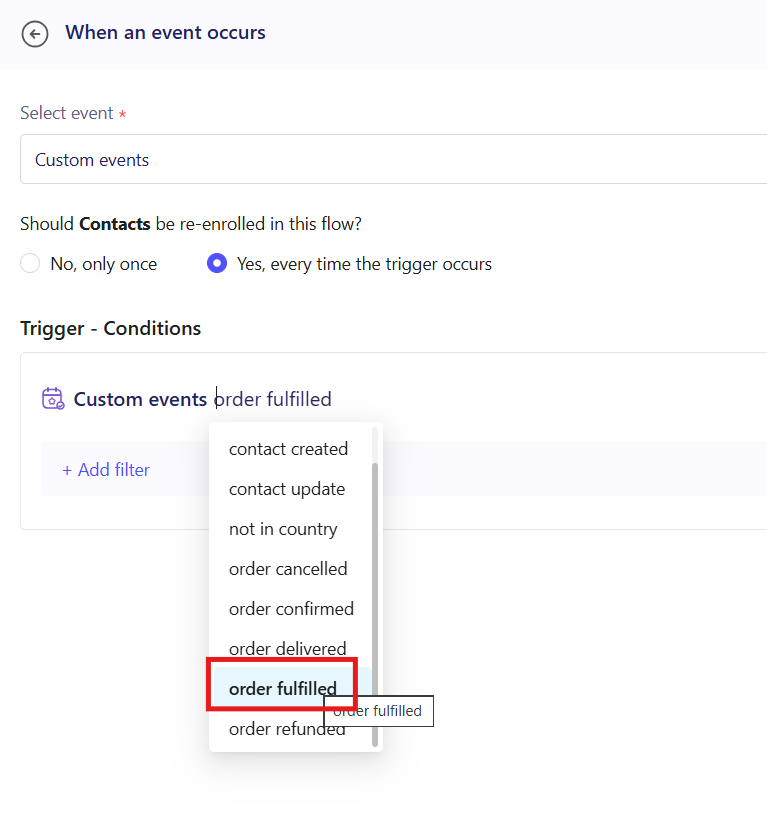
2. Open Flows and Set the Trigger: Navigate to Flows in ZEPIC and create a new flow, or edit an existing one, then set the trigger as a custom event and select Order Fulfilled or Product Shipped on your platform.
3. Customize Your Messages: Add a step for each channel you want to use, SMS, WhatsApp, or email, and customize the message with the tracking link and personalization such as first name.
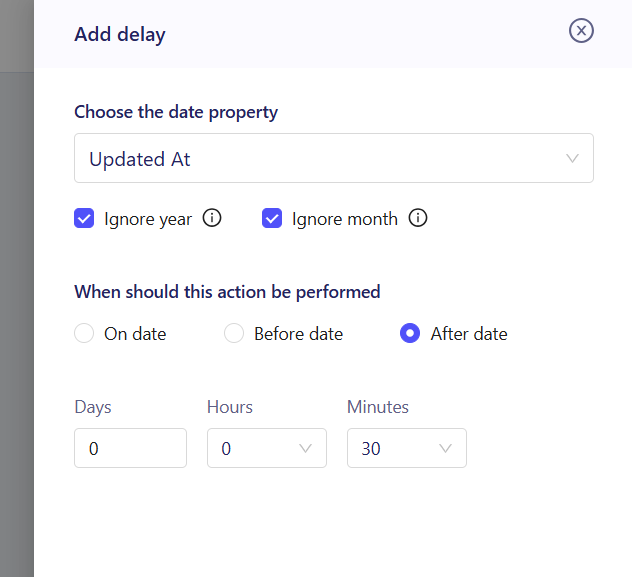
4. Choose Timing Across Channels: Send the shipping notification on multiple platforms at once, or add a delay between channels if you want one message to follow the other.
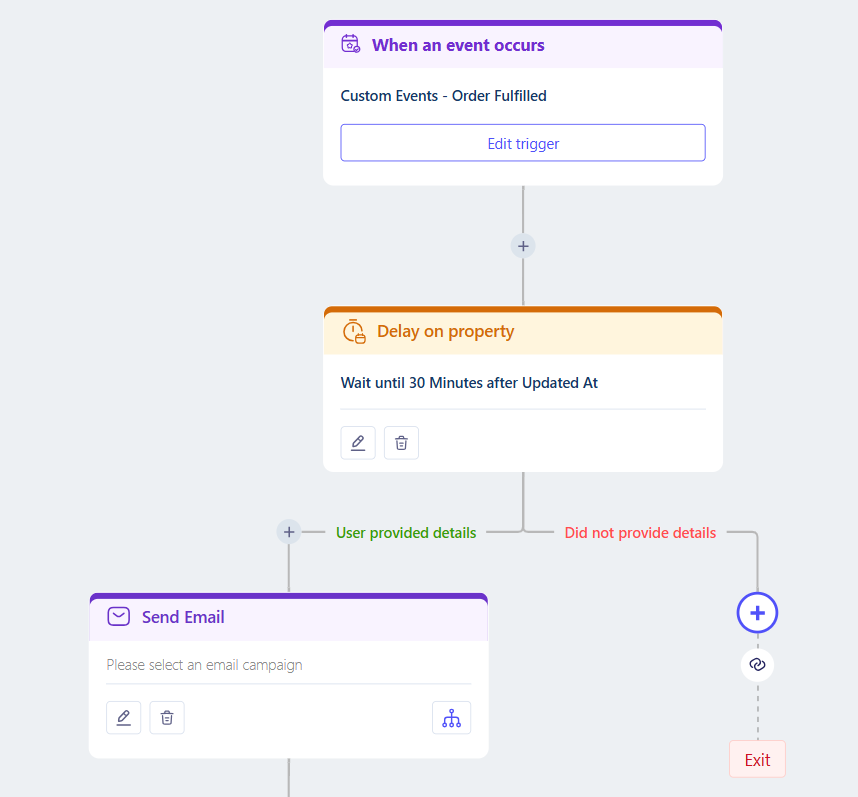
5. Test and Launch: Trigger a test shipment, confirm each message arrives correctly, then publish the flow to your live audience.
What to Expect After Launch
Once your shipping notification journey is live, your business can keep every customer informed the moment their order is on its way. Your team does not need to send tracking updates by hand or check each order manually, meaning that every customer gets a timely message on the channels they prefer (or you opt for)
Shipping Notification Use Cases for Your Business
- • Instant Multi-Channel Tracking: A D2C skincare brand sends an SMS and a WhatsApp message with a tracking link at the same moment an order ships, so the customer sees it wherever they check first.
- • Email as the Detailed Record: A fashion retailer sends an SMS notification immediately, then follows with a detailed email a few minutes later showing the carrier, tracking number, and estimated delivery date.
- • Split Shipment Updates: A home décor brand sends a separate WhatsApp message for each package when an order ships in more than one box, so the customer knows to expect multiple deliveries.
- • Review Request Follow-Up: An electronics retailer sends a shipping notification by email, then delays a WhatsApp message asking for a product review until a few days after the estimated delivery date.
FAQs
Can I send the shipping notification on more than one channel at once?
Yes. You can send SMS, WhatsApp, and email together the moment the order ships, or add a delay so one channel follows another.
Does this only work with Shopify?
No. Shopify is the most common source, but the same flow can trigger from any other webhook that sends a Shipping Confirmation or Product Shipped event into ZEPIC.
Do I need coding experience to build this journey?
No. ZEPIC uses a visual Flow builder, so you can set the trigger, customize messages, and add delays without writing code.
Explore Related Articles
Was this article helpful?
That’s Great!
Thank you for your feedback
Sorry! We couldn't be helpful
Thank you for your feedback
Feedback sent
We appreciate your effort and will try to fix the article