How to automate WhatsApp Campaigns using Triggers, Flows, and Conditions
Relying on manual sending is impossible when dealing with high-volume customer journeys like abandoned carts or lead nurturing.
Which is why WhatsApp Automation in ZEPIC allows you to eliminate manual effort by using triggers, flows, and conditions to deliver personalized messages 24/7.
Automation transforms your WhatsApp channel from a simple support tool into a proactive, personalized revenue driver in ZEPIC, and here’s how you use it.
The essential pillars of WhatsApp Automation in ZEPIC
Every automated campaign is built using three interconnected components:
Step 1: Triggers (The Starter)
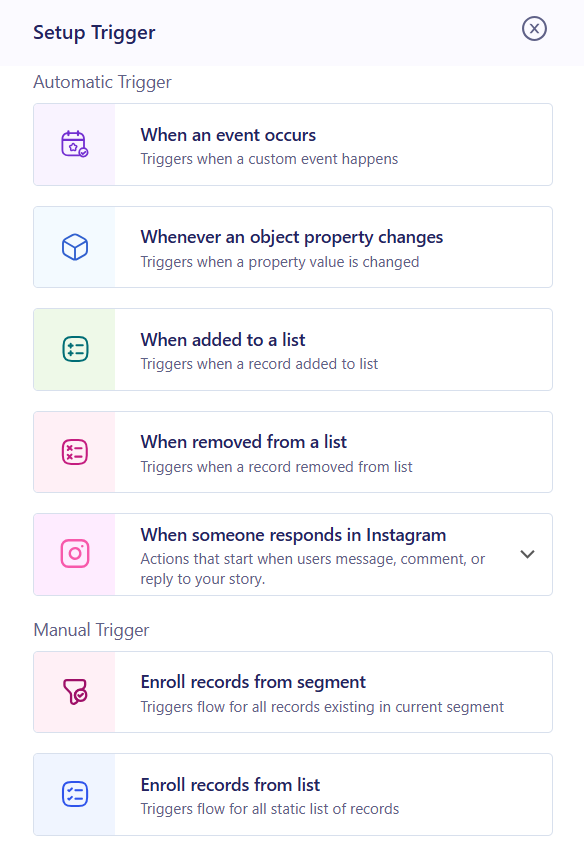
In ZEPIC, Trigger is the event that initiates the entire automated sequence. Triggers eliminate the need for an agent to manually hit "send."
This can be set up for many different reasons, which as when a customer is added to a segment, when a customer responds on Instagram, or several other items, which we cover in our flows article.
Types of Triggers for WhatsApp Campaigns
1. When an event occurs:
This is initiated when a customer performs a specific, tracked action. For instance, a customer performs the "Order Placed" event, which automatically triggers sending an order confirmation template on WhatsApp.
2. When an Object Property changes:
Starts the flow when a specific field on the customer's profile or associated object (like an order) is updated. For instance, the Order Status property changes to "Delivered", which triggers sending a WhatsApp message to ask for product feedback/review.
3. When a user is added to a List:
You can use this when a customer is explicitly added to a target list. This can be something like a user is added to the "Abandoned Cart - 1 Hour" List, which triggers sending a timely cart reminder template on WhatsApp.
4. When a user is removed from a List:
This type of trigger works when a customer is removed from a list (e.g., after an action or cleanup process). This can be something like A user is removed from the "High-Churn Risk" List after making a new purchase, triggering an exclusive discount offer via WhatsApp to reinforce engagement.
5. All records in a Segment:
This can be used for every customer belonging to a selected audience segment. One could be manually triggering a flow for the "Seasonal Sale Target" Segment to send a bulk promotional WhatsApp broadcast message.
6. All records in a List:
With this type of trigger, you can send WhatsApp messages to every customer on a selected list. One use case could be a "Loyalty Program Members" campaign List to send a new digital catalog via WhatsApp.
Step 2: Selecting Lists or Segments
The 2nd most essential aspect is which List or Segment you want to WhatsApp campaign to be triggered from. This campaign can be for a new customer joining or even a seasonal promotion.
Segments are for more complex marketing requirements, while lists are simple and easier to manage within ZEPIC.
But with this, you need to understand to which type of users the campaign needs to go out to. To help you get this sorted you can over our ‘How to use Flows in Lists’ article.
Step 3: Creating a flow
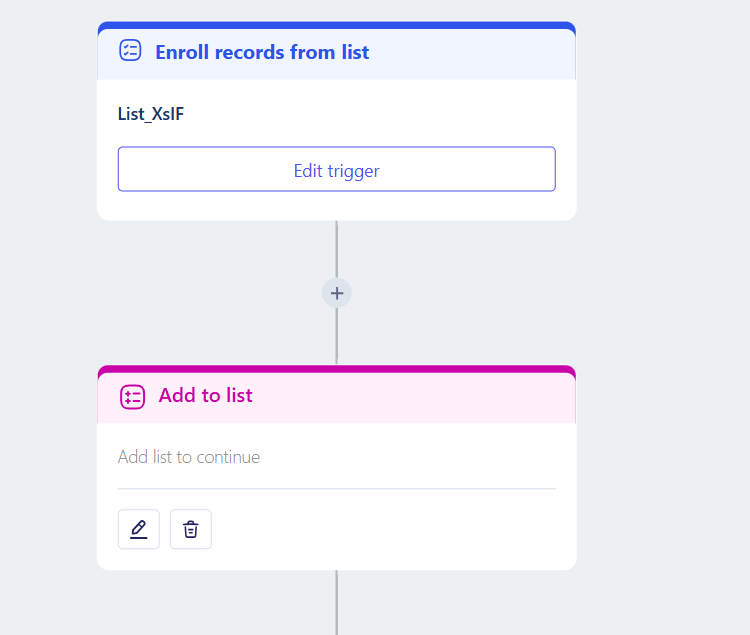
The Flow (or Journey) is the sequence of actions that occur after the trigger. It defines the communication steps and delays in a visual editor. For example, a trigger flow could look like
- Trigger: Cart Abandoned.
- Action 1: Send Template Message (Cart Reminder) immediately.
- Delay: Wait 24 hours.
- Action 2: Check Condition.
Step 4: Adding conditions if needed
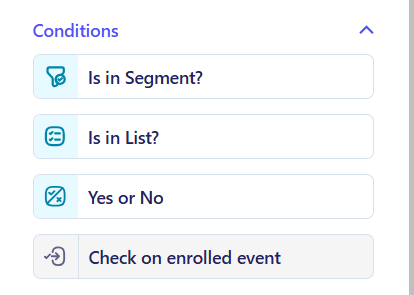
A Condition introduces personalization by creating branching paths in the flow. It checks customer data to determine the next message or action, ensuring relevance.
The condition types you can choose in ZEPIC are:
- Is in segment: Checks if the customer belongs to a specified audience segment (e.g., "High-Value Customers").
- Is in list: Checks if the customer is on a specific list (e.g., "Email Subscribers").
- Yes or No: A simple check on a true/false customer property or a preceding question's outcome.
- Check on Enrolled Event: Checks if a customer has performed a specific action or event (e.g., "Item Viewed," "Order Placed").
Key automations use cases in ZEPIC
By combining these three elements, you can launch sophisticated, high-performing campaigns:
| Use case | Trigger example | Condition example |
| Abandoned Cart Recovery | User leaves product in cart (System Event). | IF last order was > 30 days ago (Send a special "Welcome Back" discount). |
| Lead Nurturing (CTWA) | User starts a chat via a CTWA Ad (User Action). | IF Lead Score is High (Send product catalog; else, send FAQ). |
| Win-Back Campaigns | No purchase activity for 90 days (Time/Date Event). | IF customer has opened previous 3 emails (Target via WhatsApp; else, exclude). |
| Shipping Notifications | Order status changes to "Delivered" (System Event). | IF the region is US (Wait 2 days, then trigger a CSAT survey). |
Would you like to review how to set up flows in ZEPIC for better, more effective branding and marketing campaigns?
Was this article helpful?
That’s Great!
Thank you for your feedback
Sorry! We couldn't be helpful
Thank you for your feedback
Feedback sent
We appreciate your effort and will try to fix the article