How to Create or Update Records in ZEPIC Flows
Use the Create or Update Record action to save data to a ZEPIC object as part of a flow. For example, when a booking event arrives, the flow can find a record by its booking reference and update it, or create a booking record if that reference is new.
Table of Contents
- Before You Begin
- Set Up the Block
- How Record Matching Works
- Choose What Happens When a Placeholder Is Empty
- Set Up Outcome Paths and Test Your Flow
- Troubleshooting
- Explore Related Articles
Before You Begin
- Your ZEPIC plan must include Create or Update Record, and you need permission to create or update records.
- Have a flow with a trigger and an object to save to. The destination can be different from the object the flow is based on.
- Check which properties the destination requires. If you want repeat runs to update the same record, choose a unique property whose value stays the same, such as a booking reference.
Set Up the Block
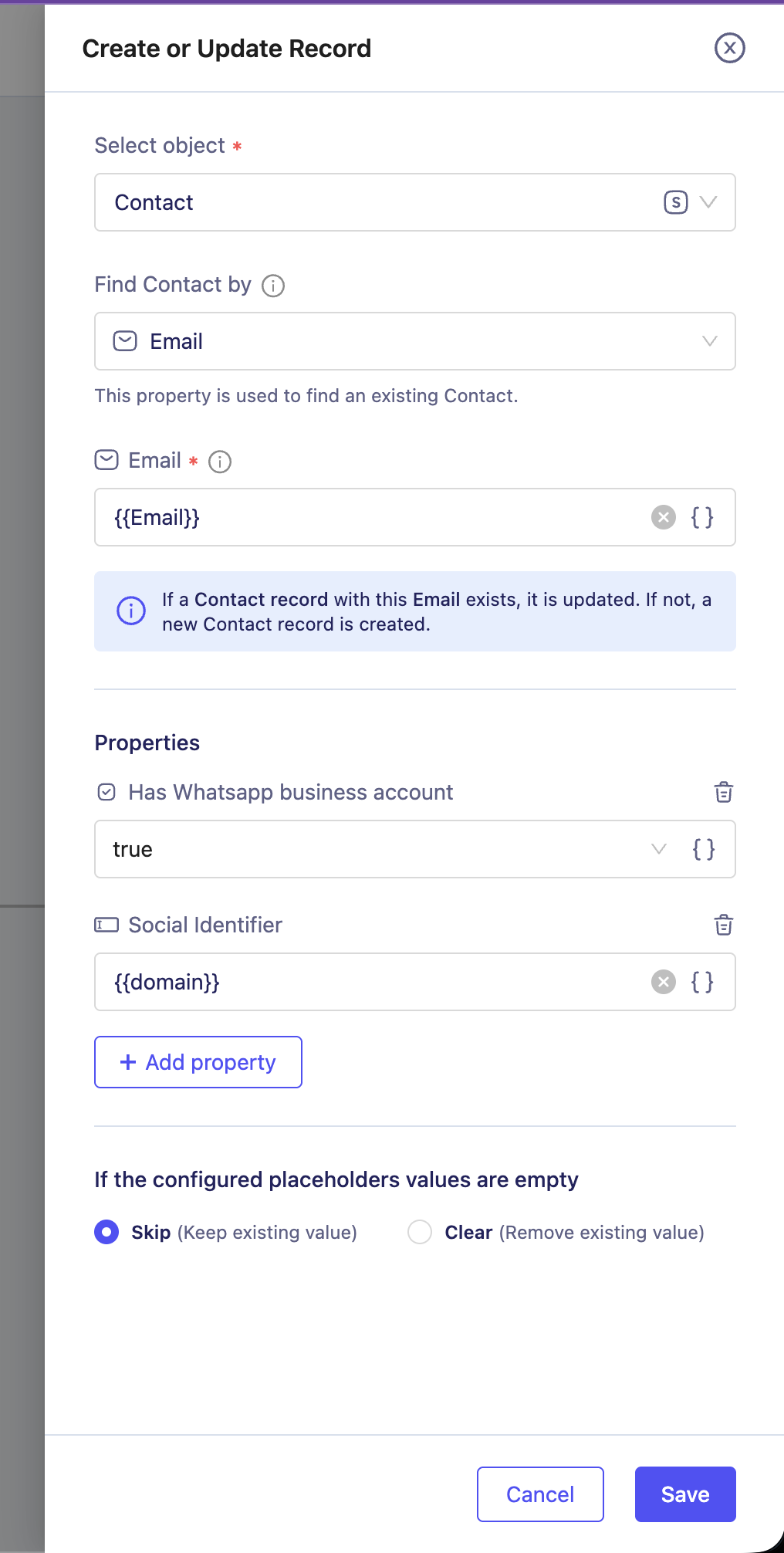
- Open your flow in Flows. Click the + where you want the action to run, then choose Actions → Create or Update Record. Open the block to configure it.
- Under Select object, choose where the record should be saved. Your flow’s object is preselected for a new block; change it if you want to write to a different object.
- Under Find [object] by, choose one unique property and supply a value. Type a fixed value or use the placeholder picker to insert data from the trigger or an available earlier step. For the booking example, select Booking Reference and insert the booking reference from the trigger. Leave the match property unselected if you want to create without a lookup.
- Under Properties, fill in the required properties and use Add property for any others you want to write. For example, map Guest Name and Arrival Date from the trigger. Don’t add optional properties you want to leave untouched.
- Choose Skip or Clear for empty placeholder values, then click Save.
How Record Matching Works
| Match setting | What happens |
|---|---|
| One unique property | If the value matches, the block updates that record without changing the match property. If it doesn’t match, the block attempts to create a record using that value. |
If you select a match property, its value must be present when the block runs. An empty match value sends the flow down On Failure, regardless of the empty-placeholder setting.
Choose What Happens When a Placeholder Is Empty
These settings apply when you insert a placeholder for a property and it resolves to an empty value when the flow runs:
- Skip (default): Don’t write that property. An existing value stays as it is.
- Clear: Remove the existing value from the optional property. Required properties are never cleared.
Important: A property you add and leave blank is not the same as an empty placeholder. A blank mapping uses the property’s default if one exists; otherwise it can clear an optional property on update. To leave a property alone, don’t add it to the block.
When creating a record, a required property still needs a value or a default. Skip and Clear don’t bypass that requirement.
Set Up Outcome Paths and Test Your Flow
| Path | When it runs | What later blocks can use |
|---|---|---|
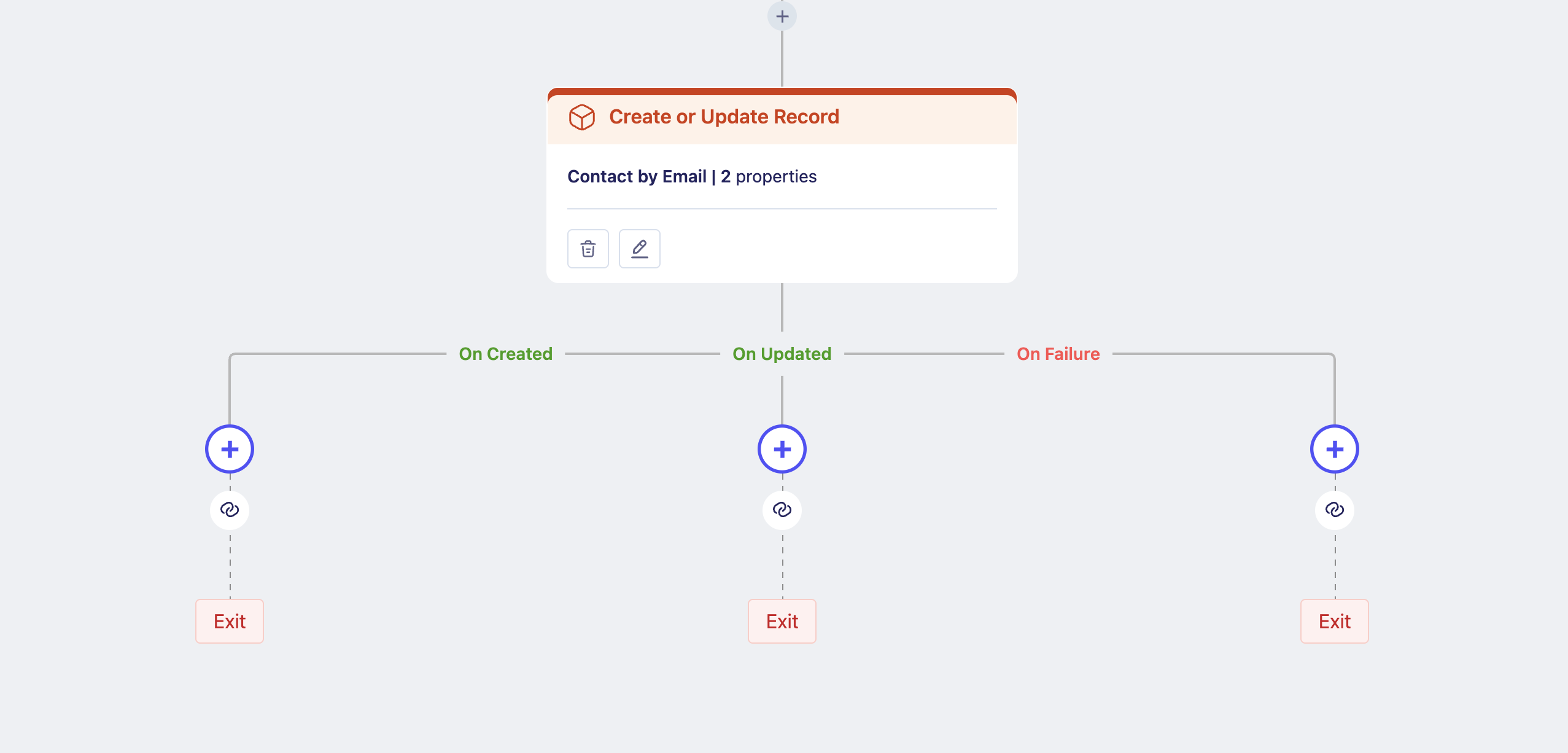
| On Created | A new record was saved. | Record ID, operation, and available record properties. |
| On Updated | The block matched an existing record and completed successfully. | Record ID, operation, and available record properties. |
| On Failure | The block couldn’t complete the record action. | Error code and error message, for example to route the run for review. |
Try the flow in a test setup before using it with live data. Send a booking event for a reference that doesn’t exist, then send another event with the same reference and a different arrival date. Check that the first run takes On Created, the second takes On Updated, and the destination contains one record for that reference with the revised date. Then send a test event without a booking reference to check the On Failure path.
Troubleshooting
- The action is locked or unavailable: Ask your ZEPIC admin to confirm that the plan includes the block and that you can create or update records.
- A property isn’t listed under Find by: Check that it belongs to the destination object and is configured to require a different value on every record. Look Up fields aren’t offered as match properties.
- The action fails on a required or invalid value: Check what the placeholder supplied in that run and make sure it fits the destination property. For example, use a whole number for a Number property or an existing option for a dropdown.
- The action reports a unique value conflict: Check whether the match value and another unique value you mapped refer to different records. Correct the input or mapping before running the flow again.
Explore Related Articles
Was this article helpful?
That’s Great!
Thank you for your feedback
Sorry! We couldn't be helpful
Thank you for your feedback
Feedback sent
We appreciate your effort and will try to fix the article