How to Route and Follow Up on Conversations with Status Change Triggers Conversation Status Change Trigger
Use the Conversation Status Change trigger to start a ZEPIC automation when a conversation opens, reopens, is resolved, or expires.
This trigger helps you route enquiries, organize conversations, request feedback, and start follow-up workflows. It enrolls the contact associated with the conversation.
Before you begin
1. An Active ZEPIC account with at least one channel enabled, such as WhatsApp, SMS, Instagram
2. Conversations coming into your Team Inbox, with the attributes you plan to filter on, such as tags.
3. A clear idea of which status change should start the automation.
4. The follow-up action or message you want to run once the conditions are met.
Supported Channels
Use Cases
How to Configure the workflow trigger
Step 1: Add the Trigger
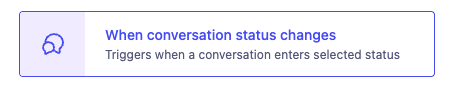
Select Conversation Status Change as the trigger in your automation.
Step 2: Select the Destination Statuses
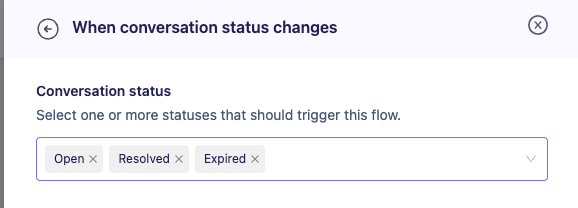
Choose one or more status:
Select the status the conversation should enter, not the status it should leave.
Step 3: Choose the Channels
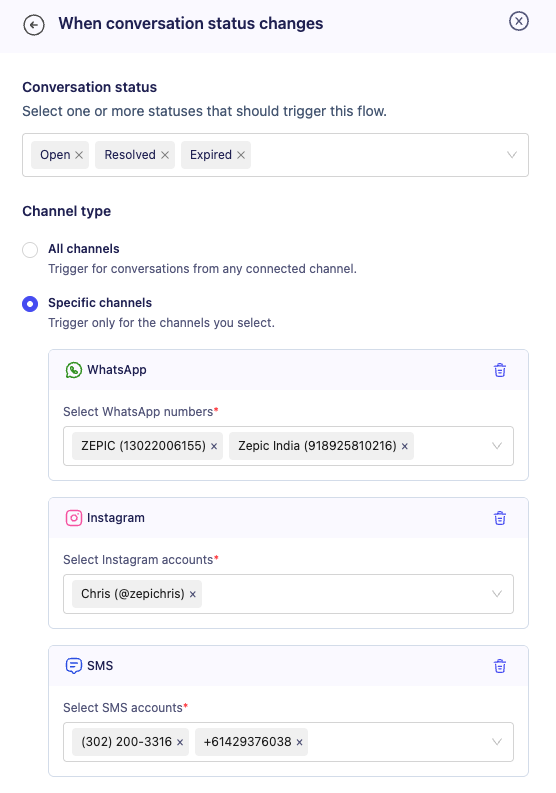
Choose the channel scope:
Any: Include conversations across WhatsApp, Instagram, and SMS.
Specific: Include only selected channel types.
For each selected channel type, you can optionally choose individual accounts. If no individual accounts are selected, the trigger matches all accounts for that selected channel type.
For example, select WhatsApp and a particular account to run a workflow only for conversations associated with that account.
Step 4: Configure Customer Message Matching
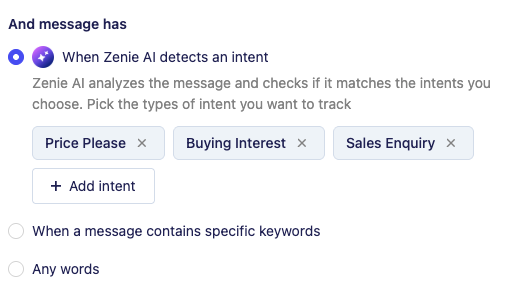
Choose whether enrollment should depend on customer text.
Status Only
Leave message filtering unconfigured.
Use this when customer text should not determine enrollment—for example, when requesting feedback after a qualifying resolution.
Any Words
Select Any words to require eligible, nonblank customer text.
This option does not require a particular keyword. Unlike status-only enrollment, it requires qualifying text to be available.
Specific Keywords
Add the words or phrases that should qualify, such as:
price
quote
book a demo
Keyword matching is case-insensitive. A Contains condition uses literal substring matching, and any keyword or phrase within that condition can satisfy it.
For example:
ZENIE Intent
Describe the customer’s intent in plain language.
For example:
The customer is asking about product pricing.
Message eligibility: Content matching uses eligible Public Contact text only. Agent replies, private notes, system messages, or non-text media are not supported.
Step 5: Set Re-enrollment
Choose whether the same contact can enter again on later qualifying events:
Disabled: Prevent duplicate starts for the same contact, flow, and launched version.
Enabled: Allow repeat enrollment, subject to existing flow rate limits.
Enable re-enrollment for workflows intended to run repeatedly, such as assistance after subsequent qualifying reopens.
Step 6: Add Workflow Actions
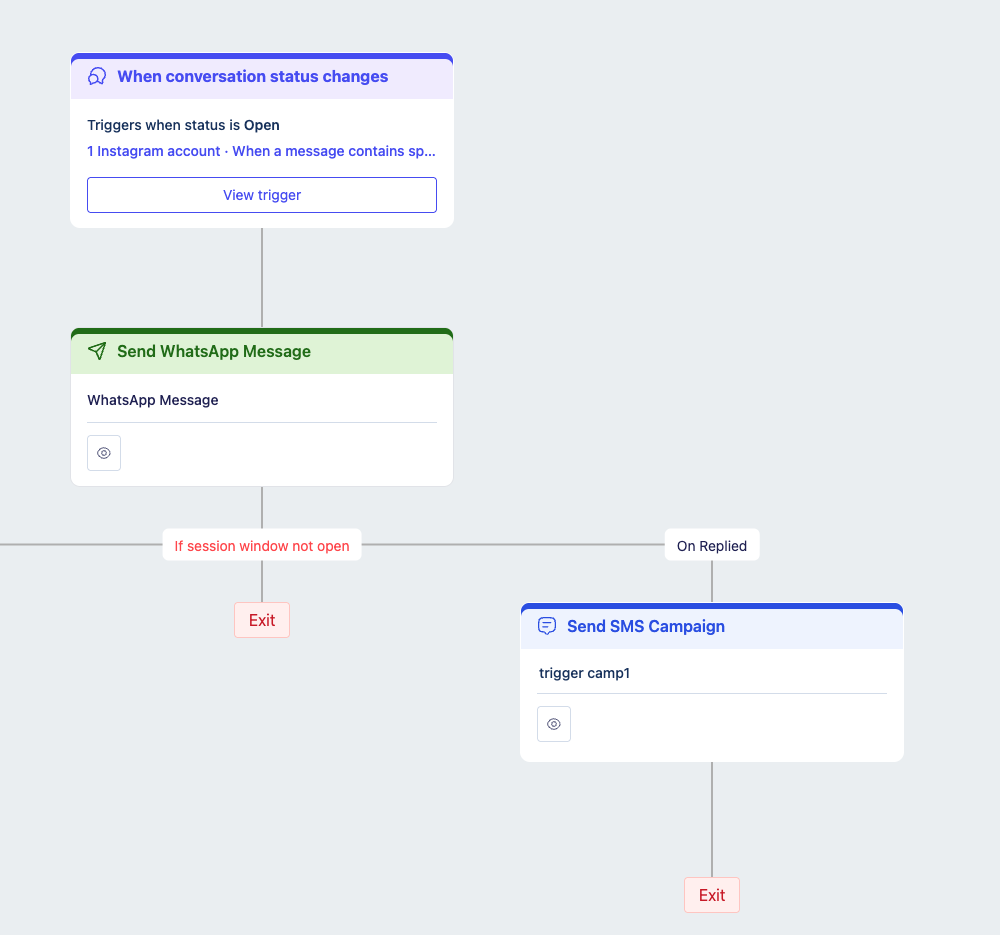
Connect the trigger to the actions needed for your use case.
Examples include:
Assigning or routing the conversation.
Applying conversation tags.
Updating contact fields.
Sending a message - WhatsApp/SMS/Email.
Adding a delay before a follow-up.
Calling a configured integration.
External Webhook.
Step 7: Validate and Launch
Verify the flow and Launch it.
Only an Active flow’s launched definition is used for enrollment. Changes saved to an unpublished draft do not affect the running automation.
FAQs
Can I add more than one filter condition to a trigger?
Yes. You can add several conditions based on conversation attributes, so the automation only runs when a conversation matches all the criteria you set.
What happens to conversations that do not meet the conditions?
Nothing. ZEPIC evaluates the conditions when the status changes, and the workflow does not run for conversations that fall outside them.
Do I need coding experience to add filter conditions?
No. ZEPIC uses a visual Flow builder, so you can choose the trigger, add conditions, and build the workflow without writing code.
Explore Related Articles
How to View and Respond to Instagram Messages in Team Inbox on ZEPIC
How to Automate WhatsApp Campaigns Using Triggers, Flows, and Conditions
Was this article helpful?
That’s Great!
Thank you for your feedback
Sorry! We couldn't be helpful
Thank you for your feedback
Feedback sent
We appreciate your effort and will try to fix the article