How to create and get approval for WhatsApp message templates
The Template Message (also known as a Highly Structured Message or HSM) is the backbone of any WhatsApp campaign.
That said, WhatsApp template approval is the major factor for your entire outbound messaging strategy. Without it, you cannot launch promotional broadcasts or automated notifications.
Meta requires all template messages to be pre-approved to prevent spam and protect user experience, and here’s how you do this in ZEPIC.
Why meeting compliance guidelines is essential for WhatsApp templates
Understanding the approval process solves the pain point of frustrating rejections and campaign delays:
- Avoid delays: Knowing the rules ensures your submission is approved quickly, keeping your campaign launch on schedule.
- Maintain quality: Approved templates are compliant, which minimizes user blocks and helps maintain a high message quality rating.
- Enable proactive communication: Unlocks the ability to send messages based on customer triggers (e.g., Abandoned Cart) rather than waiting for them to message you first.
Step-by-step guide: Template creation and submission
The process is initiated within ZEPIC, which then submits the message content directly to Meta for review.
Step 1: Access the template builder in ZEPIC
- After navigating to the WhatsApp campaign section and selecting the type of campaign, click Create New Template, and a template creator window will open in a new tab.
Step 2: Define template metadata
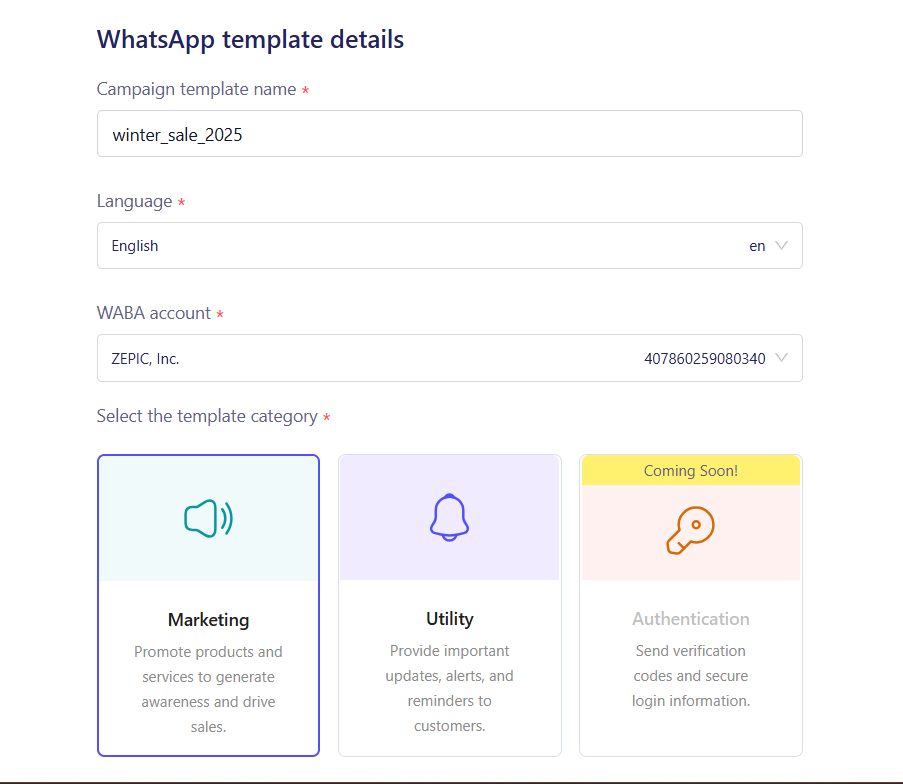
Provide the essential categorization details for Meta's review team.
- Template Name: Use a clear, descriptive name (e.g., cart_recovery_72hr, not template_1).
- Category: Select the primary purpose (e.g., Marketing for promotions, Utility for transactional alerts like shipping updates, or Authentication for OTPs).
Step 3: Craft the message content
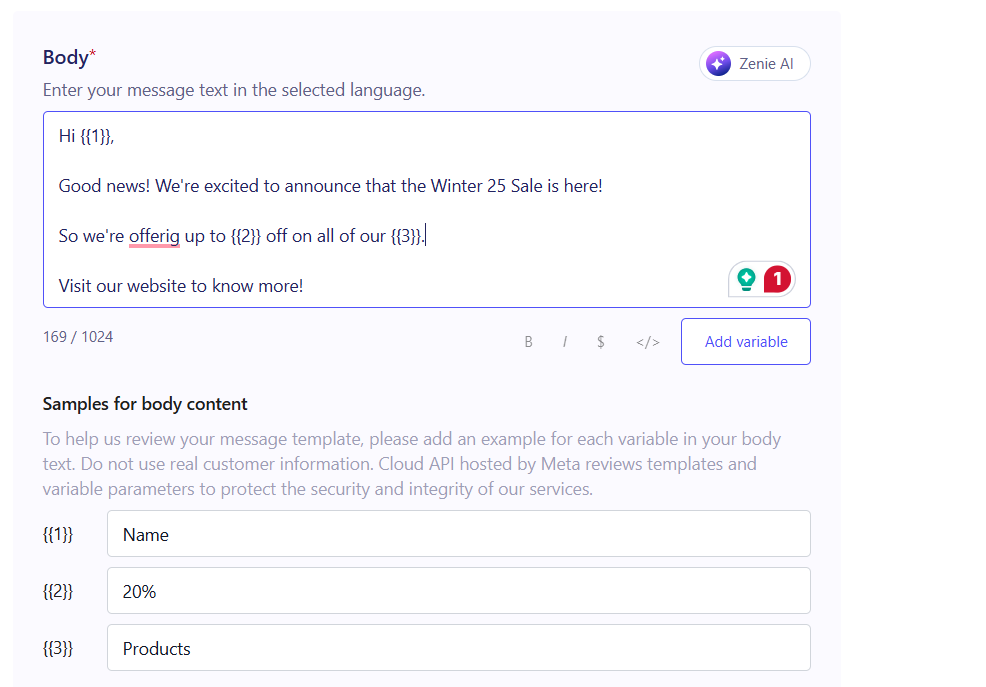
This is the body of the message. It must be compliant and use placeholders for personalization.
- Template Body: Write the exact text. Your message must not contain promotional content if the category is "Utility."
- Personalization: Use dynamic variables (placeholders like {{1}}, {{2}}) for any information that changes (e.g., Hello {{1}}, your order {{2}} has shipped!).
- Header/Footer (Optional): Add a static header (text or media) and a footer for legal disclaimers or branding.
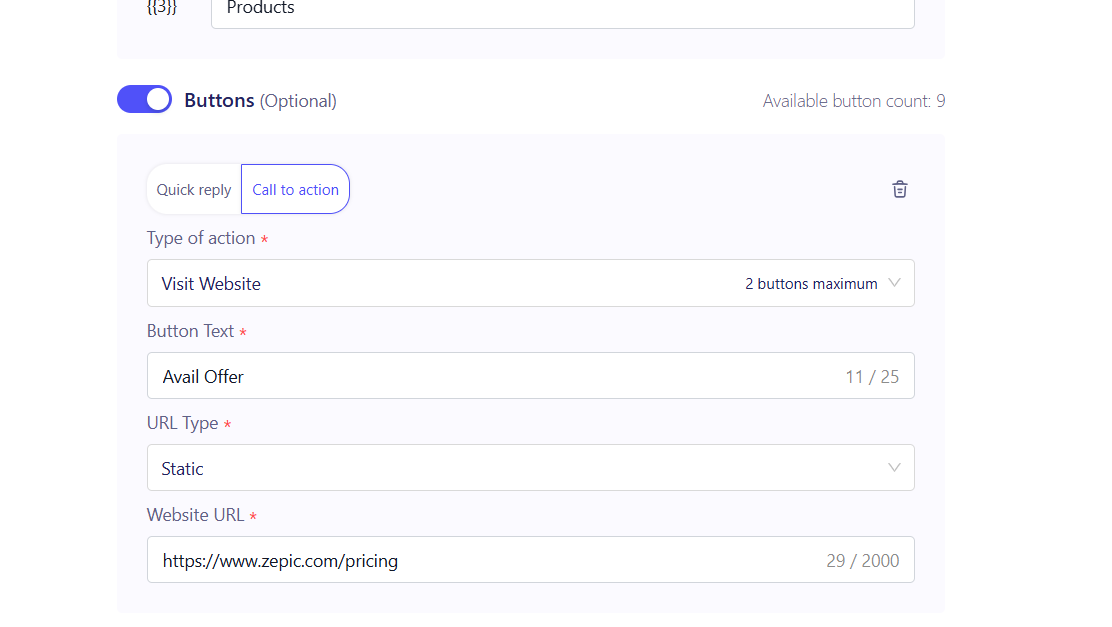
- Buttons (Optional): Add quick reply or CTA buttons (e.g., "View Cart" or "Call Support").
Step 4: Provide sample content (the key to approval)
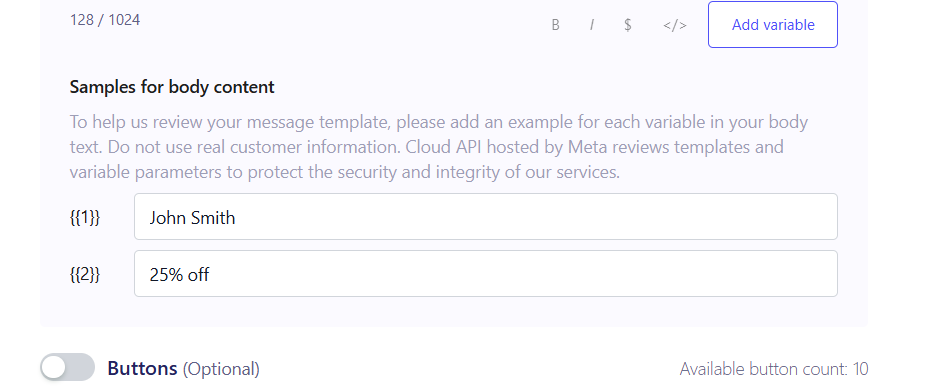
To show Meta exactly how the message will look to the customer, you must replace the placeholders with sample text.
- Replace {{1}} with "John Smith", {{2}} with "25% OFF", etc.
- This sample must clearly demonstrate that the template aligns with the chosen category and is not misleading.
Step 5: Submit for Meta review
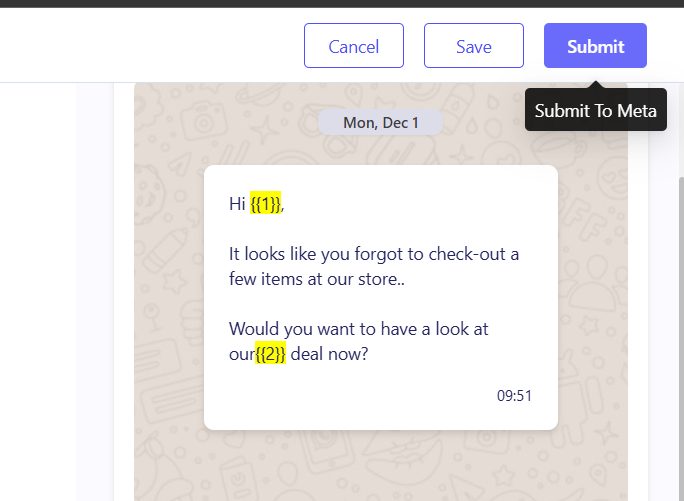
- Review your content one last time against the best practices.
- Click Submit to Meta. Review time is typically 15 minutes to 24 hours, but can vary.
Best practices: Why templates get rejected
Avoid these common mistakes to secure approval on your first attempt:
| Rejection reason | How to fix (best practice) |
| Mismatched category | Do not choose the 'Utility' category if the message offers discounts, promotions, or upsells. Use the 'Marketing' category for commercial intent. |
| Spam/Abusive content | Avoid excessive capitalization, exclamation points, and explicit language. Ensure links are working and lead to your business's domain. |
| Misleading variables | Make sure the dynamic variables ({{1}}) clearly represent the type of content they will replace (e.g., don't use {{1}} for a name if you intend to put a URL there). |
| Opt-out missing | Though not always explicitly required in the template body, ensure you include clear instructions for opting out in your overall messaging strategy. |
Would you like to look at how to create WhatsApp campaigns using flows and use cases for them?
Was this article helpful?
That’s Great!
Thank you for your feedback
Sorry! We couldn't be helpful
Thank you for your feedback
Feedback sent
We appreciate your effort and will try to fix the article