How to use Tags in WhatsApp Team Inbox for customer management in ZEPIC
When leads or queries flood in from your campaigns, how do you instantly know which ones are high-priority, which need follow-up, and which campaign generated them?
The Tagging Feature in ZEPIC's WhatsApp Team Inbox is a powerful organizational tool that solves this critical operational challenge.
Tags allow your team to instantly categorize conversations based on source, status, or customer intent, directly improving reporting, segmentation, and agent efficiency.
A step-by-step guide: Creating and applying tags
Follow these steps to integrate tags into your team's workflow. First, navigate to the conversation you want to tag in your Team inbox:
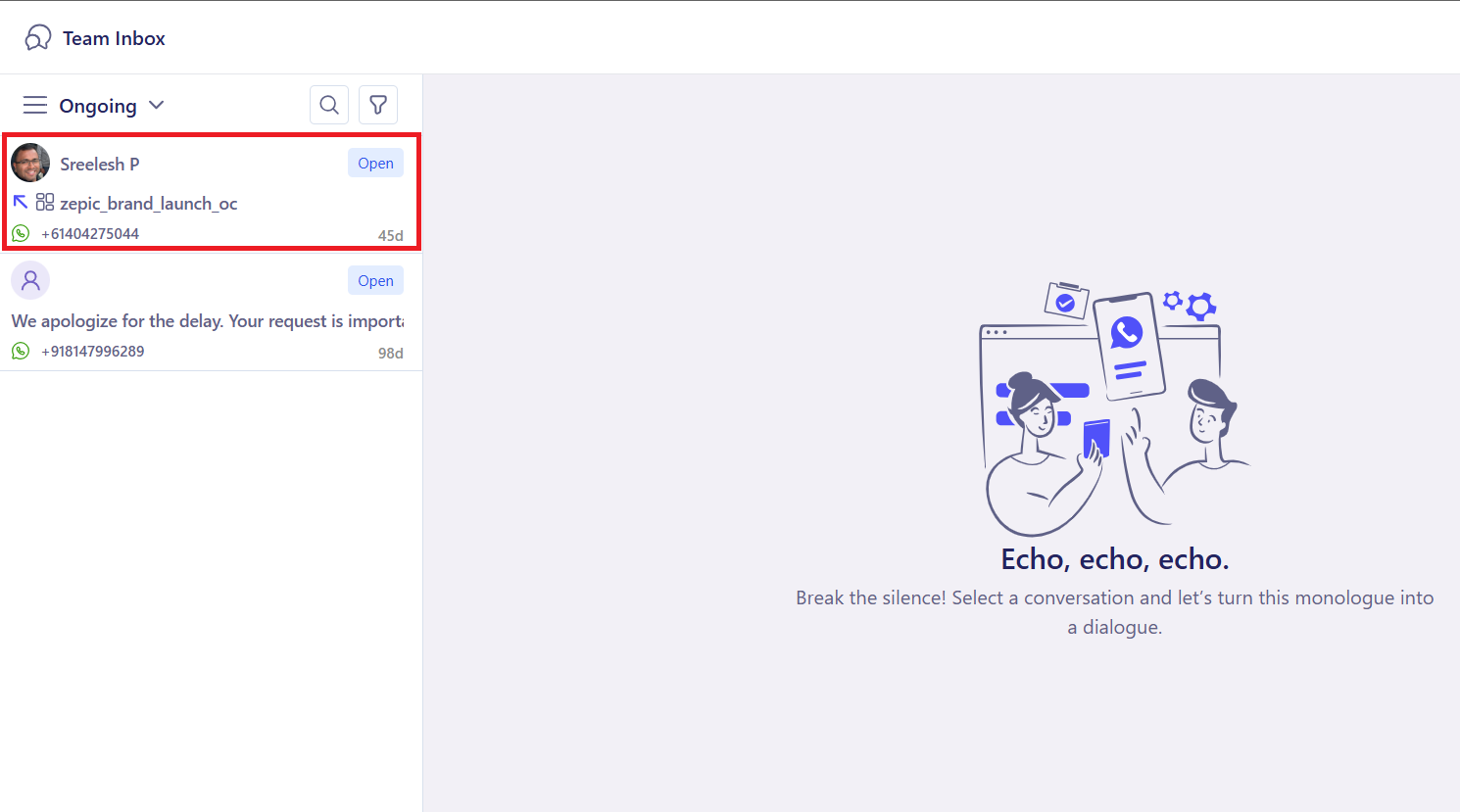
Step 1: Apply tags during live chat (agent task)
Tags should be applied by the agent immediately upon understanding the customer's intent or based on the conversation's source.
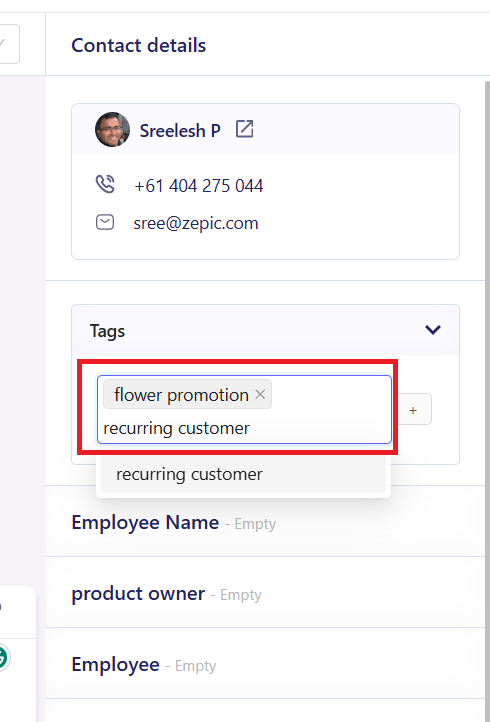
- Within the active chat window in the ZEPIC Team Inbox, locate the Tagging Panel (on the sidebar).
- Select or search for the relevant tags to apply (e.g., if a user asks about pricing, add Pricing_Query and High_Intent).
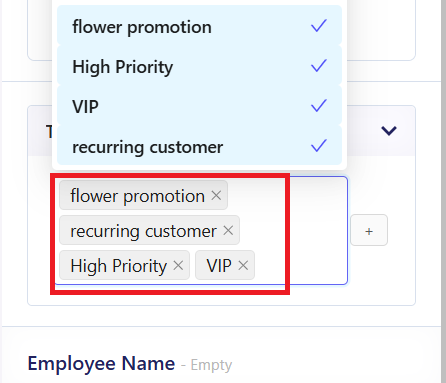
- Tags are instantly visible to the whole team, providing immediate context for any agent takeover.
Step 2: Filter conversations by tag
This is where efficiency skyrockets. Use tags to quickly manage your volume.
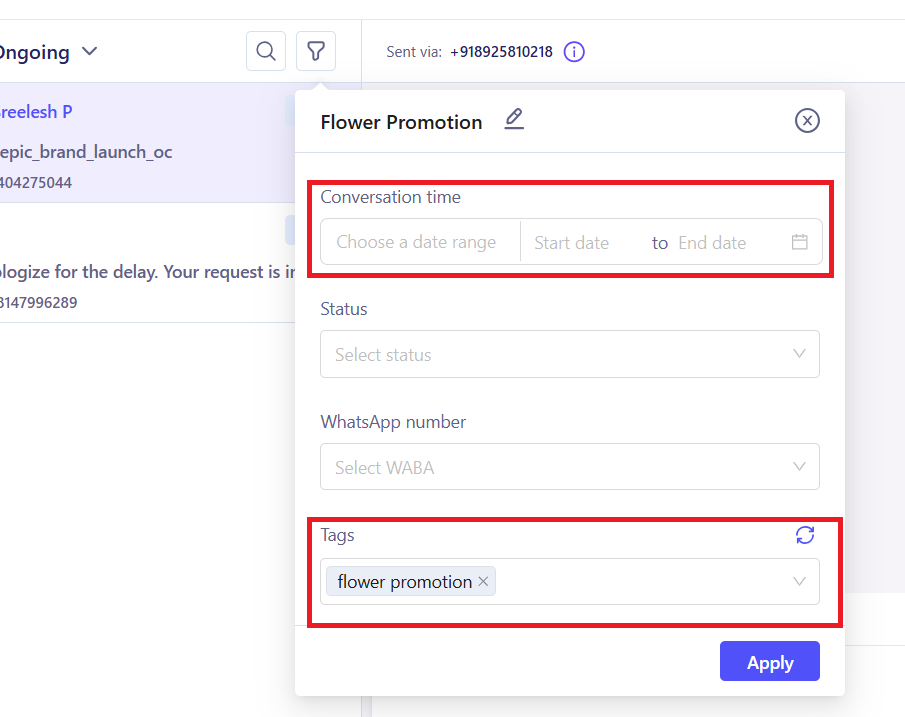
- In the main Team Inbox view, use the filter dropdown menu.
- Select a specific tag (e.g., filter by Payment_Pending). The Inbox instantly updates to show only those high-priority conversations requiring immediate action.
- You can also filter the conversation By using tagging, you can instantly help your team know which customers to prioritize and which ones need attention, and filter out conversations based on tags you or your team have set.
- This can even help you filter out a specific issue that occurs often and needs help with it a whole lot quicker (for instance, this can be a refund or a late delivery)
Want to know more about ZEPIC WhatsApp campaigns? Check out our article on setting up WhatsApp auto replies.
Was this article helpful?
That’s Great!
Thank you for your feedback
Sorry! We couldn't be helpful
Thank you for your feedback
Feedback sent
We appreciate your effort and will try to fix the article