How to set up Auto Replies in WhatsApp Team Inbox (ZEPIC guide)
The ability to set up intelligent Auto Replies in ZEPIC's Team Inbox allows every customer to feel acknowledged immediately, keeping the conversation alive.
Auto replies can be invaluable for business owners, e-commerce stores, and marketers. This can be a tool to give you control over timing, context, and brand voice, turning wait-time into a positive customer experience overall.
That said, in ZEPIC, an Admin role must be assigned to configure these settings, as they affect the entire team's workflow.
Step-by-step WhatsApp Auto Replies setup guide
Follow these steps to configure your automated responses and ensure 24/7 coverage:
Step 1: Configure your Auto Replies
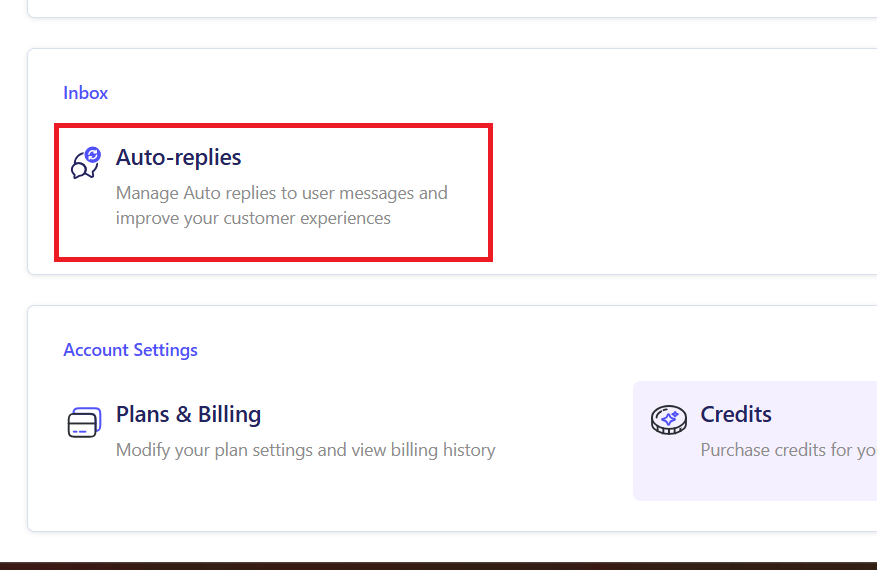
- Navigate to Admin Settings and find the Auto Replies section under Inbox. Auto Replies often depend on knowing when your team is actually available. So make sure you set your hours first.
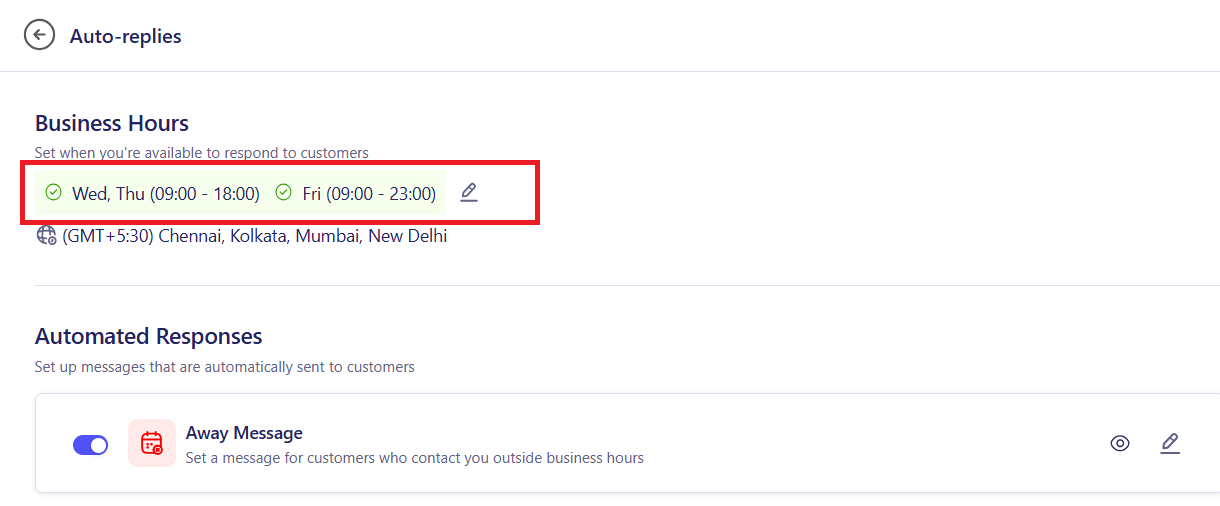
- Define your working days, times, and Time Zone. This data powers the logic for "Outside Business Hours" or Away auto-replies.
Step 2: Access the Auto-Replies Dashboard
The core configuration happens here, where you define the different types of automated messages.
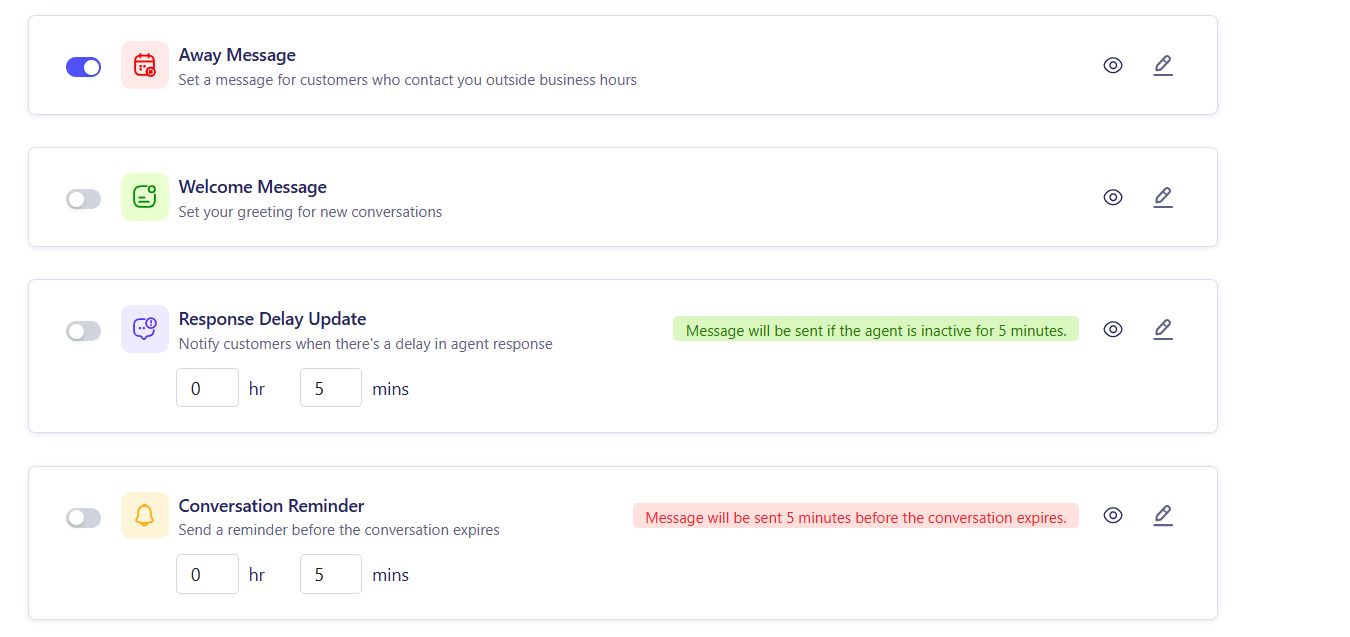
- You will see options for Away Messages, Welcome Messages, Response Delay Updates, and Conversation Reminders.
Step 3: Craft and schedule your messages
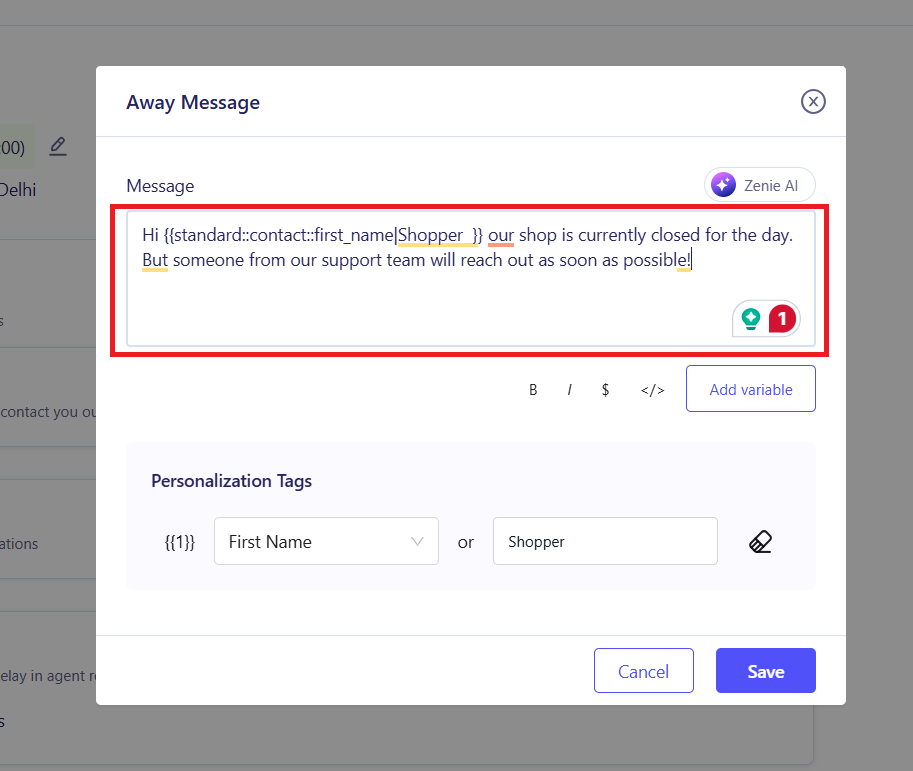
Select the type of message you want to set up (e.g., Away Message) and follow the prompts:
- Compose the Message: Use the rich content editor. When doing this, make use of personalization tags and maintain a consistent tone with your brand.
Set the trigger (For automated messages) or timings:
- Away: Sends only when your team and store are officially closed.
- Welcome Message: Sent as soon as the customer signs up to your website or makes a purchase.
- Response Delay: Sends when there is a delayed resolution or response time from your team.
- Reminder Messages: For conversations where the customer has not responded for a duration of time, you can send a reminder message indicating that the ticket will be closed if there aren’t any additional queries.
Step 4: Save and test
- Review your message and scheduling logic carefully, and click Save.
- Test: Send a test message to your WhatsApp number during and outside business hours to make sure the correct auto-reply is triggering instantly.
Setting up these rules moves your WhatsApp service from reactive to proactive, making sure you capture every lead and set a positive customer expectation from the first touchpoint.
Want to know about improving customer engagement? Why not check out our article on using tags in WhatsApp Teams?
Was this article helpful?
That’s Great!
Thank you for your feedback
Sorry! We couldn't be helpful
Thank you for your feedback
Feedback sent
We appreciate your effort and will try to fix the article