Migrating from a different BSP to ZEPIC
If you're currently using the WhatsApp Business API (WABA) with another provider (a different Business Solution Provider or "BSP"), the thought of switching might raise concerns about losing momentum or verified status.
The great news is that ZEPIC supports Number Porting, which allows you to easily migrate your existing WABA number to our platform.
This gives you access to ZEPIC's advanced features while allowing you to ramp up marketing automation and brand promotions without any hitch, and here’s how
Keep your assets: What you retain during migration
The primary pain point of switching is the fear of "starting over." Number Porting ensures you retain everything critical to your brand's credibility:
- Display name: Your recognized brand name stays exactly the same.
- Quality rating: Your hard-earned message quality score is maintained, protecting your sending capacity.
- Official Business Account (Blue Tick): Your coveted verified status is transferred instantly, preserving customer trust.
- WhatsApp phone number: Your existing number (and all customer contacts) remains the same.
Important: What you will lose
While the assets above are protected, one important thing is not transferred by Meta:
- Conversation history: Message history is stored by the previous BSP and cannot be ported to ZEPIC. Encourage your team to archive critical conversations outside of the previous platform if necessary.
Step-by-step guide: Executing the number port on ZEPIC
The migration process is secure, simple, and initiated under your control via the Meta Business Manager.
Prerequisite checklist
Before starting, ensure you have:
- Admin Role: Access to both your ZEPIC workspace and the Meta Business Manager account currently tied to the number.
- API Access: The number must currently be a WABA number (not a standard mobile app number).
Step 1: Initiate porting in ZEPIC
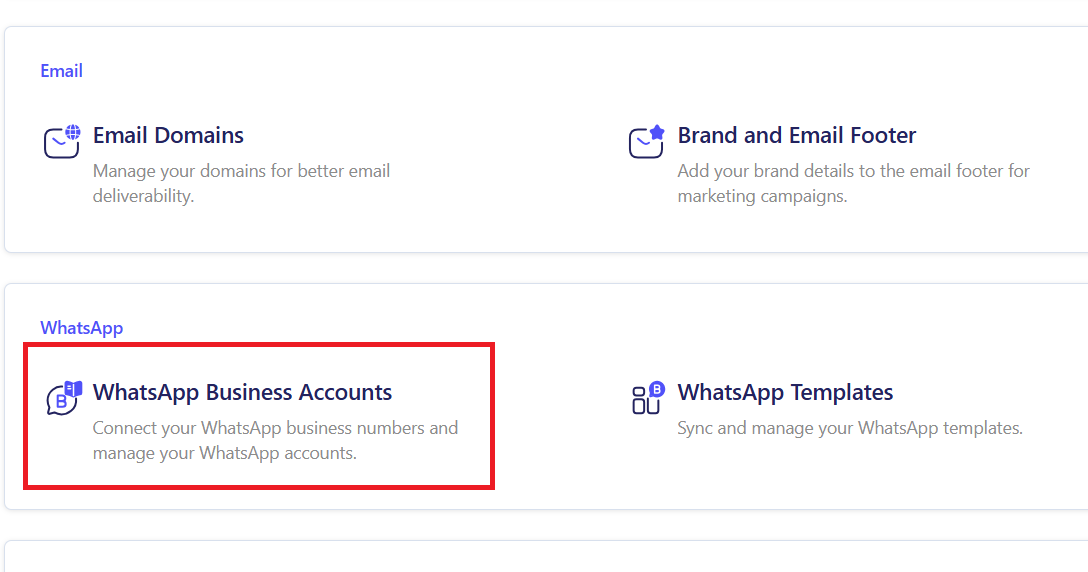
Start the process from your platform settings to migrate your existing number.
- Navigate to the WhatsApp Business section in the settings section of your ZEPIC Admin dashboard.
- Select WhatsApp and click the option to Add New Number or Connect WABA Account.
- ZEPIC will prompt you to log in with Facebook/Meta. Click this to launch the secure Meta wizard.
Follow these steps to link your Meta accounts and register your new WABA number.
This document will use a brand named PapaEarth, a ZEPIC customer. Each ZEPIC customer receives a dedicated domain to access their account, e.g., https://papaearth.myzepic.com.

Start in ZEPIC: Navigate to Settings > WhatsApp > WhatsApp Business Accounts in your ZEPIC dashboard.
Go to WhatsApp Business Account Settings: Navigate to WhatsApp Settings.

Step 2: Connect via the Meta Wizard
Meta's interface handles the ownership and verification your existing number to move it to ZEPIC.
- Log in: Log in using the Admin credentials for your Meta Business Manager account.
- Select Business Account: If you have multiple, select the Meta Business Account that has already been verified. You will be asked to log in to the WhatsApp Business Account (WABA) that is tied to the number.

360Dialog Popup: A 360Dialog popup will appear (360Dialog is our WhatsApp BSP partner). Fill in the details:

Choose “Yes; this number is connected to WhatsApp Business API.”

Choose “Yes”

Click “Start Embedded Login”

Select Your WhatsApp Business Profile: You can modify the information if needed but it will require additional verification from Meta, and needs to be modified on Meta beforehand with documentation.

- Enter Number: Input the full phone number, including the country code (e.g., +1234567890).
- Choose Verification Method: Select your preferred method: SMS or Voice Call.\
- Enter OTP: Meta will immediately send a One-Time Password (OTP). Enter this code into the wizard to confirm you own the number.

Completion: You will be redirected to a Thank-You page. Wait for the pop-up to close, then click “Refresh” to see the WABA account.

Final Confirmation: Once the number is successfully verified, you will be redirected back to ZEPIC. Your new WhatsApp sender will appear as Active and ready to use for campaigns and automation.
Step 4: Go Live on ZEPIC
Once the OTP is confirmed, management is instantly transferred to ZEPIC.
The number becomes fully operational on the ZEPIC platform, ready to integrate with your marketing automation, routing rules, and the Team Inbox.
Was this article helpful?
That’s Great!
Thank you for your feedback
Sorry! We couldn't be helpful
Thank you for your feedback
Feedback sent
We appreciate your effort and will try to fix the article